
How to make a personalized birthday video or greeting
The short version
- Pick the occasion: birthday, invitation, thank you, holiday card or name song.
- Names, ages, dates and messages appear exactly as you type them, so check spelling twice.
- Children are always drawn, never animated from a photo.
- Planning is free; the Plan card shows the price before anything is made.
This guide is for anyone with an occasion coming up: a child's birthday, a party you need to invite people to, a thank-you for a teacher, a holiday card for the family group chat, or a song with someone's name in every chorus. You will end up with a short animated greeting where the name, the age, the date and your message appear on screen spelled exactly as you typed them.
Who this is for
That last part matters. Names are set in type by us, never drawn into a picture, so "Maya" never comes out as "Mava."
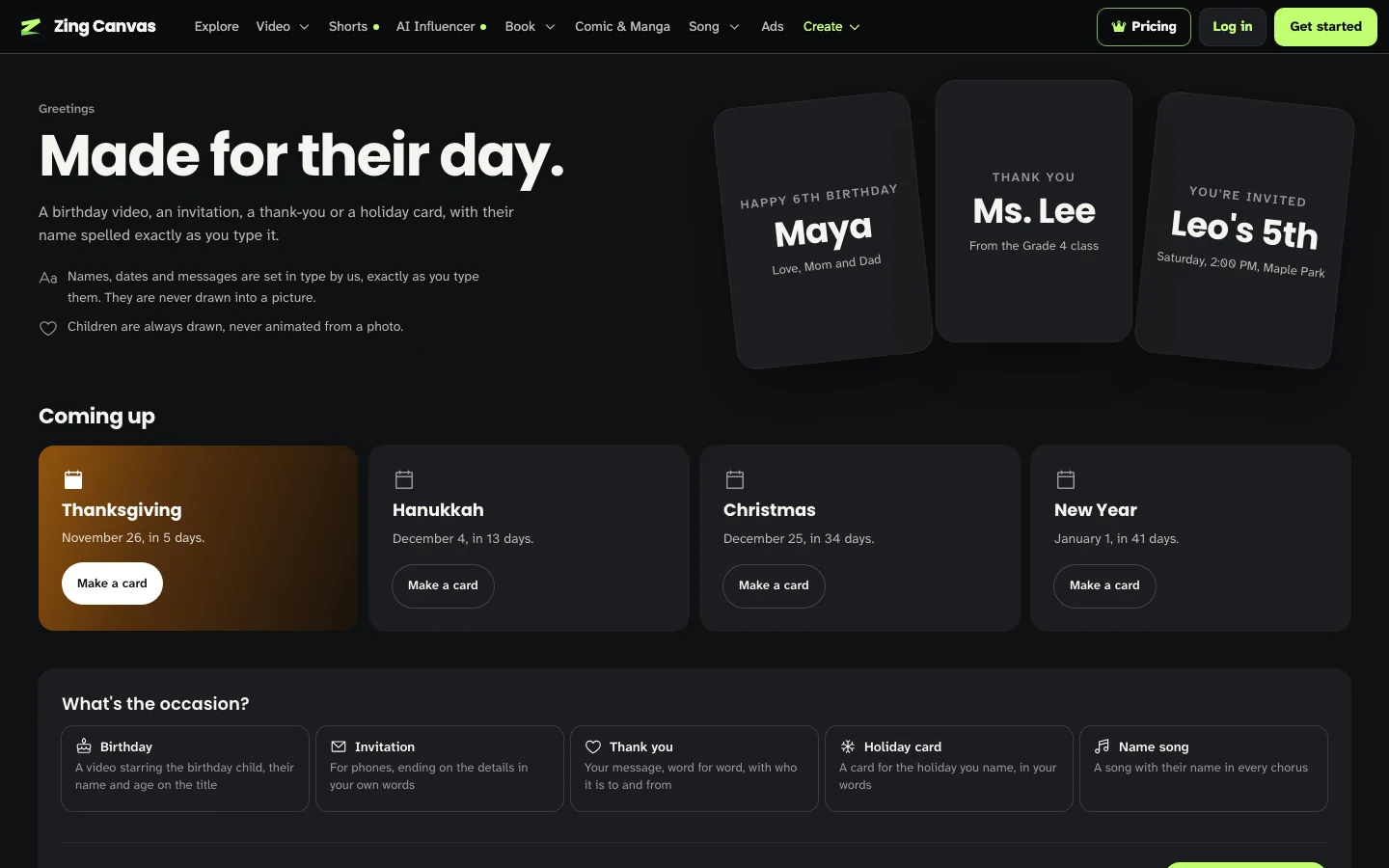
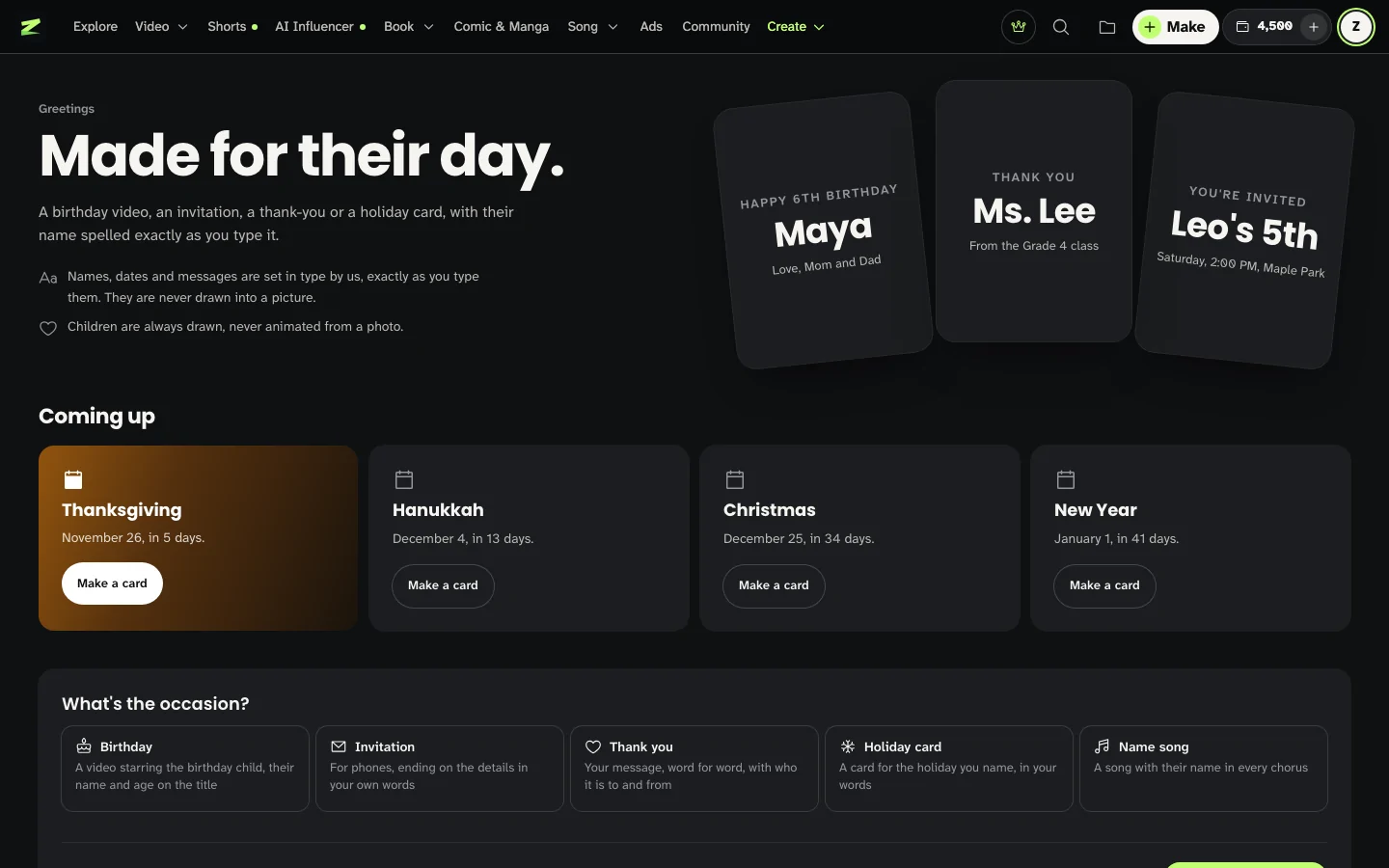
The Greetings page is at /app/make/greetings, in the Create menu.
How to make a personalized birthday video or greeting
Step 1: Pick the occasion
Under "What's the occasion?" pick one:
- "Birthday" — "A video starring the birthday child, their name and age on the title."
- "Invitation" — "For phones, ending on the details in your own words."
- "Thank you" — "Your message, word for word, with who it is to and from."
- "Holiday card" — "A card for the holiday you name, in your words."
- "Name song" — "A song with their name in every chorus."
For a holiday card, you will also see "Which holiday?" Pick one from the list, or type it under "Or type it." Only the holiday you name is shown.
A shortcut: the "Coming up" shelf shows the next holidays, nearest first. Press "Make a card" on one and the occasion, the holiday and a default message are filled in for you.
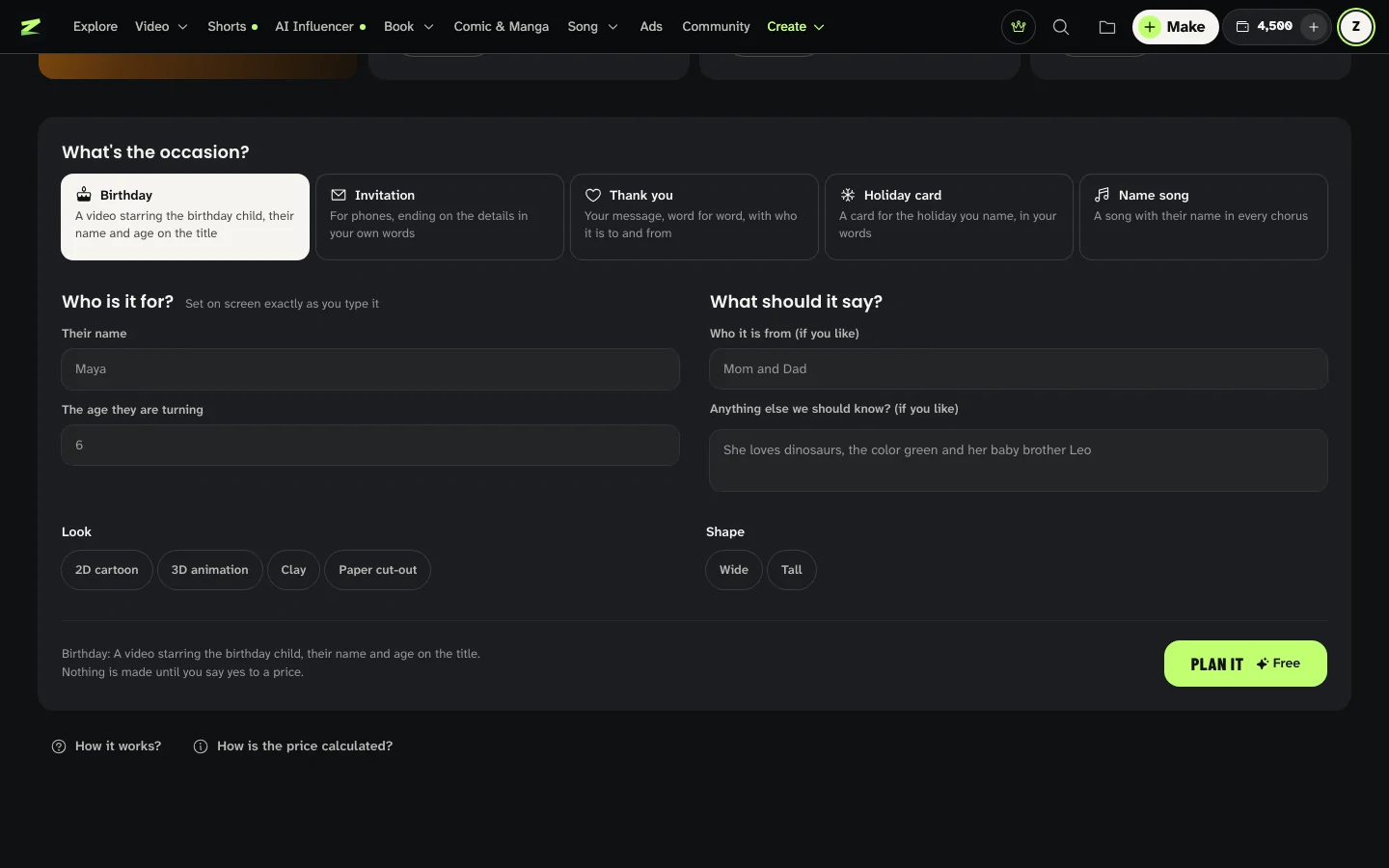
"Birthday" selected. The fields under it change with the occasion. Step 2: Type who it is for
"Who is it for?" carries the hint "Set on screen exactly as you type it." What it asks depends on the occasion:
- Birthday: "Their name" and "The age they are turning."
- Invitation: "What is the party?" (for example, "Leo's 5th Birthday Party").
- Thank you and Holiday card: "Who it is to."
- Name song: "Their name," "How do you say it? Type it the way it sounds (if you like)" and "Their birthday age (if you like)."
Check spelling, capitals and accents now. What you type is exactly what appears.
For a name song, the "How do you say it?" field is worth filling in for any name that is often said wrong. Type it the way it sounds, like "SHIV-awn" for Siobhan.
Step 3: Type what it should say
"What should it say?" holds the words on screen:
- Birthday: "Who it is from (if you like)."
- Invitation: "Date," "Time," "Place" and "How to reply (if you like)." The hint is "Typed by you, never guessed."
- Thank you and Holiday card: "Your message" (up to 240 characters) and "Who it is from."
- Name song: "What do they love? (if you like)."
Every occasion also has "Anything else we should know? (if you like)." Use it for the details that make it theirs: "She loves trains and the color purple," "He just learned to ride a bike."
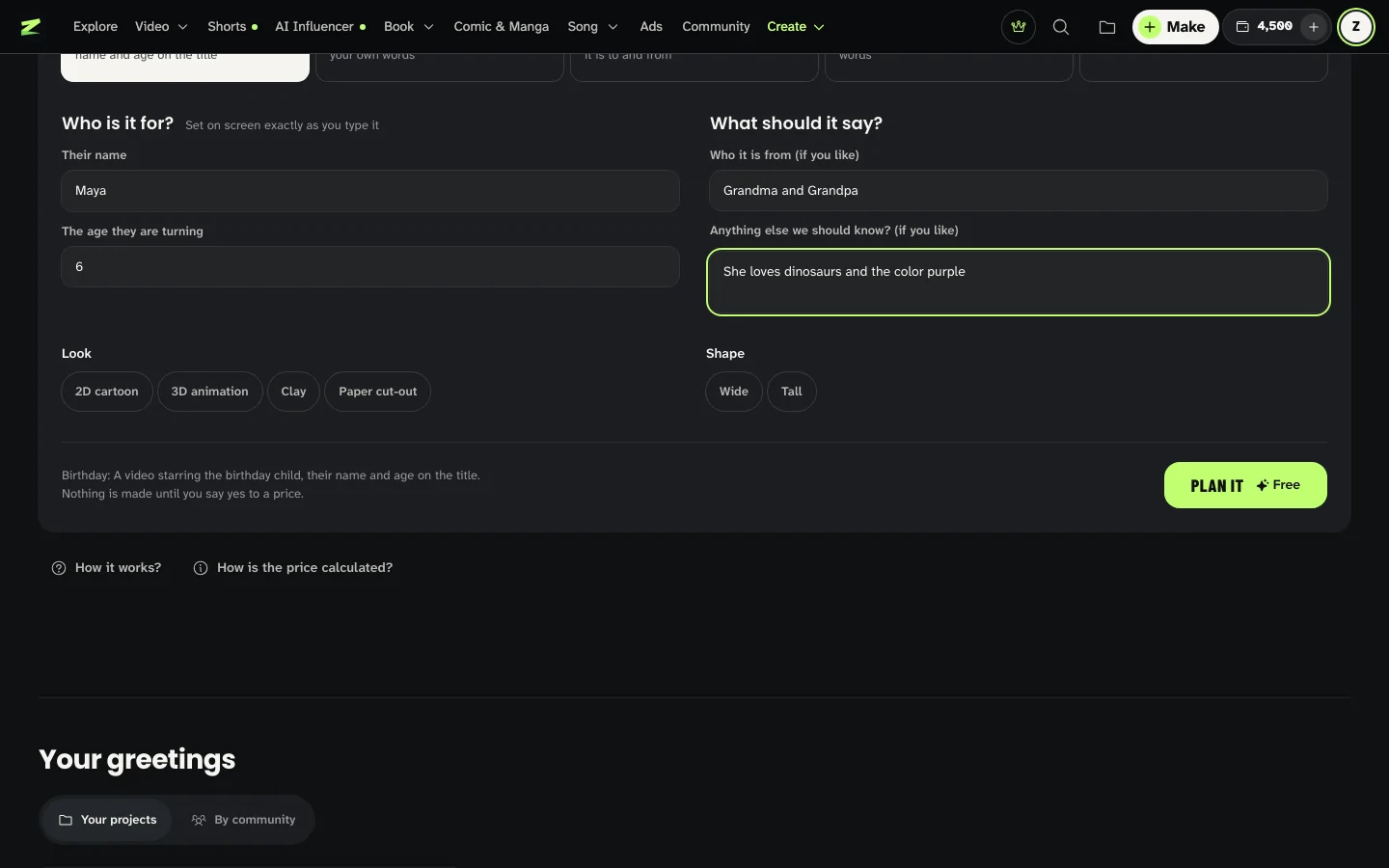
A birthday filled in. Every word here appears on screen exactly as typed. Step 4: Pick a look and a shape
Look: "2D cartoon," "3D animation," "Clay" or "Paper cut-out" (a name song offers the first three).
Shape: a birthday and a name song come "Wide" or "Tall." An invitation and the cards come "Tall" or "Square," because they are usually sent to phones.
Children are always drawn, never animated from a photo.
Step 5: Plan it and check the words
Press "PLAN IT · Free." A planning panel opens, headed "Planning a video," with your typed words as the words on screen. It may ask a quick question or two first, such as "How long?", with "You choose" already picked so you can skip it. Read the plan, and ask for any change in plain words in the box at the bottom: "Changes to the plan are free."
Planning free; price on the Plan card
The Plan card, "Your video plan" ("Your song plan" for a name song), shows the price: "This video: about N credits," a range, what you have, "That is $X (1 credit = 1 cent)," and the amount it will ask you about before going over. With enough credit, the button reads "Make my video · about N credits." With too little, it reads "Add credit and make my video" and opens the Add credit sheet first. Nothing is charged until you press it. It takes about 25 minutes; you can close the page, and you will get an email when it is ready.
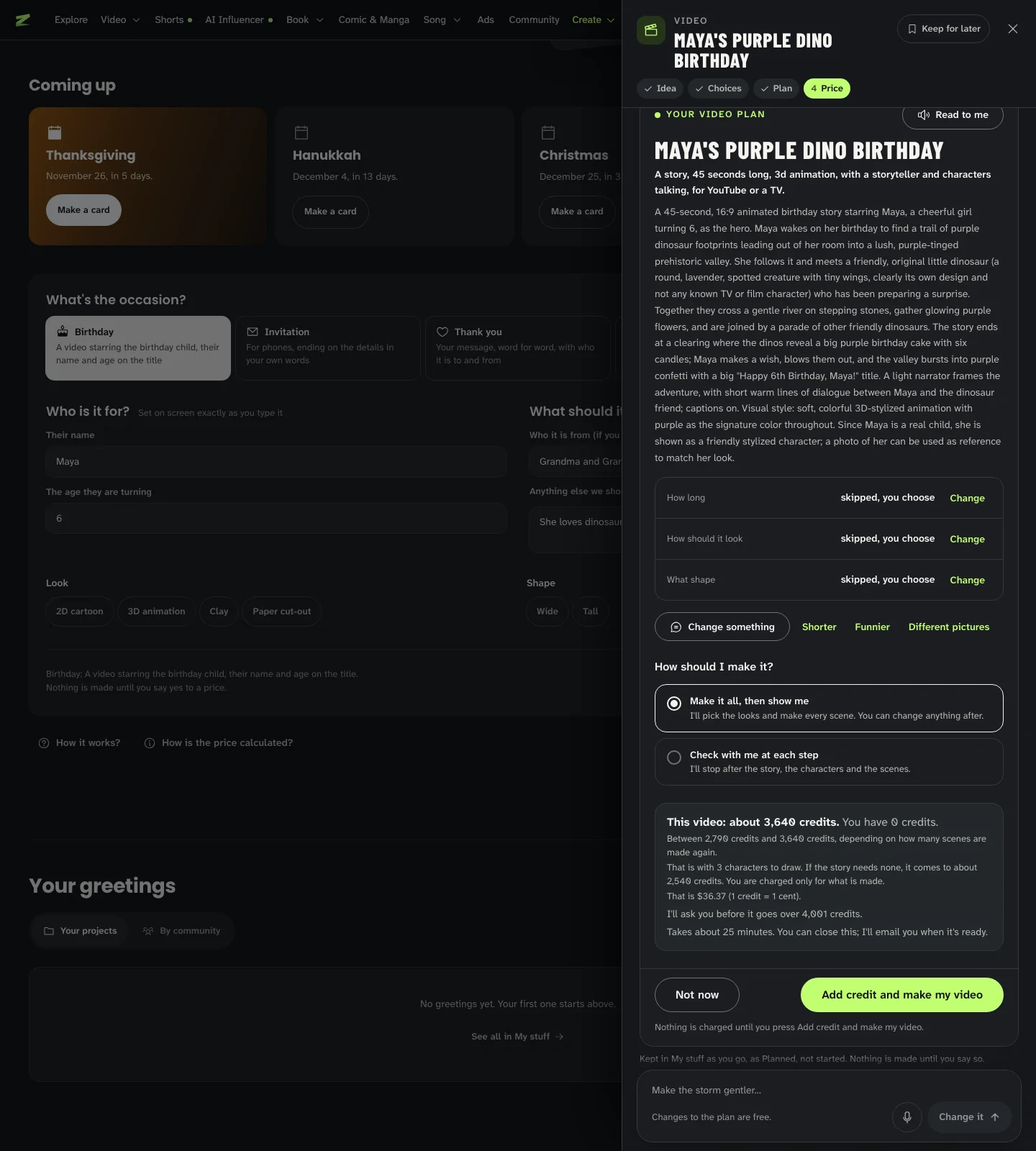
Maya's Plan card. With no credit yet the button reads "Add credit and make my video"; with enough, "Make my video · about N credits." On /app/make/greetings press "Make a card" on the nearest holiday in "Coming up", show the occasion, holiday and message filling in. Step 6: Watch and send
When it is ready, watch it through once with the sound on, then check every name and date on screen. Download it from Share, or share a link. Your greetings collect under "Your greetings" on the page.
Download free
For a birthday, send it the night before so it is the first thing they see in the morning. For an invitation, send it at least two weeks ahead and post the details in text too, so people can copy the address.
Ideas for each occasion
Birthday. Put one thing they love in "Anything else we should know?" A dinosaur, a soccer ball, a favorite color. A birthday video that shows their thing feels made for them, not made for anyone. For a first birthday, the video is really for the family, so make it Wide and play it on the TV at the party.
Invitation. Make it Tall, because it will be opened on phones. Type the date the way people say it ("Saturday, December 6") and the place the way they will search it ("Riverside Park, Pavilion 2"). Use "How to reply" for a name and a number or "Reply in the group chat." Send the video, then paste the details as text under it so guests can copy the address into their maps.
Thank you. A teacher, a coach, a neighbor who shoveled the walk. Keep "Your message" to two sentences and say one specific thing: "Thank you for staying late to help Sam with fractions" means more than "Thanks for everything." Square works well in a messaging app; Tall works for a Story.
Holiday card. The "Coming up" shelf is the quickest way in. If your holiday is not on the list, type it under "Or type it." Only the holiday you name is shown, so a Diwali card shows Diwali, not a mix of holidays. One card can go to the whole family group chat at once.
Name song. The child's name is sung in every chorus. Fill in "How do you say it?" for any name people often say wrong, and "What do they love?" so the verses are about them. Pick Wide to play it at the party, Tall to send it to grandparents. For a song of any kind, with your own words or ours, see how to make a custom song.
Before you press the button
Read every field one more time, out loud. Then ask someone else to read the name and the date. It takes thirty seconds and it is the one check that matters most on a greeting, because the words on screen are exactly what you typed.
What it costs
Planning is free. "A greeting's price counts its length and how much is drawn and made for it." The Plan card shows it before anything is made. Downloads are free. See pricing.
Common mistakes
- A typo in the name. — It appears exactly as typed. Read it twice.
- Leaving the invitation details vague. — Write "Saturday, December 6," not "next Saturday."
- Expecting a photo of the child to be animated. — Children are always drawn.
- Too long a message on a card. — Keep it to two short sentences.
Questions
Will the name be spelled right?
Yes. Names, dates and messages are set in type exactly as you type them.
Can I make an invitation with the date and place?
Yes, choose "Invitation" and fill in "Date," "Time" and "Place."
Is there a song with their name?
Yes, choose "Name song."
Can I make a holiday card for any holiday?
Yes, pick one or type it under "Or type it."
Make it yourself
Who wrote this
The team building Zing Canvas
Written by the people who build Zing Canvas: step-by-step guides to making picture books, comics, bedtime stories, greetings, songs, music videos, shorts and ads in Zing Canvas, with the real screens, what each step costs, and the everyday problems they solve.