
How to set up parental controls and a child's profile
The short version
- Add up to six profiles; the birth month and year set the age band.
- Set a monthly spending limit in credits before you hand it over.
- Choose the studios, quiet hours and a daily limit; some things are never open.
- Nothing is shared in the kids' Community without your yes.
This guide is for parents and guardians who want their child or teen to make books, comics, songs and stories on their own, safely, with a spending limit and with the parent seeing everything. You will end up with a profile for each child (up to six), each with its own sign-in, its own credit limit, the studios you choose, quiet hours, and your yes before anything is shared.
Who this is for
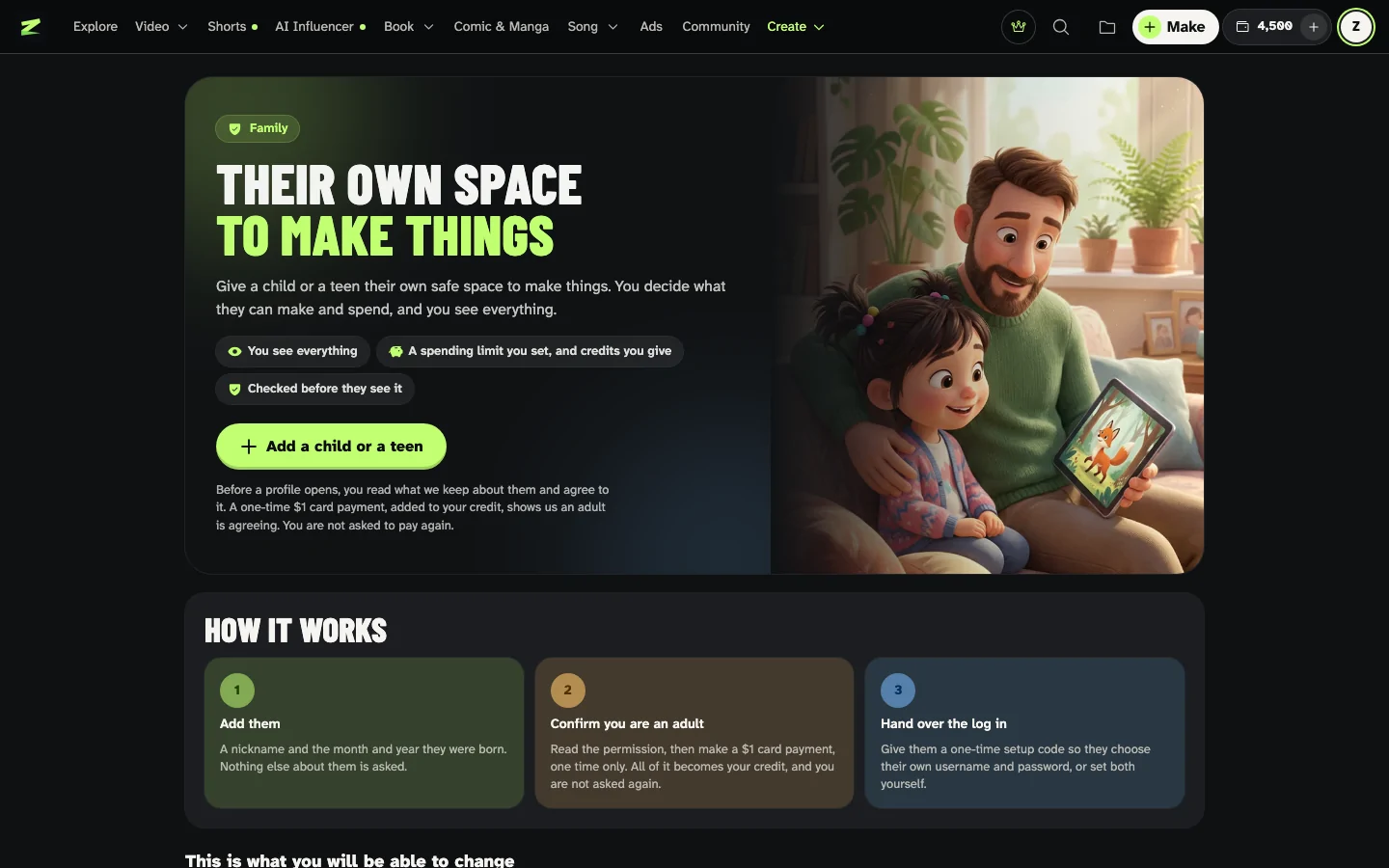
The family page is under Settings, "Family: kids and teens" (or /app/family). Only the account owner can open it. Its heading reads "Their own space to make things," and "How it works" sums up the three steps: add them, confirm you are an adult, and hand over the log in.
How to set up parental controls and a child's profile
Step 1: Add a child or a teen
Press "Add a child or a teen." Fill in:
- "Nickname" — "What we call them. It does not have to be their real name."
- "When were they born?" — "Month" and "Year." This sets the age band. "Only the month and year are kept, so the profile's rules change when they turn 13 and it ends when they turn 18."
- "Their username and password" — "Let them choose" (after your permission you get a one-time setup code to hand them) or "I'll set them now" (a "Username" and a "Password" of 10 or more characters).
Once you pick the month and year, the form shows which kind of profile it will be, such as "Child profile (Under 13)," and what it can make. Then press "Next: your permission." The age bands are "Little kids, 5 and under," "Kids, 6 to 8," "Big kids, 9 to 12," "Teens, 13 to 15" and "Older teens, 16 to 17." Each band changes what the profile can make and how its screens look. Little kids make books, stories and characters only, and you share for them.
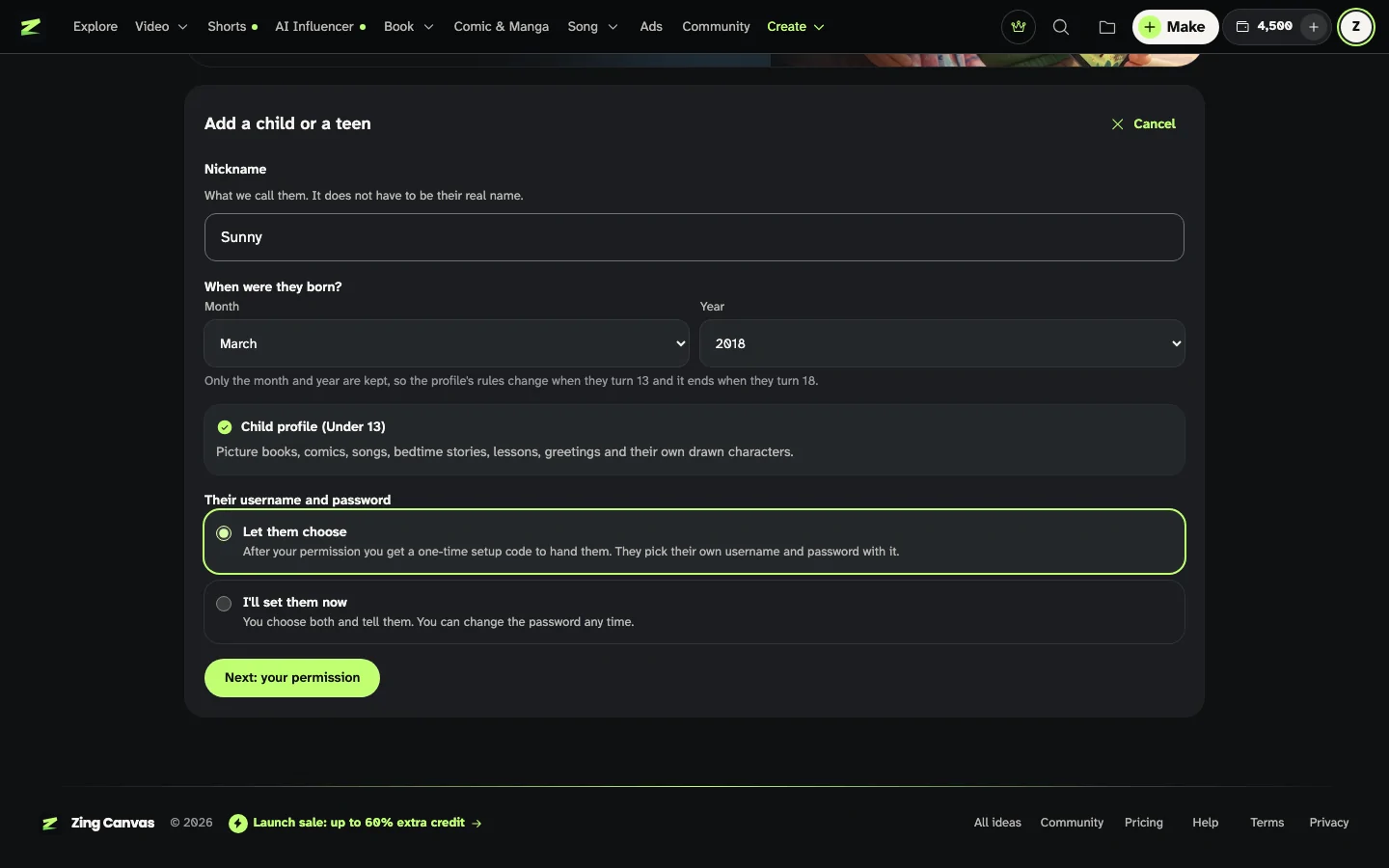
Adding Sunny: a nickname, the month and year they were born, and how they will sign in. Step 2: Give your permission
"Your permission for this profile" says what they can make and what they can never do, then who is agreeing, "What we keep about them" and "What we use it for." Read it, check "I agree, and I give my permission," and press "Confirm with a $1 card payment." "One time only": the $1 is added to your account as credit (100 credits), not kept as a fee, and you are not asked to pay again for another profile. If you have confirmed before, the button reads "Agree and open {nickname}'s profile." Until you agree, the profile waits under "Profiles" marked "Waiting for your permission," and nobody can log in to it.
$1 once, returned as 100 credits
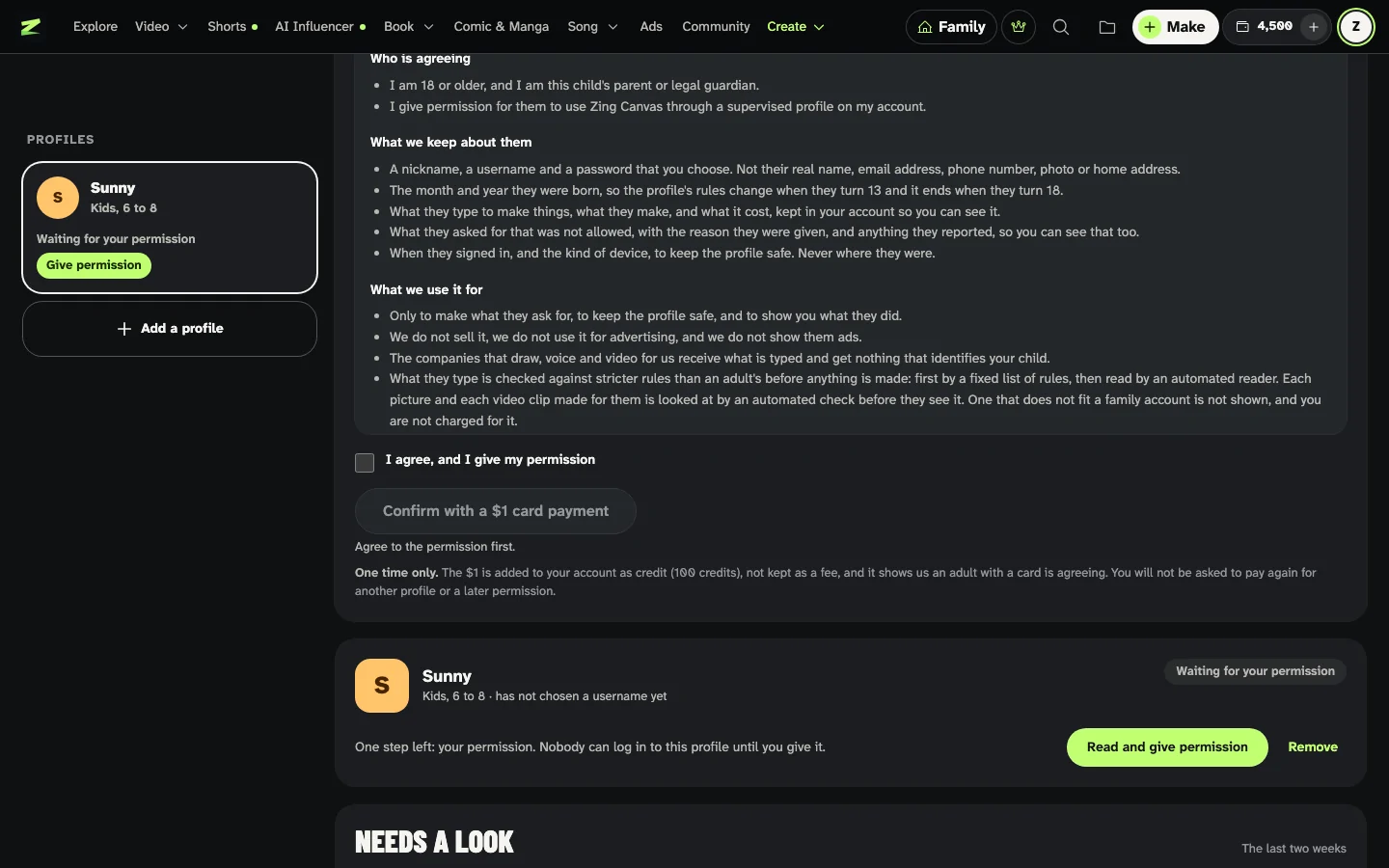
Your permission: read what is kept and why, check the box to agree, and confirm once with $1 that comes back as credit. Step 3: Set the spending limit
In the control center, under "Money," set "Spending limit per month": "None," 250, 500, 1,000 or 2,000 credits, or "Or another amount, in credits." It starts again on the 1st. You can also gift credits (50, 100, 250 or 500), and press "Stop spending until next month" at any time. "Spending, by day and by work" shows where credits went.
Free
Start low. 500 credits ($5) a month is enough for a few small books or songs, and your child learns to choose.
Step 4: Choose the studios and the time limits
Under "Time and limits":
- "Studios on or off" — "Picture books and comics," "Story videos: bedtime, lessons, greetings and songs," "Their own characters," and for teens "Videos and shorts," "Pictures," "Sharper picture and video," "Voice-over" and "Looking at Community."
- "Quiet hours" — "Nothing new is made between these times."
- "A daily limit" — from 1 to 50 new works a day.
- "More time today" — lift quiet hours and the daily limit for today.
"What is never open to them" stays closed: "Nobody can turn these on, you included."
Step 5: Decide about sharing
The kids' Community is off until you turn it on. Read "Let them share in the kids' Community," check "I agree, and I turn sharing on for this profile," and press "Turn sharing on." Sharing is for ages 6 and up.
Set "Shares a day," who may follow them ("I approve each one" or "Anyone in their age group"), who sees their posts, and whether "Other children can comment on {nickname}'s posts." Children 12 and under comment only with fixed phrases like "So cool!" Each share waits for your "Approve" or "Not now."
Step 6: Hand it over
Your child signs in at /family-login ("Kids and teens"), with their setup code or the username you set. Their screens are their own: round places for "Home," "Make," "Draw," "My stuff" and "Community" (three places for little kids), a star with their credits, a "Me" bubble, and a "Not right?" flag on every page. Every kid screen fits on one view, with no scrolling.
If something does not feel right, they press the flag, pick a reason, and press "Yes, tell my grown-up." You are told. When they want more credits, they press "Ask my grown-up," and you can "Give more," "Rest of today" or "Not now."
Step 7: Stay in touch
Under "Staying in touch," turn on "A weekly summary" ("Email me the week") and "A note at once" for reports and requests. "What they did" shows everything they made. "Your controls" lets you "Pause," download "A copy of their data," "Take back permission" or "Delete their data."
What each age band sees
Little kids, 5 and under. Three places only (Home, Draw, My stuff), big pictures to tap, and no prices shown on the tiles. They make books, stories and characters, and you share for them.
Kids, 6 to 8, and big kids, 9 to 12. All five places. Tiles for a picture book, drawing, a comic, a song, a bedtime story and a greeting, each with its star cost. If sharing is on, they comment with fixed friendly phrases only.
Teens, 13 to 15, and older teens, 16 to 17. Their screens look older, and, if you turn them on, they also see video, shorts and pictures. They can type short comments with no links, usernames or numbers. Older teens see only teens' shares.
Whatever the band, every made thing is checked before they see it, and you see everything in "What they did."
A first week that works
Sit with them for the first project. Pick a Tiny book together (see how to make a picture book), let them type or say the idea, and watch it come back. Show them the star and what it means. Then let them make the next one alone, and look at "What they did" together at the end of the week. A weekly summary email keeps you in the loop without checking every day.
What it costs
Adding a profile asks a one-time $1 card payment that becomes 100 credits. After that, your child spends from your credits up to the monthly limit you set. Credits are 1 cent each. See pricing.
Common mistakes
- No spending limit. — Set one before handing it over.
- Sharing on for a young child. — Leave it off until you have looked together.
- The wrong birth year. — It sets the band; "Treat as" moves only within child or teen.
- Forgetting quiet hours on school nights. —
Questions
How many profiles can I add?
Up to six.
Can I see everything they make?
Yes, under "What they did."
Can strangers contact my child?
Children follow and comment only in their own age group, and you approve shares and followers.
How do they sign out?
A child's sign-out asks for your password, so they stay in their profile.
What if they need more time today?
Use "More time today" to lift quiet hours and the daily limit for today only. When they ask from their profile, you can give 15 minutes, 30 minutes or an hour.
Make it yourself
Who wrote this
The team building Zing Canvas
Written by the people who build Zing Canvas: step-by-step guides to making picture books, comics, bedtime stories, greetings, songs, music videos, shorts and ads in Zing Canvas, with the real screens, what each step costs, and the everyday problems they solve.