
How to make a personalized picture book
The short version
- Describe the idea or bring your own words; both are illustrated in the look you pick.
- In Advanced, choose the reader's real age, then the length: Tiny and Mini are the cheapest way to try.
- Get the characters right in the Characters step, before any page is painted.
- Share a link or download the PDF free; a printed copy needs at least 24 bound pages.
This guide is for parents, grandparents, teachers and anyone who wants a picture book that is truly theirs: a story starring a child, a family pet, a classroom's mascot, or a tale you have told out loud for years and want to see on paper. You will end up with a finished, illustrated book you can read on screen, share with a link, and download as a PDF to print at home.
Who this is for
You can describe an idea and have every page written for you, or bring your own words and have them illustrated. Either way, every step is priced before it runs.
The Book studio is at /app/make/book, under "Book" in the top bar.
How to make a personalized picture book
Step 1: Describe the story, or bring your own words
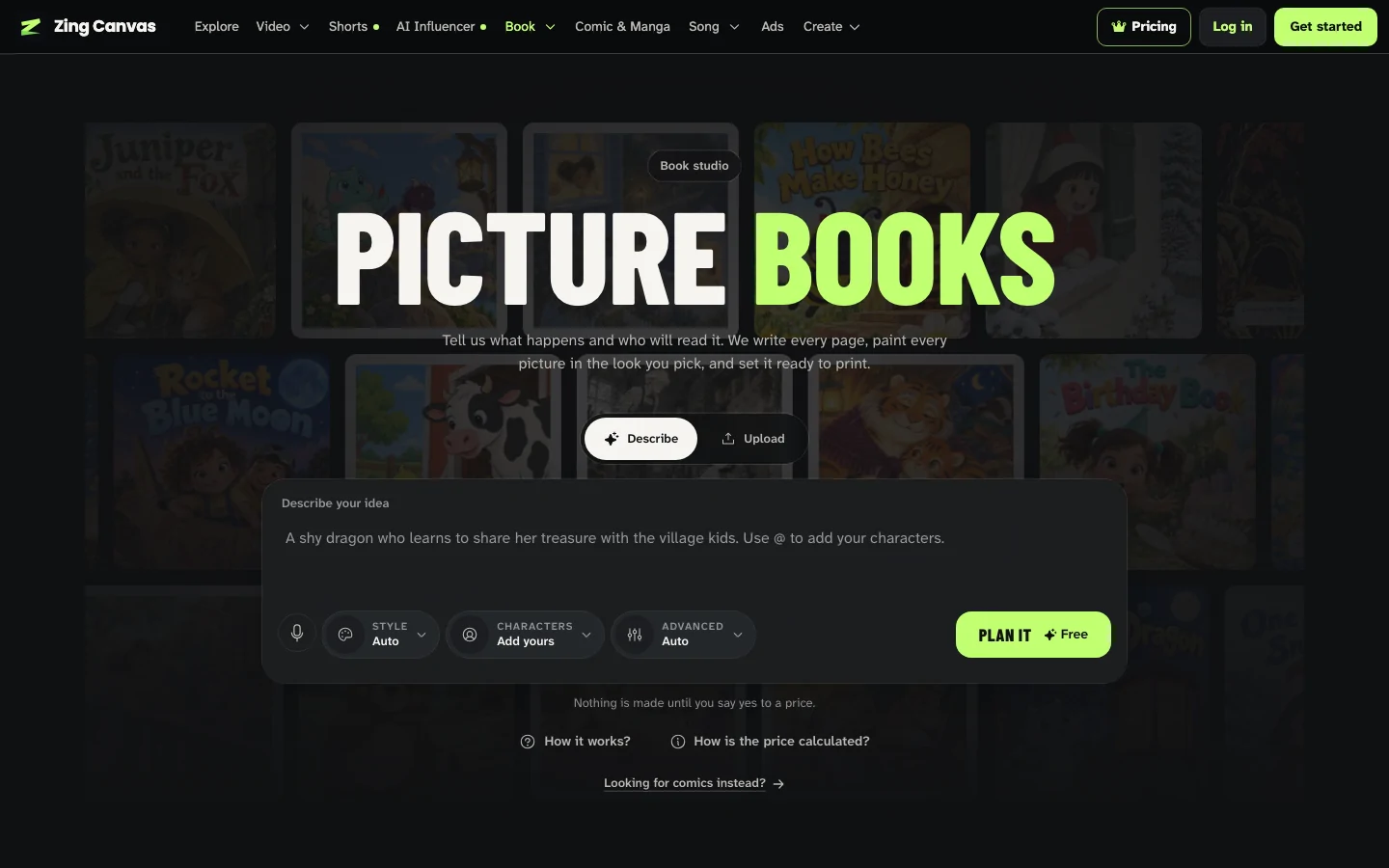
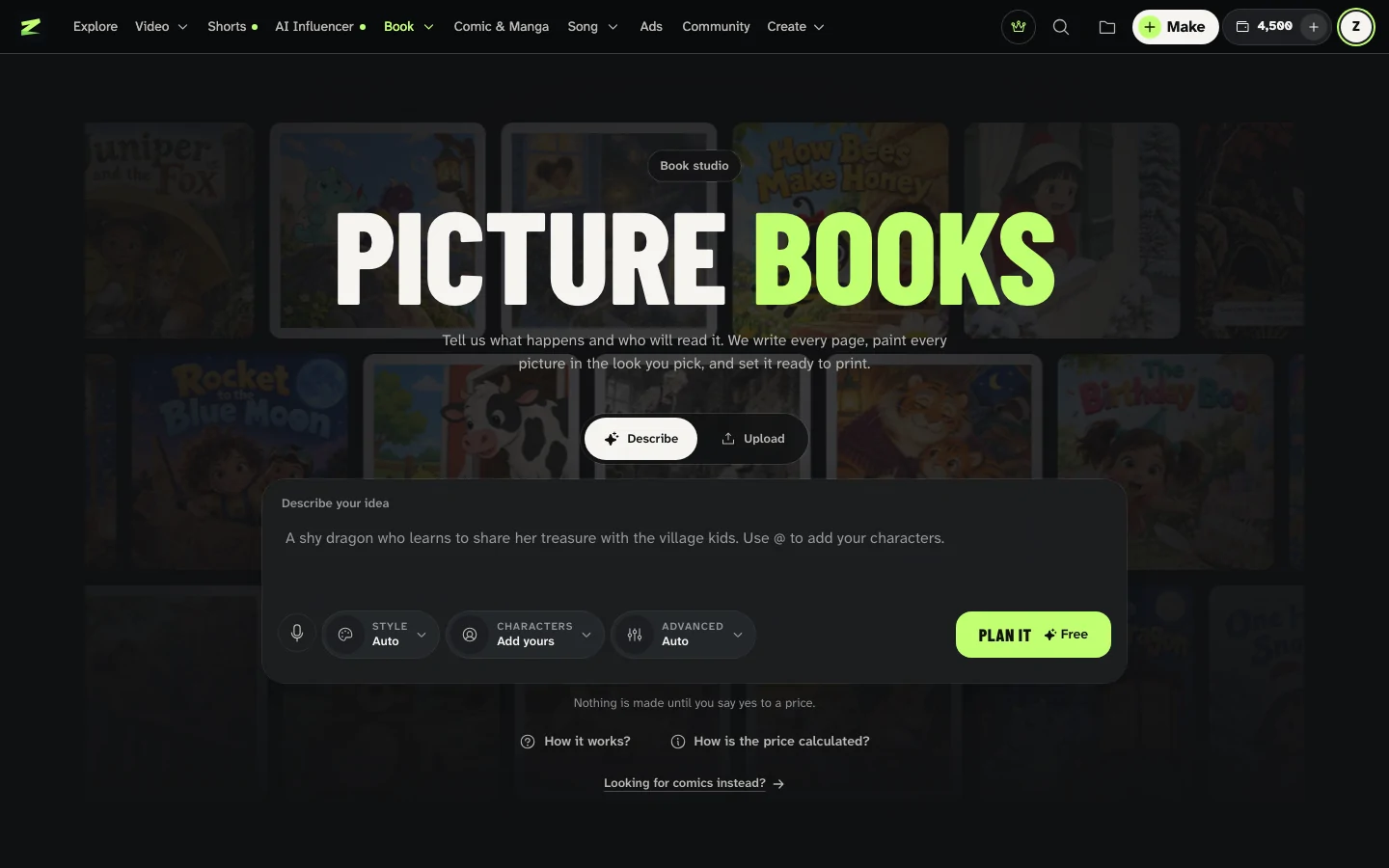
The page's headline reads "Picture books." Under it, a toggle above the box offers "Describe" and "Upload."
With "Describe," type the idea in the "Describe your idea" box in a sentence or two: "A shy dragon who learns to share her treasure with the village kids." Add who it is about by typing @, or press the Characters chip (it reads "Add yours" until you pick someone). You can also press the mic button and say it out loud.
With "Upload," the box becomes "Your story, as you wrote it." Paste the story you have already written, or press "Choose a text file" for a .txt or .md file, then press "Use my words." Your words are kept as they are, and a picture is planned for every page.
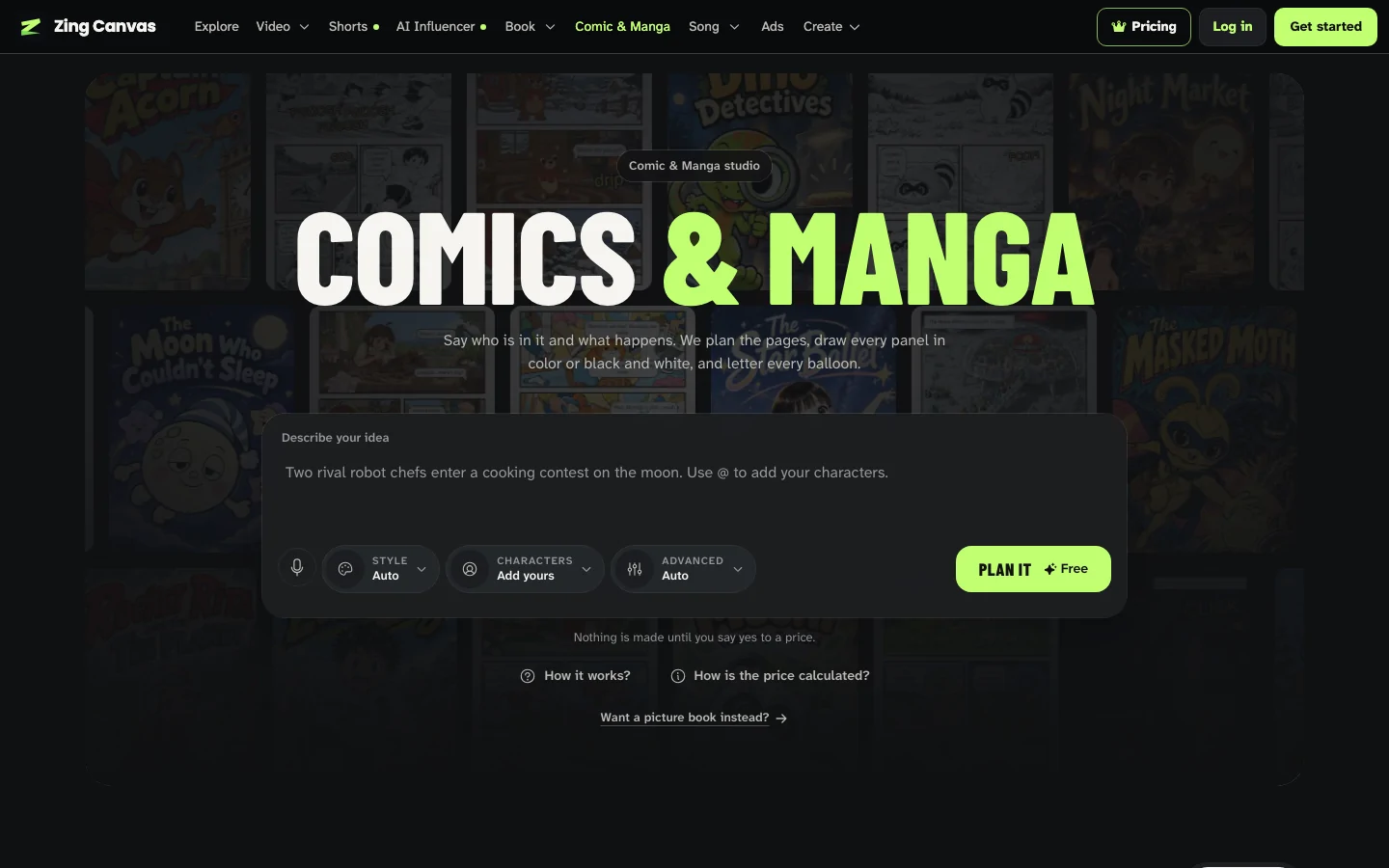
Under the box sit three chips: Style, Characters and Advanced. Each reads "Auto" (or "Add yours") until you choose, and each is optional. The line under them keeps the promise: "Nothing is made until you say yes to a price."
Good picture-book ideas are small and warm. One child, one wish, one problem, solved by the child themselves. If the story is for a specific child, put in one real detail: the stuffed rabbit they never put down, the street they live on, the thing they are nervous about this week. It is that detail that makes a personalized book feel personal.
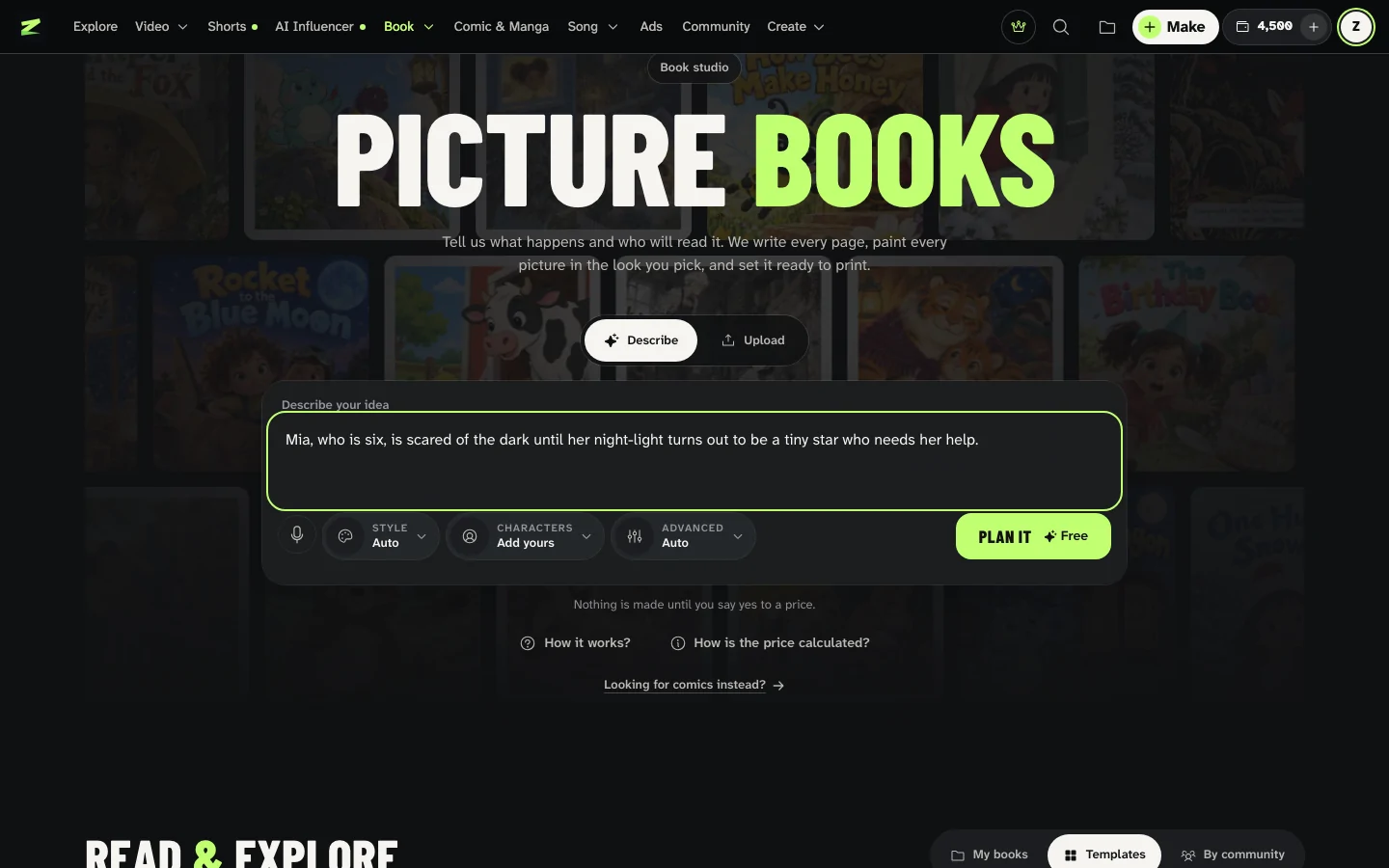
One sentence is enough: "Mia, who is six, is scared of the dark until her night-light turns out to be a tiny star who needs her help." Step 2: Choose who it is for
Press the Advanced chip. The "Advanced settings" panel opens: "All optional. Anything you leave on Auto, we choose in the plan. You can change it there." Its first question is "Who is it for?" ("We match the words on each page to their age."). Pick an age: "Ages 0 to 3," "Ages 3 to 5," "Ages 5 to 7," "Ages 7 to 9," "Ages 9 to 12" or "Adults." The age shapes the words: how many per page, how long the sentences are, and how the story is paced.
Be honest about the reader rather than the age you hope they will grow into. A book pitched slightly young is read again and again; a book pitched too old is put away.
Once you choose, the Advanced chip sums up what you picked, so you can see your settings at a glance without opening the panel again.
Step 3: Pick a look
The Style chip opens "Pick a look," a wall of illustration styles, each shown as the same little scene. "Optional. Skip it and we choose the best fit when we plan it." The first rows: "Watercolor storybook," "Bold cartoon," "Layered paper cut," "Colored pencil," "3D animated film," "Soft anime," "Painted paper collage," "Gouache folk" and "Mid-century modern." More follow as you scroll. Press "Read to me" at the top to hear them, "Done" to keep your pick or "Let us choose" to leave it on Auto.
Free
Choose the look that matches the feeling. Watercolor and colored pencil feel quiet and cozy, good for bedtime. Bold cartoon and 3D feel lively, good for funny stories. If you skip this, a look is chosen for you, and you can change it in the Characters step before anything is drawn.
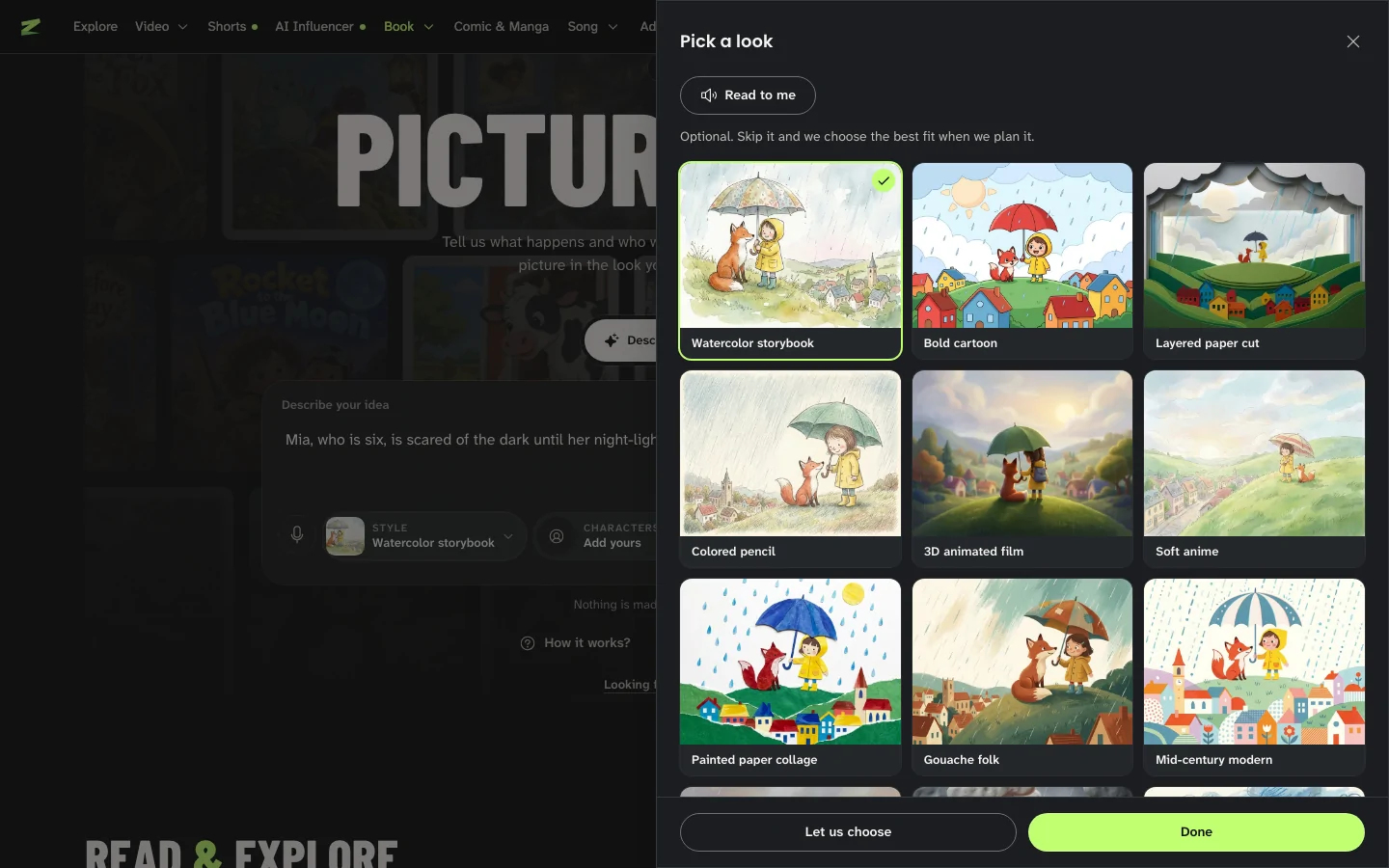
"Pick a look," with "Watercolor storybook" checked. The Style chip now names it. Step 4: Choose how long
Further down the same "Advanced settings" panel, "How long?" ("The total number of printed pages.") sets the page count, and with it the price and whether it can be printed.
- "Tiny" — 6 pages, a story told in three pictures. On screen and PDF only.
- "Mini" — 8 pages, a story in four pictures. On screen and PDF only.
- "Quick" — 16 pages, a quick bedtime read. On screen and PDF only.
- "Short" — 20 pages, a short story.
- "Medium" — 24 pages, the usual picture book.
- "Long" — 32 pages, a classic, longer read-aloud.
- "Longest" — 40 pages, a long read-aloud.
Each card says under it what it can become: "On screen and PDF only," "Can be printed as a hardcover," or "Can be printed as a hardcover or a softcover." The three shortest also explain why: a printed copy needs at least 24 bound pages. Under the cards, a line gives the price to make that many pages, as its Plan card prices it today, so you can compare lengths before you plan. If this is your first book, Tiny or Mini is the cheapest way to see the whole process end to end.
The panel also asks about "Pictures" ("How the pictures sit on each page"): "Auto / mix," "One big picture per page," "A few small pictures per page" or "One picture across two pages." Leave it on Auto unless you have a strong feeling. Press "Done" when you are finished.
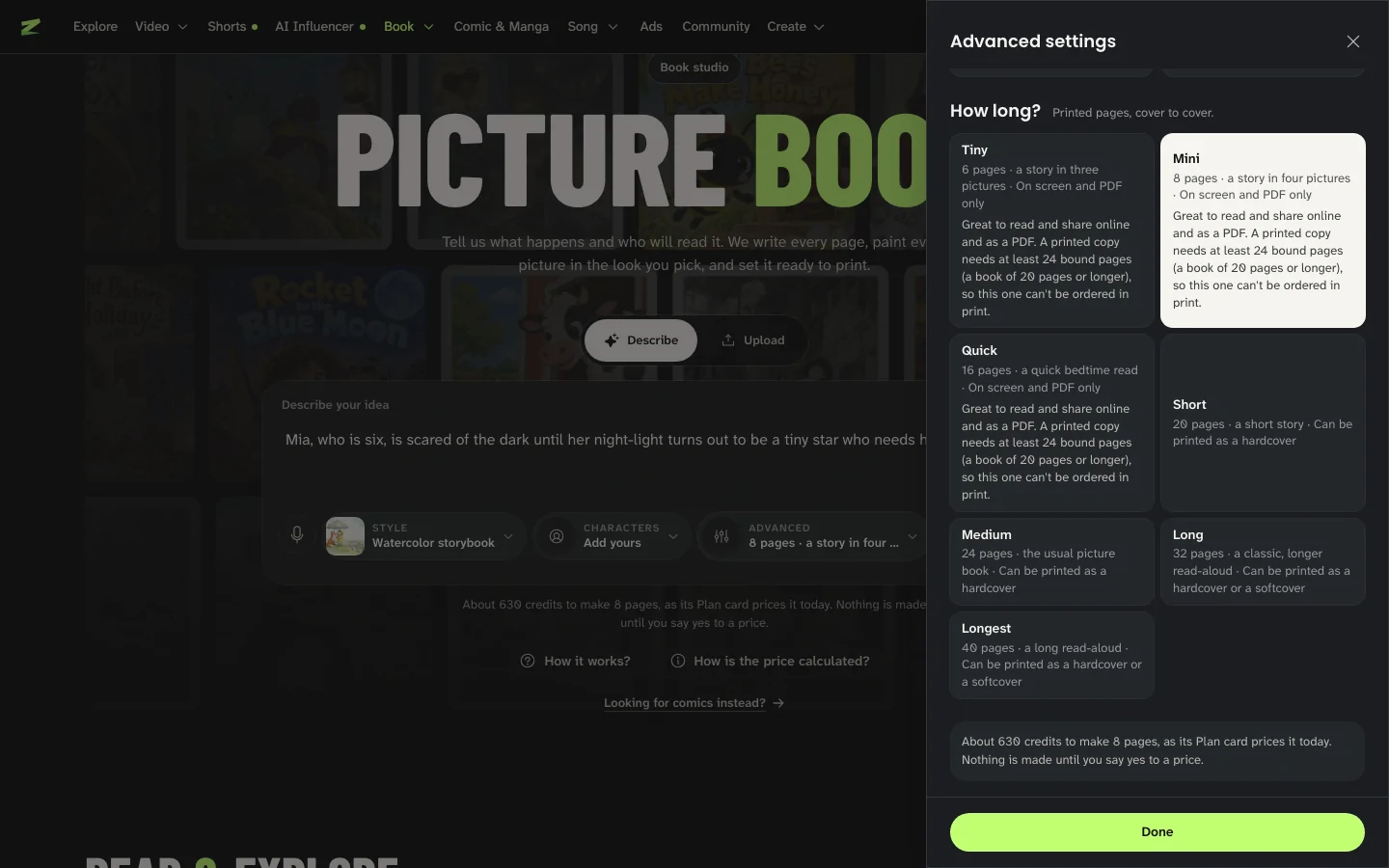
"How long?" in "Advanced settings," with "Mini" selected and the price for its 8 pages under the cards. Step 5: Plan it and read the Plan card
Press "Plan it." Planning is free. A panel opens on the right with the steps "Idea," "Choices," "Plan" and "Price." It may ask a few more things first: "What kind of story?" ("Bedtime," "Adventure," "Funny," "Cozy") and "Who tells the story?" ("A storyteller" or "The hero").
Planning free; price on the Plan card
Then the Plan card, "Your book plan," shows the title, the whole story in plain words and its price, with "Read to me" if you would rather listen. Rows such as "Who is it for," "How should it look" and "How long" each have a "Change" button; anything you skipped reads "skipped, you choose." Use "Change something," "Shorter," "Funnier" or "Different pictures," or type in the box at the bottom and press "Change it," as often as you like: "Changes to the plan are free."
Then choose how it is made. With "Make it all, then show me" the button reads "Make my book · about N credits", or "Add credit and make my book" if your credit does not cover it yet, which opens the Add credit sheet first. With "Check with me at each step" ("I'll stop after the story, the characters and the pages."), the card says it will write the story first and that each step shows its price before it runs, and the button reads "Start my book." Either way, "Nothing is charged until you press" it. Not ready? "Keep for later" saves the plan in My stuff.
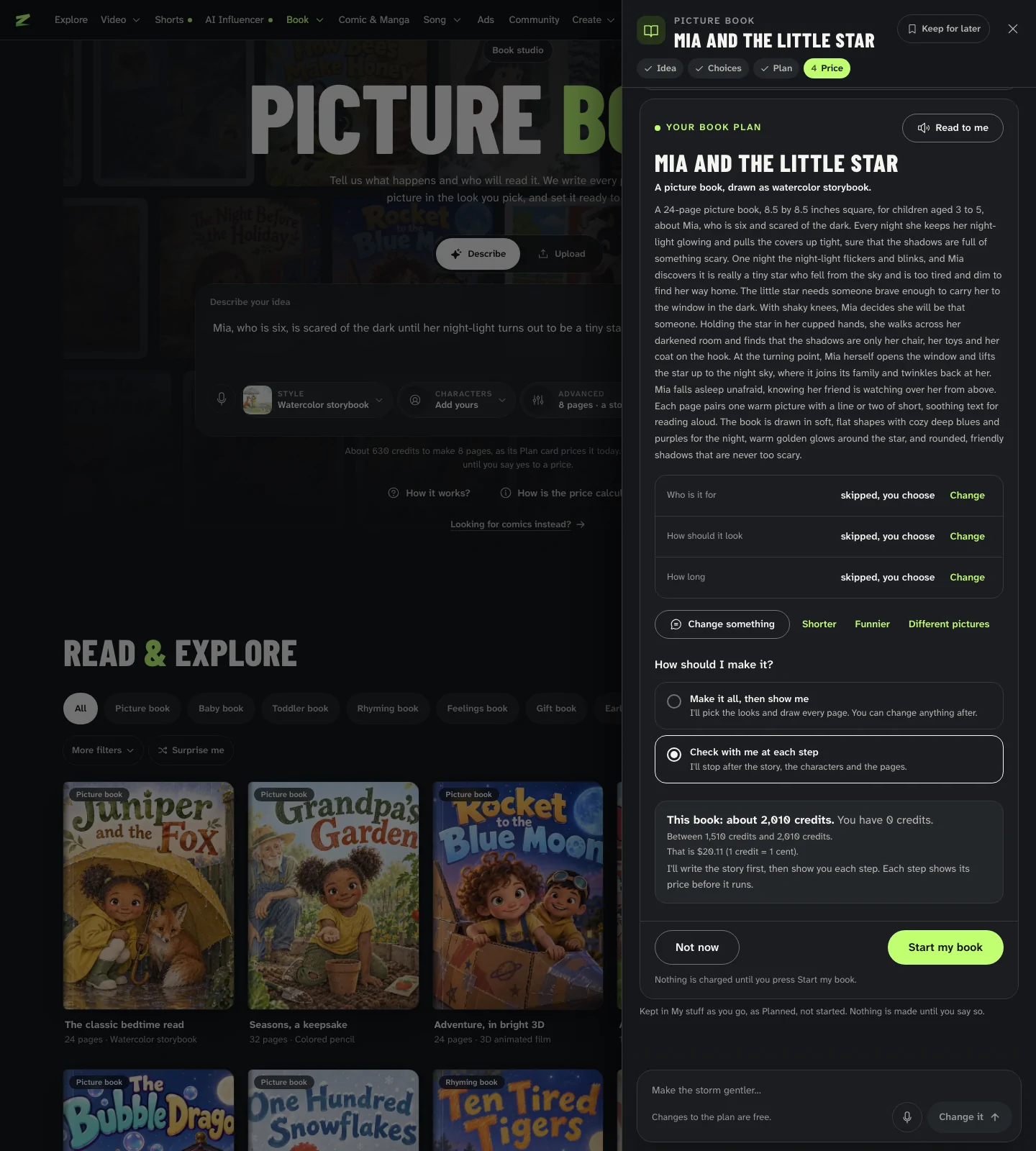
The Plan card with "Check with me at each step" chosen: the button reads "Start my book," and each step shows its price before it runs. Step 6: Approve the story, the characters and the pages
The project opens with a step bar: "Story," "Characters," "Pages," "Book." Each guide button shows its price on it.
Price on each button
In Story, read the words page by page. Press "Story looks good" when you are happy.
In Characters, "First, choose how your book is drawn." Picking is free. Press "Draw their looks" to see your characters before any page is painted. If a face is not right, "Draw four new looks" for that character. This is the cheapest moment to get it right, because every page uses these looks.
In Pages, press "Plan the pages," then "Make the book." If you chose to check, the first pages are drawn first; look at them, then "Draw the other N."
Step 7: Fix a page, then read, share and download
When the book is done, press "Read it." To fix one picture, press "Draw it again" on it, or mark pages "Needs a look" and press "Redraw the N marked pictures?" The cover has its own "Draw the cover again?" Each redraw shows its price first.
Redraws priced first; download free
The finished book has panels for "Cover and jacket," "Read aloud," "Book video" and "Printing." In Share & print:
- "Share a link" — turn it on and "Copy link." No account needed to read it.
- "Download" — "The book, to read and print at home" (PDF) and "Print-ready pages."
- "Order printed copies" — shows whether ordering is open. If it says "Coming soon," ordering is not open yet; the PDF prints well at home or at a local print shop.
"Read aloud" turns the book into a bedtime reading; see how to make a bedtime story video.
What it costs
Planning and changing the plan are free, and so is picking a look. A book's price counts its pages: how many are written and how many pictures are drawn. It is shown on the Plan card's button and on each guide button, in credits (1 credit is 1 cent). Sharing a link and downloading are free. See pricing.
Common mistakes
- Approving characters too fast. — A face you are unsure of appears on every page. Redraw it in the Characters step, not page by page.
- Too many characters. — Two or three are plenty for a picture book.
- Expecting a print order from a short book. — Tiny, Mini and Quick are on screen and PDF only; a printed book needs at least 24 bound pages.
- Adult words for a young reader. — If the text is too long, set the age lower and ask for "Shorter."
Questions
Can my child appear in the book?
Your child can be the hero as a drawn character you describe. Children are always drawn, never made from a photo.
Can I use my own story?
Yes. Choose "Upload" above the box, paste your story or choose a text file, and press "Use my words."
Can I print it?
You can download a PDF and print-ready pages at any length. Ordering printed copies shows on the Printing panel when it is open.
Can my child make a book?
Yes. A child's profile has its own Book page with Tiny and Mini books, within the credit limit you set. See parental controls.
Make it yourself
Who wrote this
The team building Zing Canvas
Written by the people who build Zing Canvas: step-by-step guides to making picture books, comics, bedtime stories, greetings, songs, music videos, shorts and ads in Zing Canvas, with the real screens, what each step costs, and the everyday problems they solve.