
How to make an animated video from one sentence
The short version
- One sentence is enough: a character, what they want, what is in the way and a clock.
- Planning, changing the plan and comparing three versions are free; the Plan card shows the price before anything is made.
- Try Quick or Standard first, then make the version you keep at Cinema.
- Change one scene with Ask for changes; your first version is kept under Versions.
This guide is for anyone with a story to tell and no animation studio: a parent turning a family joke into a two-minute cartoon, a teacher who wants a short scene to open a lesson, a small business owner who needs a friendly intro, or a writer who wants to see a scene move. You do not need to draw, edit or know anything about cameras.
Who this is for
By the end you will have a finished video, up to 3 minutes long, in the look you chose, with voices and music, that you can watch, download and share. You will also know how to change one scene without remaking the whole thing, and what each step costs before you press it.
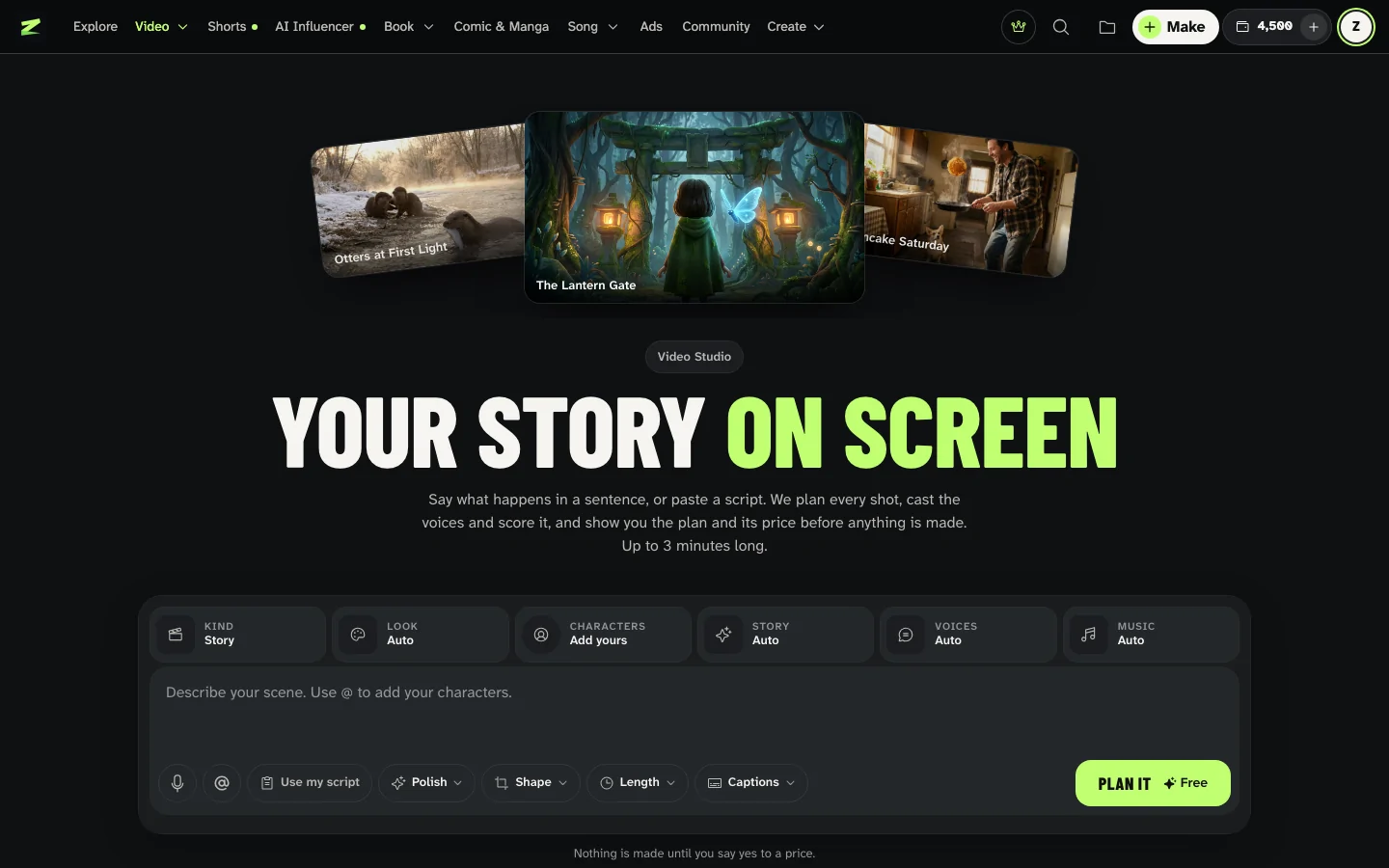
The Video Studio lives at /app/make/video. You can reach it from the top bar (Film) or from the Create menu. If you have not signed up yet, new accounts start with 500 credits ($5) on us while that day's gifts last, which is enough to plan as much as you like and to try a short video.
How to make an animated video from one sentence
Step 1: Say what happens
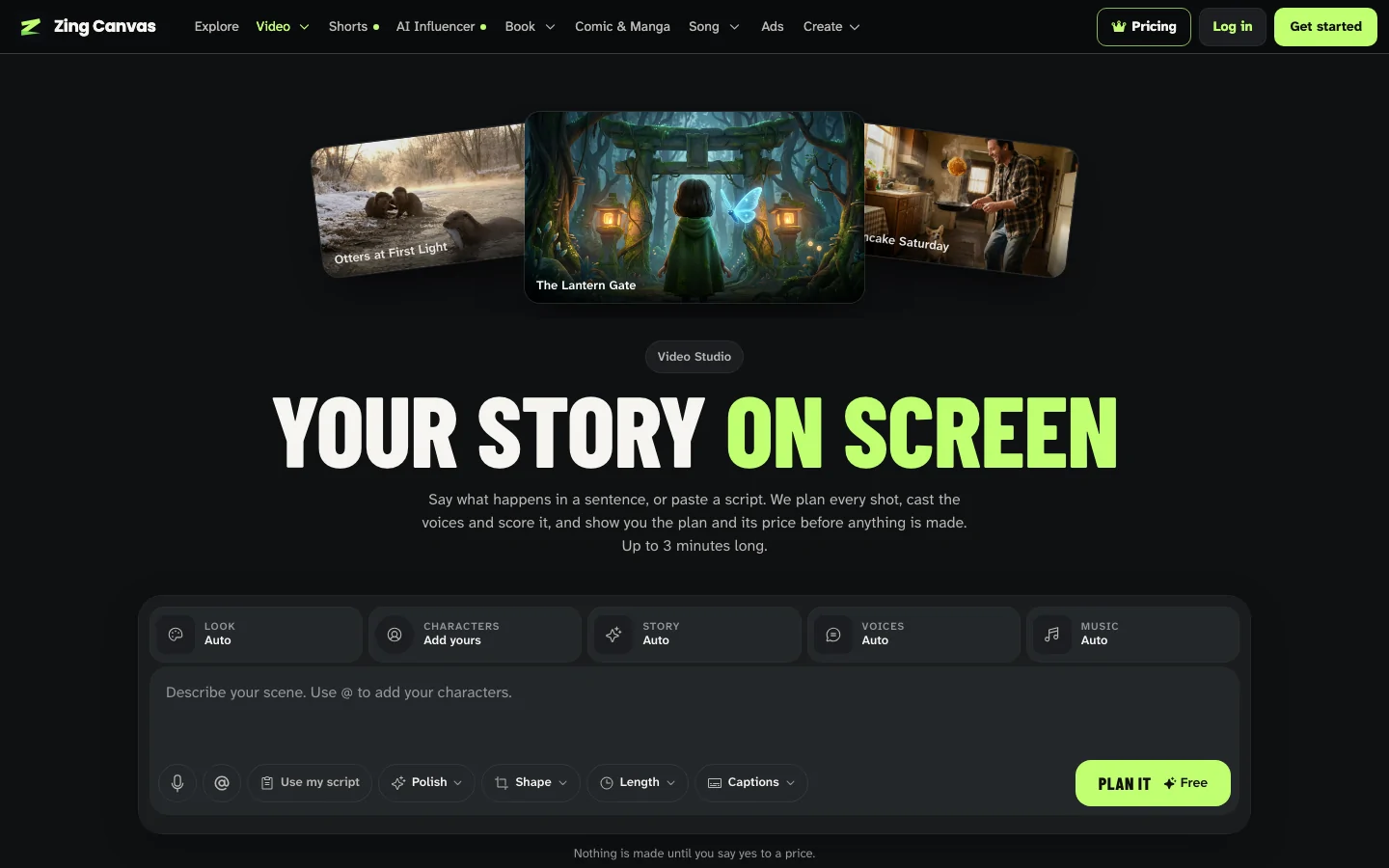
Start in the box. Type one sentence about what happens, the way you would tell a friend: "A grumpy lighthouse keeper finds a lost baby seal on his doorstep and has one night to get it home before the storm." That is enough. The studio plans every shot from it.
If you already have words you love, press "Use my script" in the bar under the box and paste them. Your lines are kept as you wrote them, and the plan is built around them instead of being written for you.
Not sure where to start? Press one of the three example frames above the box. It fills the box with an idea you can edit, and it costs nothing.
Tips for a strong first sentence:
- Name one main character and give them one trait ("grumpy," "shy," "brave").
- Say what they want and what is in the way.
- Give it a clock: tonight, before the bell, before Mom gets home.
- Keep it small. One problem and two or three places make a better 1-minute video than a whole kingdom.
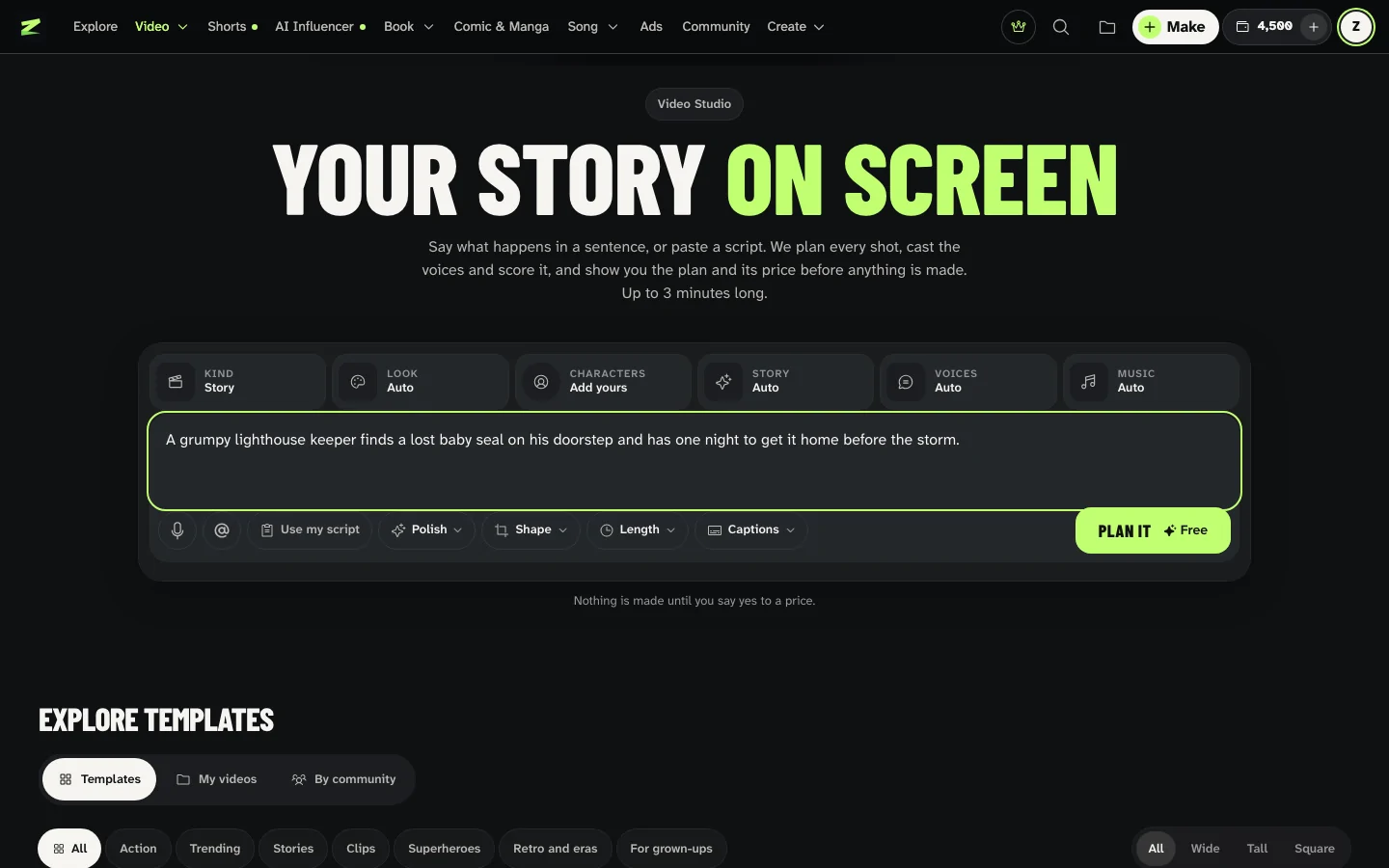
The same page with the lighthouse sentence typed into the box, the "Use my script" and mic buttons visible in the bar under it. Step 2: Choose what you are making
The first card in the row is Kind. Press it and the dialog "What are you making?" offers two answers:
- "Story" — "A start, a turn and an ending." Pick this for anything with a character and a plot.
- "Clips" — "A short video of one idea: a teaser, an intro, a funny moment, anything." Pick this for a single moment rather than a story.
With Story picked, a Story card appears. Its dialog "Kind of story" offers "Adventure," "Funny," "Heartwarming," "Mystery," "Spooky," "Bedtime," "Lesson or how-to," "Inspiring," "Action" and, for adult accounts, "Romance." This sets the tone the plan is written in.
With Clips picked, a Clip card appears instead. Its dialog "What kind of clip?" offers "Trailer or teaser," "Intro or opener," "Funny moment," "Meme moment," "Product shot," "Loop for social," "Reaction," "Mood or aesthetic," "Announcement," "Highlight" and "Greeting." Each one starts your box with an idea you can rewrite. Clips also get a Picture button under the box ("Start from a picture": a product, a place, a drawing, or a photo of someone on adult accounts).
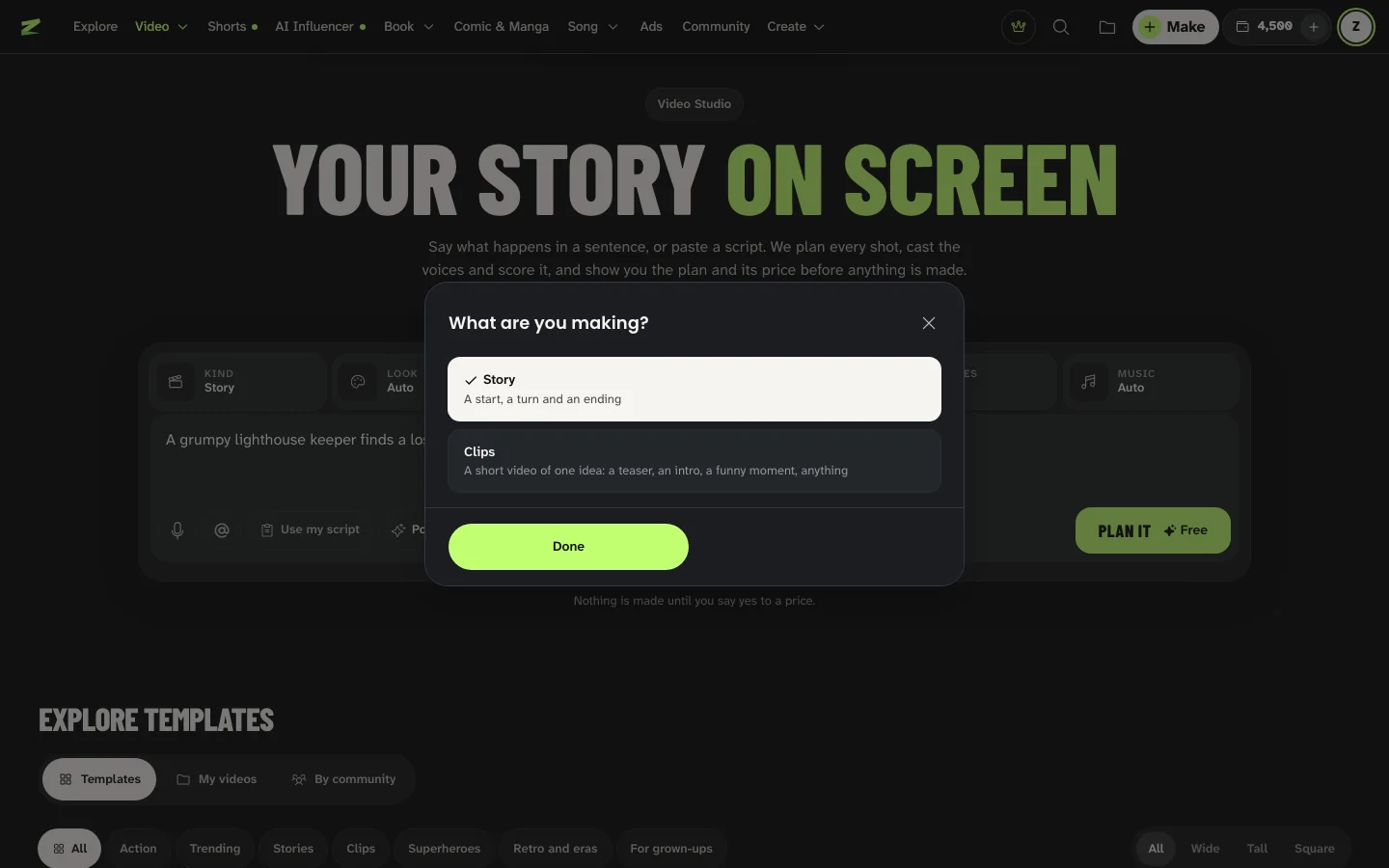
The "What are you making?" dialog, with "Story" checked and "Clips" under it. Step 3: Pick the look, the cast, the voices and the music
Every card is optional. A card with nothing picked reads "Auto," and the plan chooses the best fit for you. Pick only what you care about.
Look. The dialog "Pick a look" offers "2D cartoon," "3D animation," "Clay," "Paper cut-out," "Anime" and "Real life," plus finishes ("Black and white," "Vintage film," "80s retro"). An "Era" tab sets when it happens: "Present day," "1920s," "1950s," "1970s," "1980s," "1990s," "Y2K 2000s" or "Future." Kids' profiles never see "Real life."
Characters. The dialog "Who is in it?" lets you add your own saved characters. "Your own characters keep their look in every scene. Skip it and we cast new ones." You can also type @ in the box to add one by name.
Voices. "Who speaks?" offers "A narrator tells it," "The characters talk," "Both" or "No voices." Under it, "The narrator's voice" lets you press play on each voice before you choose.
Music. Pick a mood: "Happy," "Calm," "Epic," "Playful," "Sad," "Tense," "Romantic" or "No music."
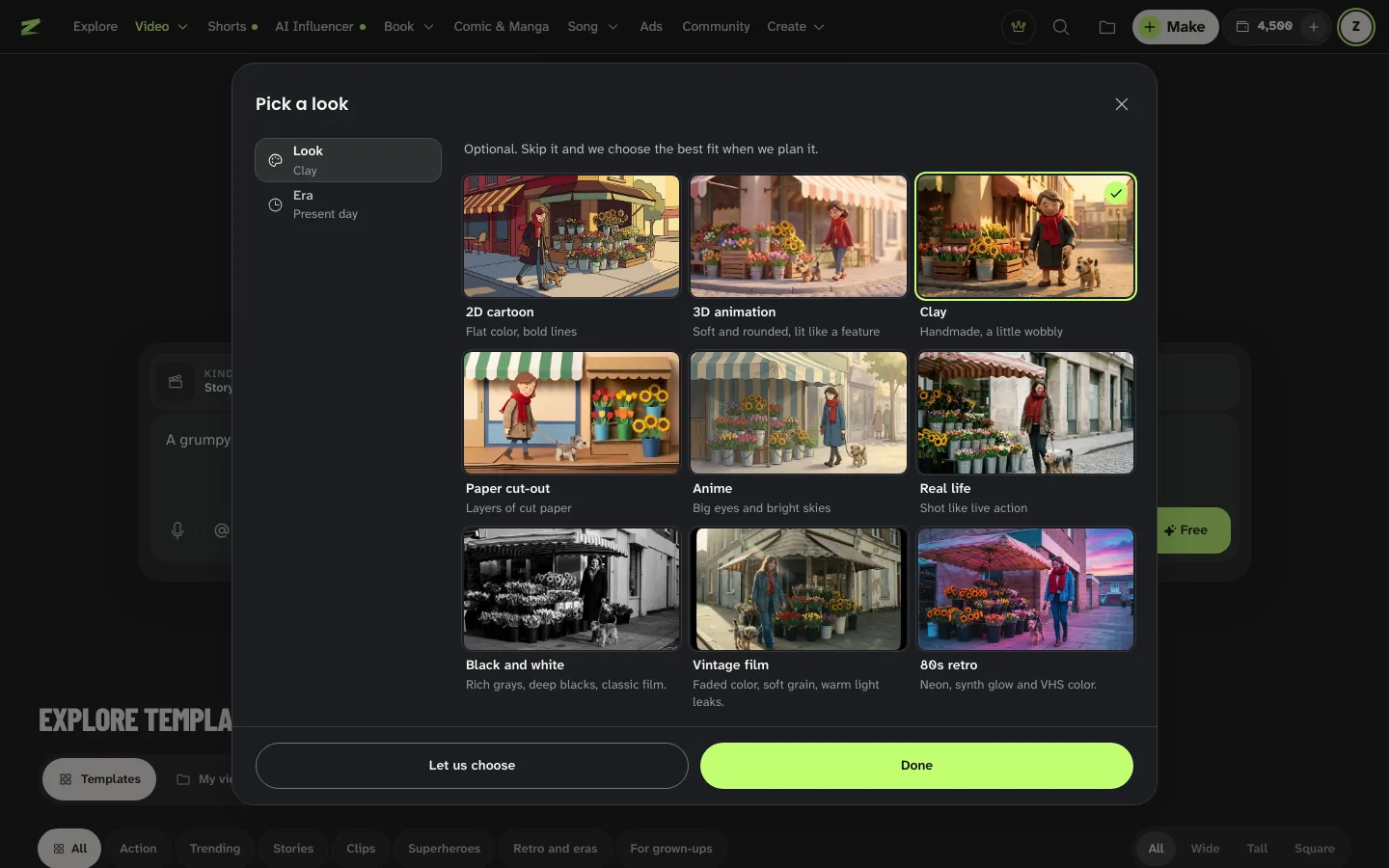
The "Pick a look" dialog with "Clay" checked, and the "Era" tab on the left. Open the "Voices" card, choose "A narrator tells it", press play on two narrator voices one after the other, pick one. Step 4: Set polish, shape, length and captions
The bar under the box holds four more settings that change the price, so it pays to set them on purpose.
- Polish — ("How polished?"): "Quick" ("A fast, cheaper first cut to see the story move"), "Standard" ("Clean, consistent scenes. Right for most videos") or "Cinema" ("Our best: smoother movement," with the characters held closest to their looks). Until you pick a length the dialog says "Pick a length to see what each comes to"; once you have, each choice shows its price for your length, so you can compare before choosing.
- Shape — ("What shape?"): "Wide" for TV and computers, "Tall" for phones, or "Square."
- Length — ("How long?"): a story runs 15 seconds to 3 minutes, a clip 5 seconds to 3 minutes. Tap a quick chip ("15 s," "30 s," "1 min," "2 min," "3 min") or type your own under "Or your own length," like 45 or 1:30.
- Captions — ("Words on the screen?"): on or off.
Under the box a line updates as you change things: "About X to make" your length at your polish level, "as its Plan card prices it today." This is the number to watch. Shorter and Quick cost less; longer and Cinema cost more.
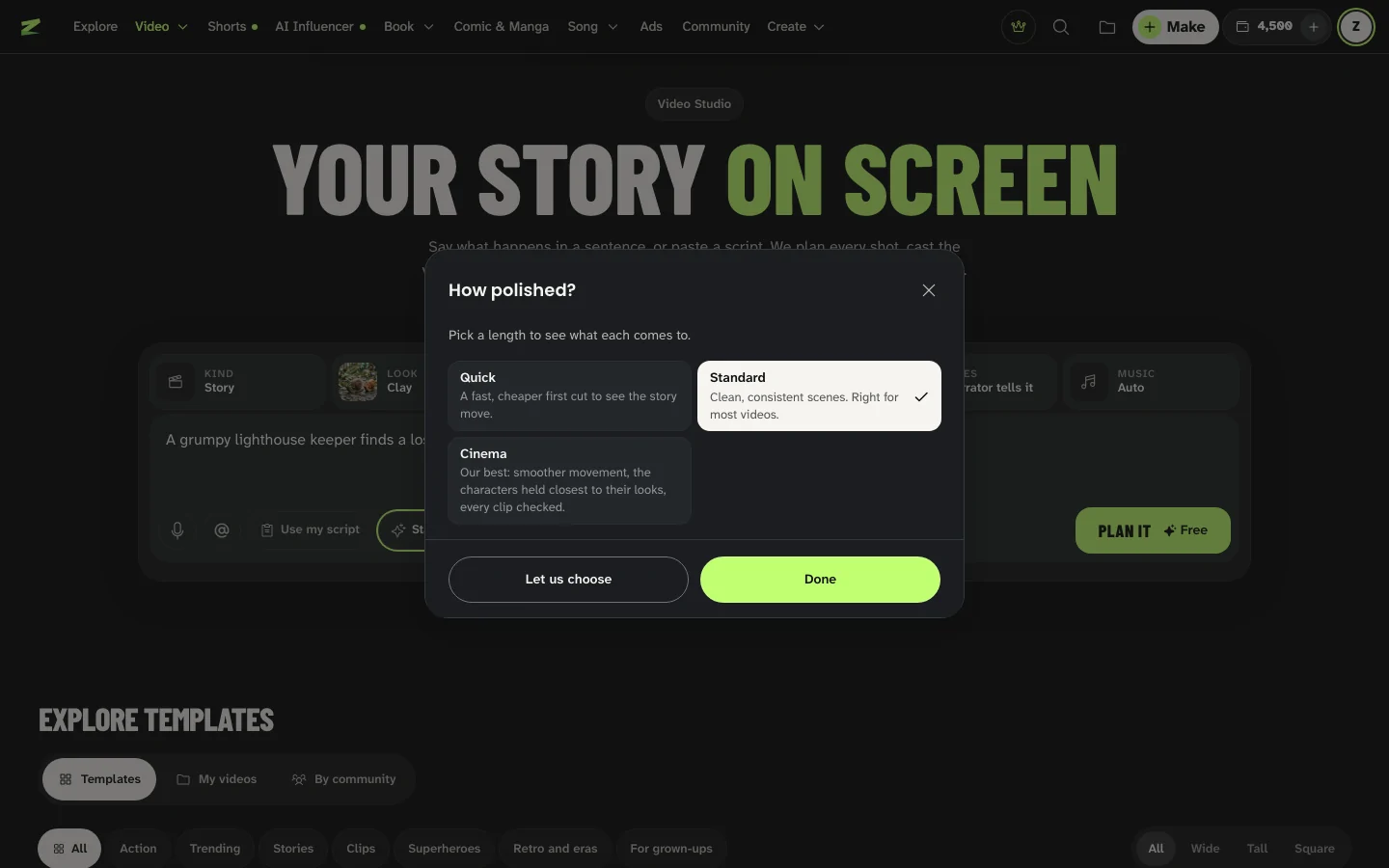
The "How polished?" dialog with "Standard" checked. Pick a length and each choice shows its price. Step 5: Plan it, for free
Press "Plan it". Planning is free. A panel opens on the right, headed "Planning a video" until your video has a title, with its steps across the top: "Idea," "Choices," "Plan" and "Price." It may ask a quick question or two first, with "You choose" already picked so you can skip ahead. While it works, the line under its box reads "Planning is free. Nothing is made until you say so." When it is done you see "Your video plan": a title, one line that sums it up (a story, how long, the look, who tells it) and the whole story in plain words, with "Read to me" if you would rather listen. To change it, type in the box at the bottom in plain words and press "Change it": "Make the seal funnier." "Can it end at sunrise?" "Make the storm gentler." The line under the box says it: "Changes to the plan are free."
Free
There is a daily limit on free planning messages (30 a day across your account), which is far more than one video needs. If you hit it, the planning panel says so, and you can pick it up tomorrow.
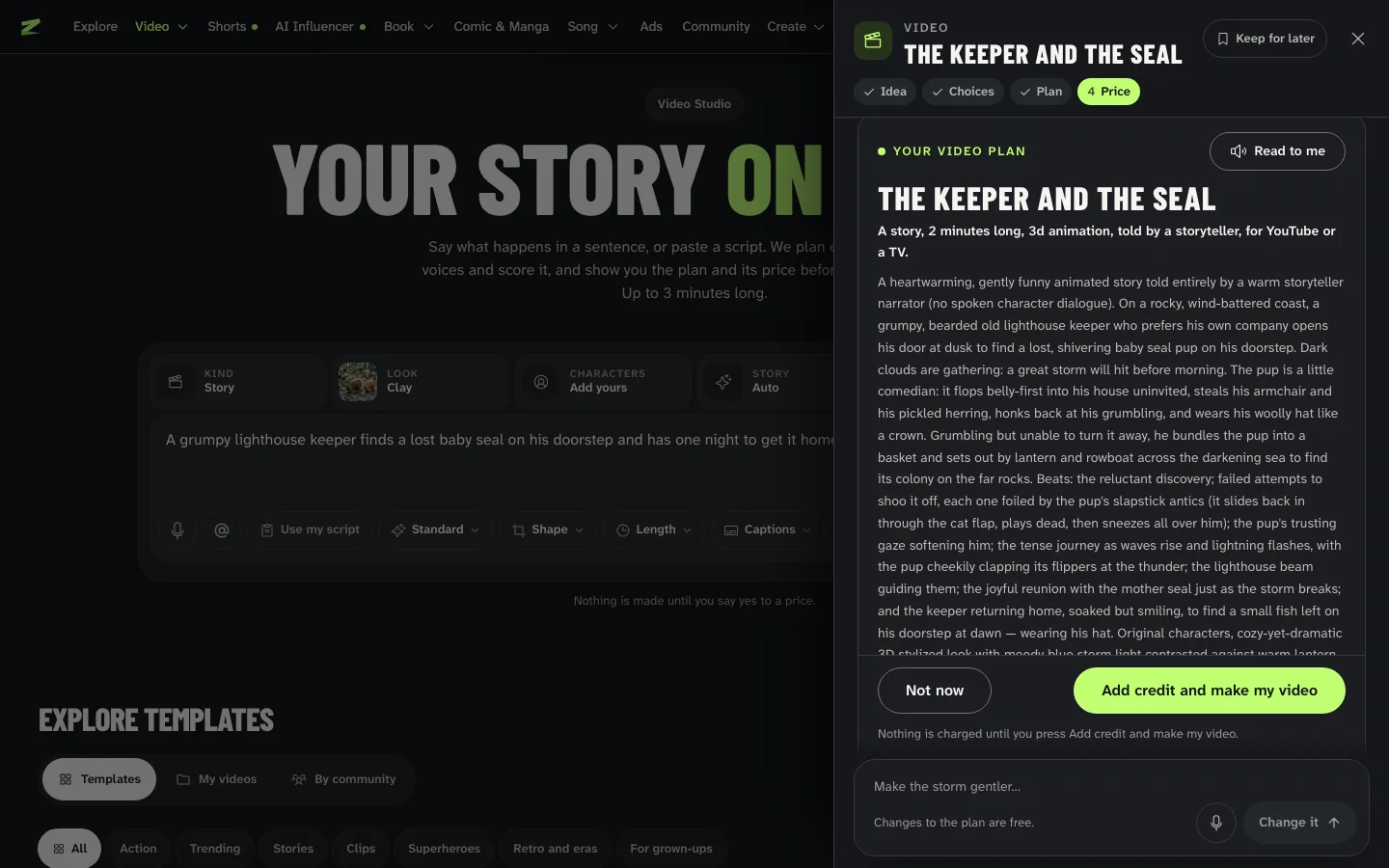
The updated plan in the planning panel. Type a change in the box at the bottom and press "Change it"; changes to the plan are free. Step 6: Read the Plan card and say yes
When the plan is ready, the Plan card appears, titled "Your video plan." Each row has a "Change" button. Under "Change something" you can tap "Shorter," "Funnier" or "Different pictures." "Show me three versions" draws up three different takes on your story to compare, free to look at.
Price on the Plan card
Then the card asks "How should I make it?":
- "Make it all, then show me" — "I'll pick the looks and make every scene. You can change anything after."
- "Check with me at each step" — "I'll stop after the story, the characters and the scenes."
The money lines tell you exactly where you stand: "This video: about X," a range for scenes made again, how much credit you have, and when it will ask you before going over. With enough credit, the button reads "Make my video · about N credits." With too little, it reads "Add credit and make my video" and opens the Add credit sheet first, then carries on. If you chose "Check with me at each step," it reads "Start my video" instead, and each step shows its price before it runs. Whichever it says, "Nothing is charged until you press" it.
A video takes about 25 minutes. You can close the tab; you will get an email when it is ready.
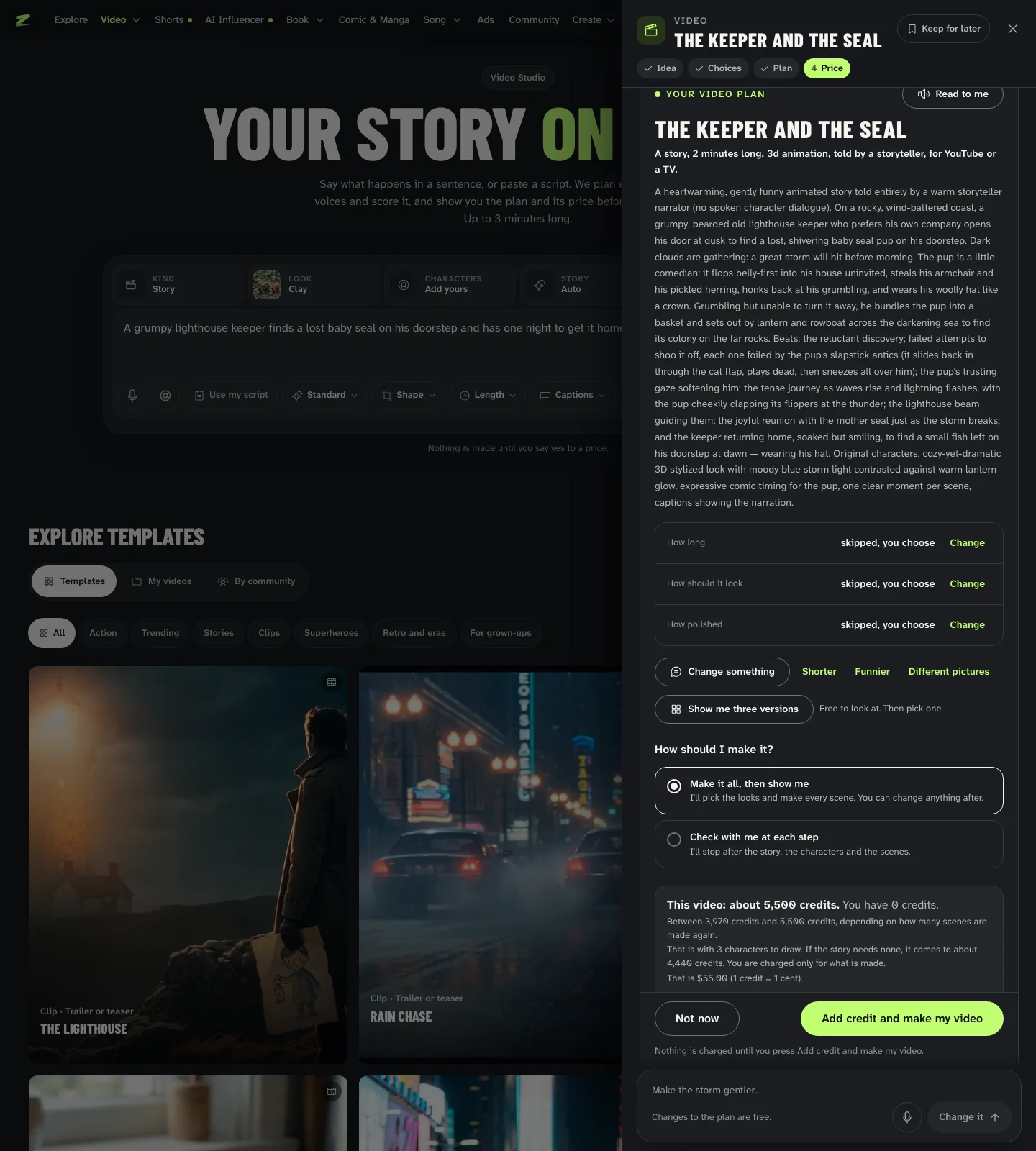
The whole Plan card. On an account with no credit yet, its button reads "Add credit and make my video"; with enough credit it reads "Make my video · about N credits." On the Plan card press "Show me three versions", wait for the three versions to appear side by side, pick the second one, and show the Plan card updated with it. Step 7: Watch, fix one scene, and share
Your project opens at its own page with a step bar across the top: "Story," "Characters," "Scenes," "Video." If you chose "Check with me at each step," you approve each one ("Story looks good," "Draw their looks," "Make it") before the next starts. "Making is the step that costs the most," so this is where checking pays off.
Download free; changes priced first
When it is finished you will see "Your video is ready." Press "Watch it."
To change something, press "Ask" at the top. The panel "Ask for changes" opens: "What would you like different in your video? Say it in your own words." It shows you what changes and the price first, with "Make it · price." Nothing is charged until you press it, and the result is "Made as a new version," so your first one is kept under "Versions." For a single scene, "Make it again" opens "Make scene N again?" with its price.
To share, press "Share." "Download your video" is free in every quality and format. "Social versions" makes a "Vertical," "Square" or "Portrait" copy for other feeds.
What it costs
Planning, changing the plan, comparing three versions and downloading are free. Making the video is charged once, at the price on the Plan card's button, in credits (1 credit is 1 cent). The price depends on length, polish and how much is made. The Plan card also shows a range in case scenes need to be made again. See pricing for credit packs.
Common mistakes
- Too much story for the length. — A 30-second video holds one moment. If your plan has eight scenes, ask for "Shorter" or pick a longer length.
- Starting at Cinema. — Try Quick or Standard first to check the story, then make the version you keep at Cinema.
- Skipping your characters. — If someone must look the same as in your last video, add them under Characters. Otherwise a new cast is drawn.
- Fixing in Ask what belongs in the plan. — Changes to the plan are free; changes after making cost credits. Read the Plan card closely.
Questions
How long can a video be?
From 15 seconds to 3 minutes for a story, and from 5 seconds for a clip. For series, see the Episodes studio; for a song, see how to make a music video.
Can I use my own script?
Yes. Press "Use my script" and paste it.
Do I have to approve every step?
No. "Make it all, then show me" makes everything and lets you change it after. Choose "Check with me at each step" if you want to stop and look.
What if it fails?
If a step fails to finish, you are not charged for it.
Can my child use the Video Studio?
Video is a teen studio. A parent turns it on or off for each teen in their family controls; see how to set up parental controls.
Make it yourself
Who wrote this
The team building Zing Canvas
Written by the people who build Zing Canvas: step-by-step guides to making picture books, comics, bedtime stories, greetings, songs, music videos, shorts and ads in Zing Canvas, with the real screens, what each step costs, and the everyday problems they solve.