
How to make a music video from your song
The short version
- Start from a song you made here, or have a new one written for the video.
- Pick Performance, Story, Lyric video or Mood to match the song.
- Read the plan section by section; changes there are free.
- Music videos run up to 2 minutes, in Wide, Tall or Square.
This guide is for anyone with a song made in Zing Canvas who wants pictures for it: a family song for a reunion slideshow, a classroom song with the words on screen so kids can sing along, a jingle that needs a video for social media. You will end up with a music video up to 2 minutes long, planned section by section, with every cut on the beat.
Who this is for
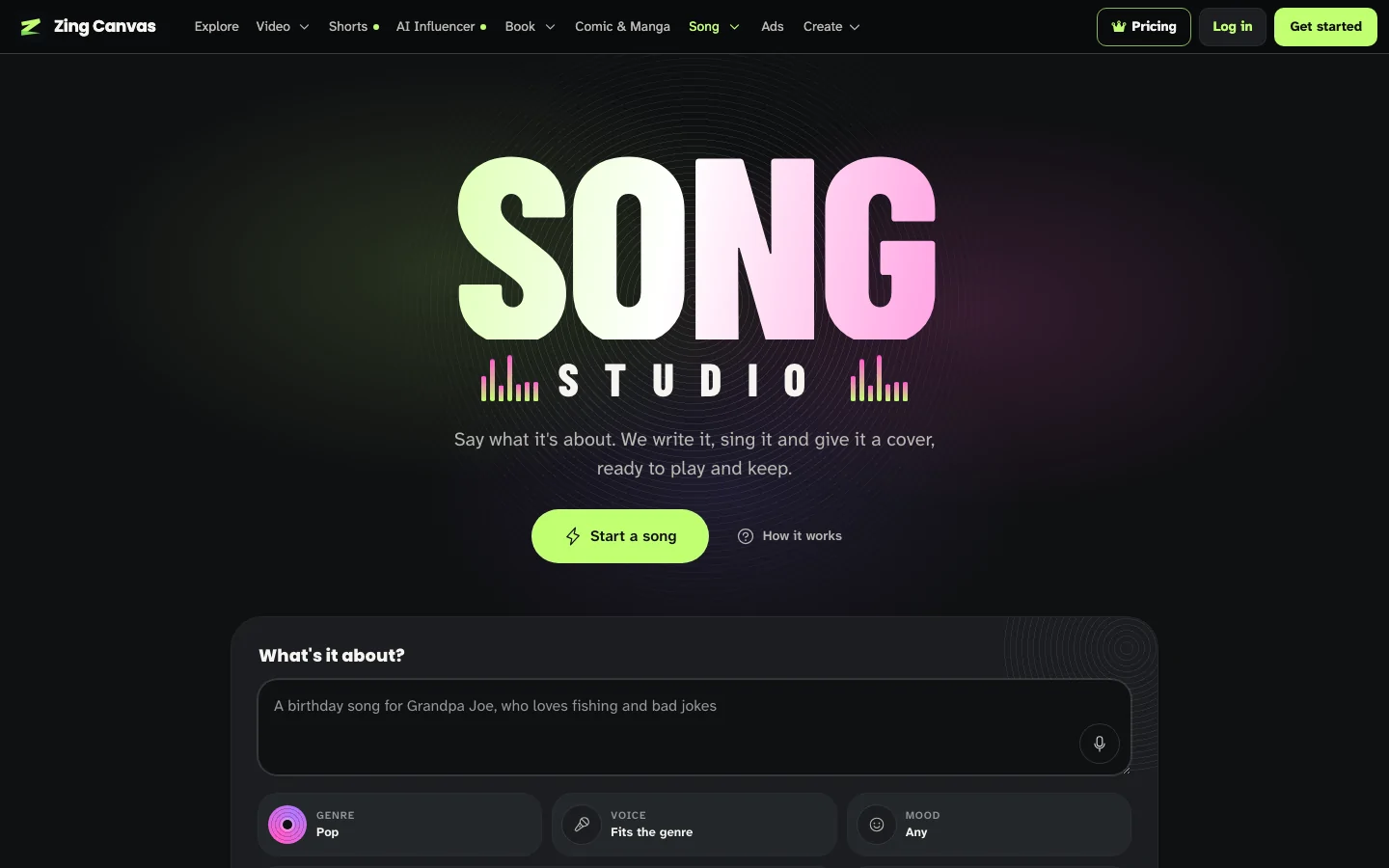
If you do not have a song yet, you can make one in the same flow. Uploading a song from elsewhere is not offered.
The Music video studio is at /app/make/music-video, in the Create menu.
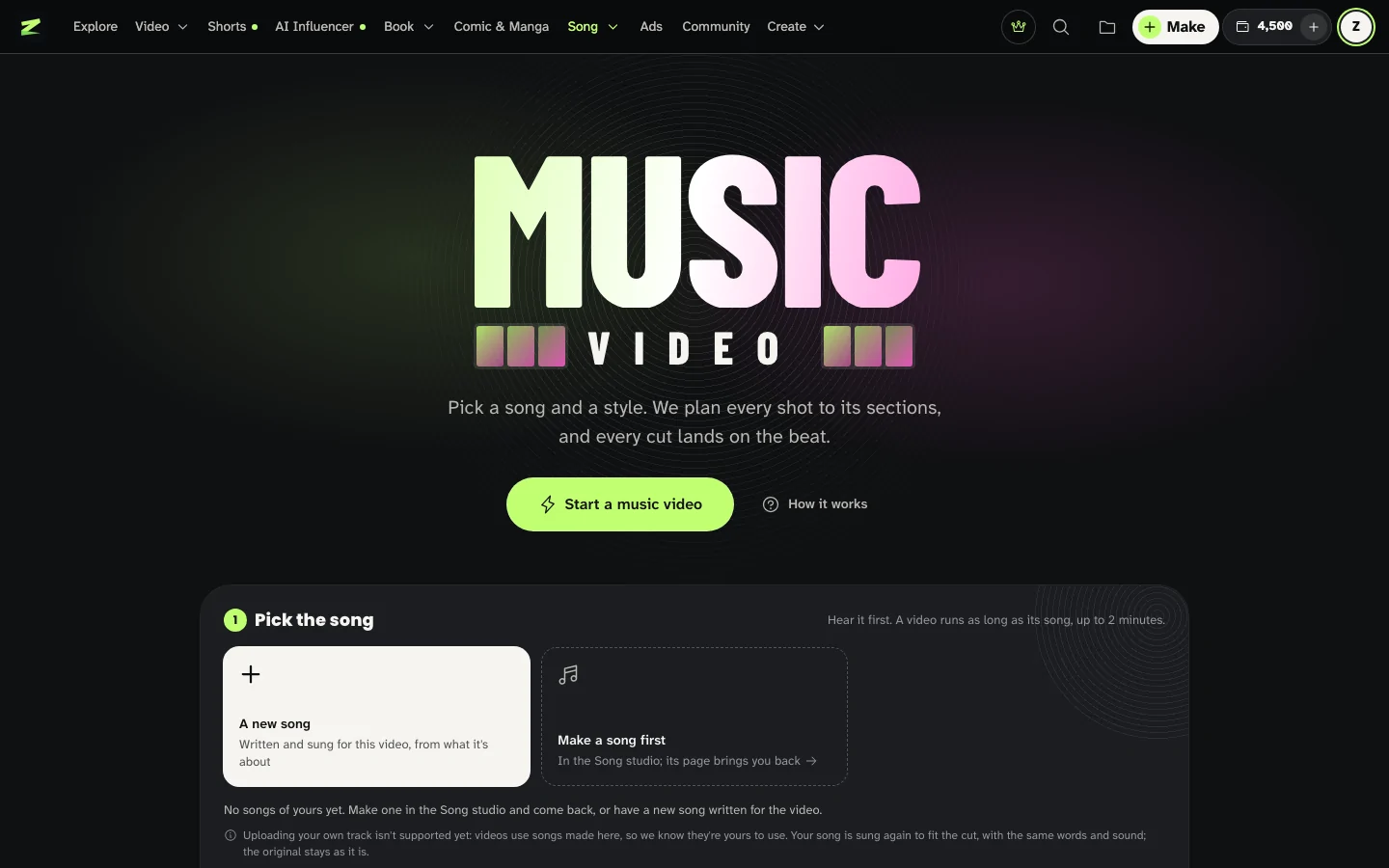
How to make a music video from your song
Step 1: Pick the song
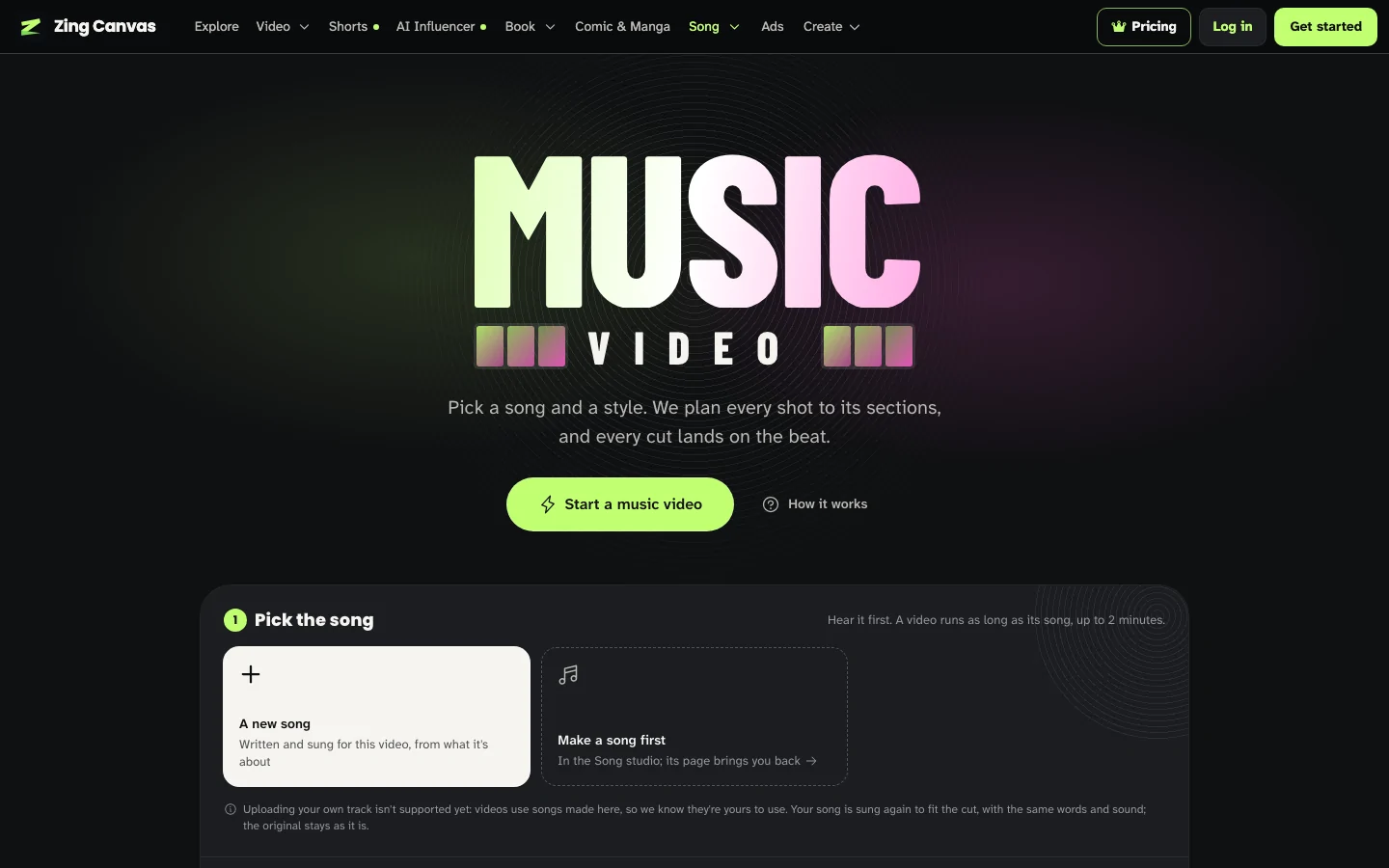
Step 1, "Pick the song," shows your finished songs, with the reminder "Hear it first. A video runs as long as its song, up to 2 minutes." Pick one. If you have none, it says "No songs of yours yet" and offers two cards: "A new song" ("Written and sung for this video, from what it's about") or "Make a song first" ("In the Song studio; its page brings you back"). See how to make a custom song.
Step 2: Choose the style
Step 2, "Choose the style" ("Press play to watch each one"):
- "Performance" — (the default): a made-up singer sings it on camera, in time with the vocals.
- "Story" — "A story told across the song: verses move it on, choruses come back."
- "Lyric video" — "The words big on screen, each lit as it is sung."
- "Mood" — "Shapes, light and color moving with the music. Nobody in it."
A lyric video is the best choice for anything meant to be sung along with, like a classroom song or a family chorus. Story suits songs that already tell one. Mood suits instrumentals and slow songs.
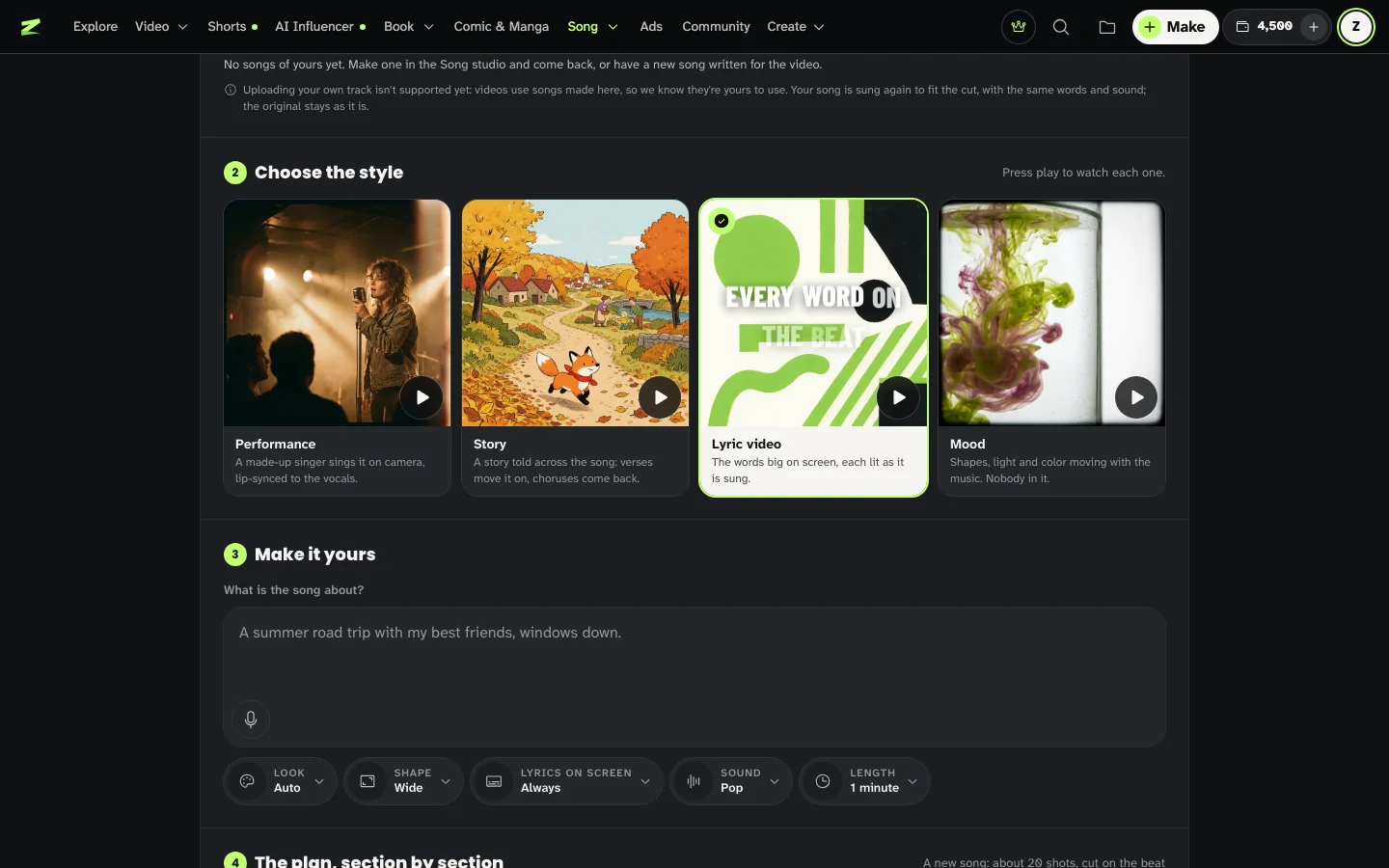
Step 2, "Choose the style," with "Lyric video" checked. Press play on any card to watch it. Step 3: Make it yours
Step 3, "Make it yours," has a box: "What should it show? (optional)". For a new song it asks "What is the song about?" instead. Then a row of chips:
- Look — the same looks as the Video Studio.
- Characters — (Performance and Story only): add your saved characters.
- Shape — "Wide," "Tall" or "Square."
- Lyrics on screen — "Show the lyrics" or "No words on screen." A lyric video always shows them, so the chip reads "Always."
- Sound — (new song only): Pop, Rock, Folk, Orchestral, Nursery rhyme or Lullaby, and the singer: "A woman," "A man," "A child's voice" or "A choir."
- Length — your own song runs at its own length; a new song is "30 seconds," "1 minute" or "2 minutes."
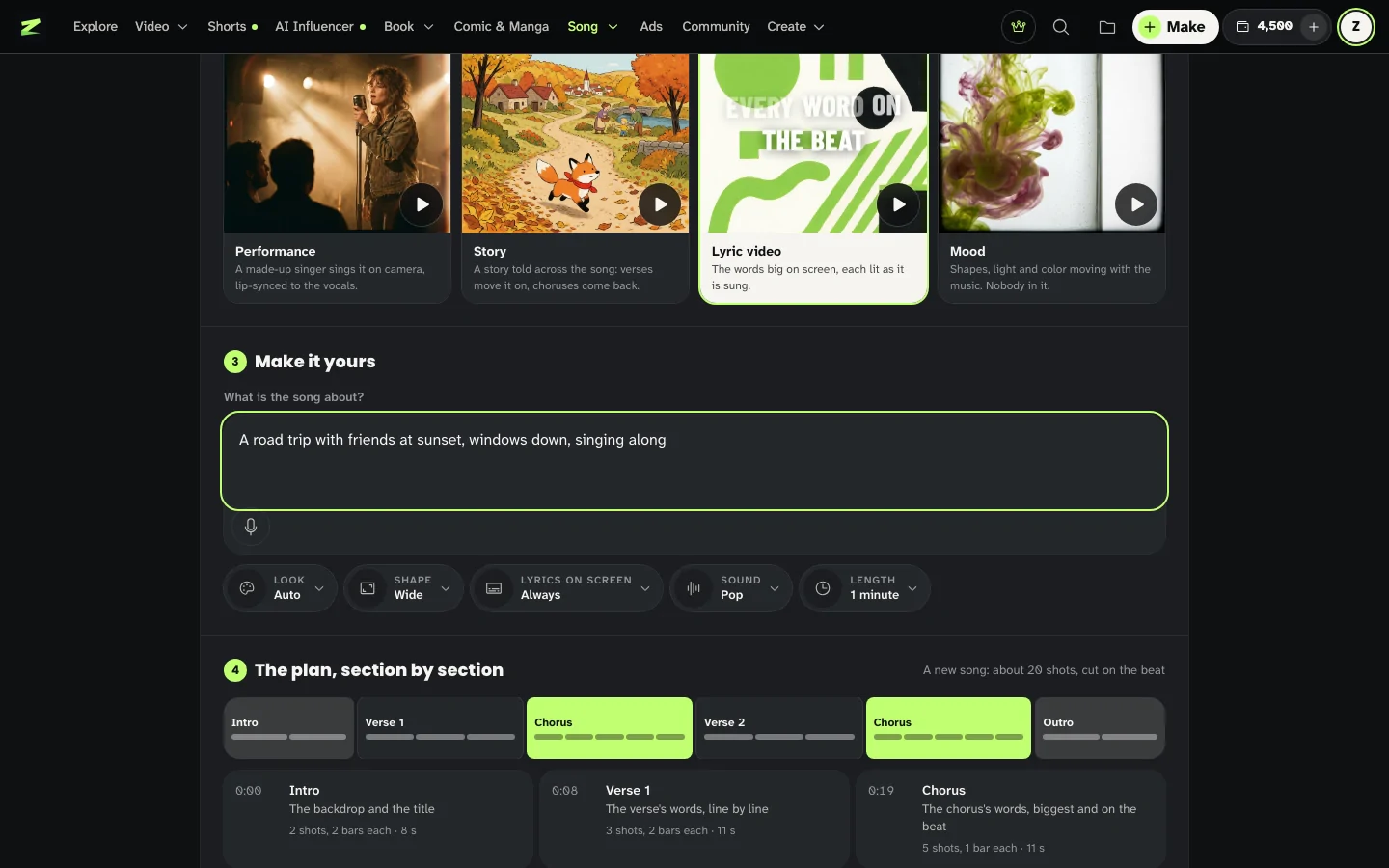
Step 3 for a new song: what it is about, then Look, Shape, Lyrics on screen, Sound and Length. Step 4: See the plan, section by section
Step 4, "The plan, section by section," shows the song's sections as a strip (intro, verses, choruses, outro) and a card for each: when it starts, what it shows, and how many shots it has. Step 5, "Price," gives a range for your length: "You see the plan and its exact price before anything is made. That price is held, and charged only as it's made."
Free
Read the sections the way you would listen to the song. A music video feels right when it changes where the song changes: something new for the chorus, something calmer for a quiet verse, something big for the last chorus. If the plan shows the same kind of shot all the way through, that is the place to ask for a change when the planning panel opens. Changes there cost nothing.
It also helps to think about the ending. Songs often end on a held note or a fade. A last shot that holds still, a character walking away, or the title on screen gives the video a clean finish instead of stopping mid-motion.
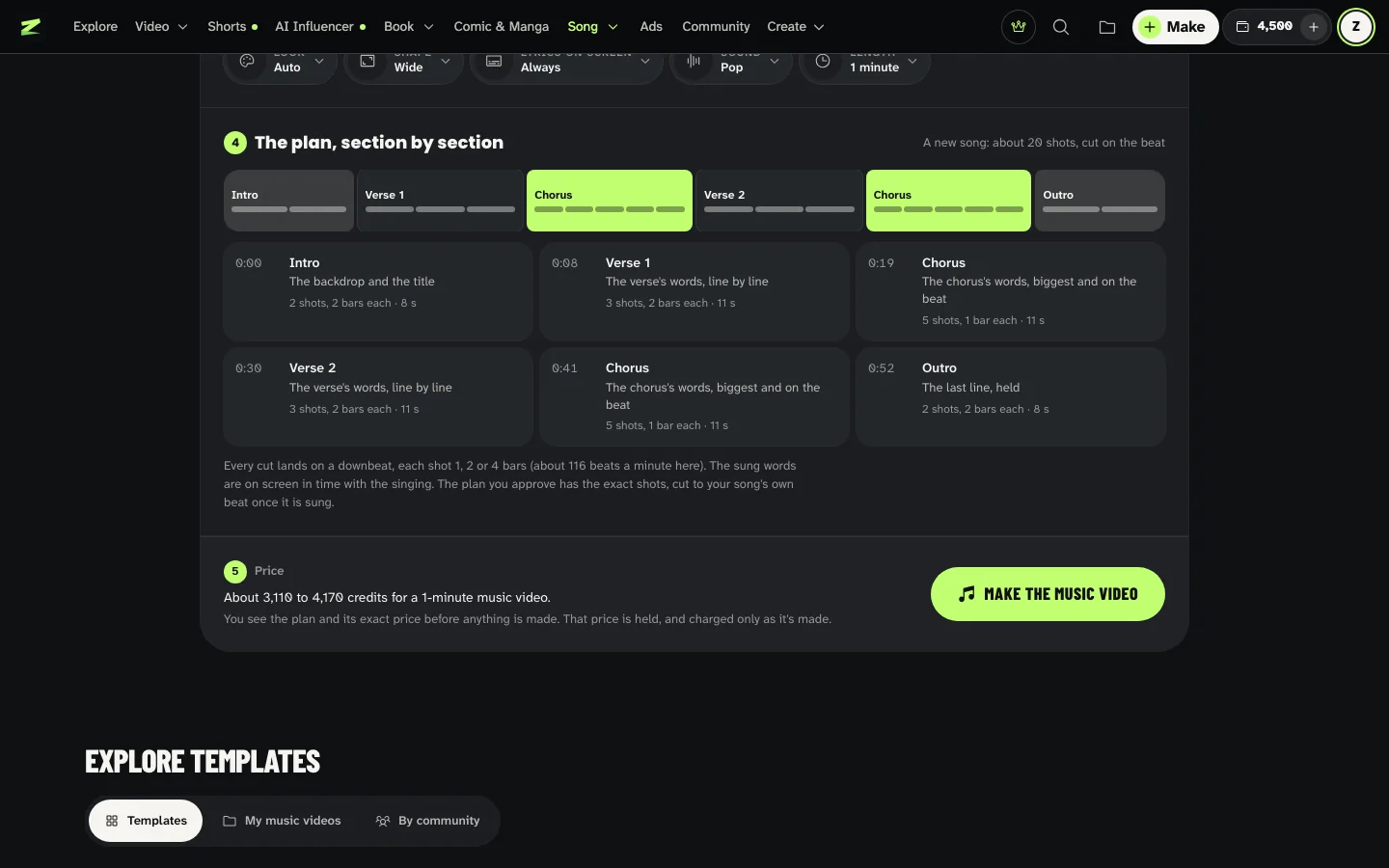
Step 4, the plan section by section, and step 5, the price range and "Make the music video." Step 5: Make the music video
Press "Make the music video." The planning panel opens with what it is ("A song," the look, the shape, the length) and the plan. Ask for changes in the box at the bottom for free ("Changes to the plan are free."), and the Plan card shows the exact price. For a new song, the card is titled "Your song plan": with enough credit its button reads "Make my song · about N credits," and with too little, "Add credit and make my song," which opens the Add credit sheet first. Nothing is charged until you press it.
Price on the Plan card
The project's steps are "Words," "Voice," "Sound" and "Song," then the video.
From "Make the music video" to "Your song plan": ask for a change, then read the price. Step 6: Watch, change and share
When it is ready, watch it with the sound on. To change a part, use Ask for changes; you see the price before anything is made. Download it from Share; downloading is free. For phones, make a Vertical version from "Social versions."
Download free
Which style for which song
A song to sing along with. A classroom song, a family chorus for a reunion, a holiday song for the grandparents. Choose "Lyric video" so the words are on screen in time with the singing. Pick a calm look, like 2D cartoon or Paper cut-out, so the words stay easy to read over the pictures.
A song that tells a story. A birthday song about a child's year, a ballad about how two people met. Choose "Story" and say in "What should it show?" what happens in each part: "In the first verse they meet at the bus stop, in the chorus they dance, in the last verse they are old and still dancing." Add your own characters so the same faces carry through.
A song with energy. A jingle, a party song, a team anthem. Choose "Performance." Singers and players on a stage give a fast song something to cut to on every beat. Add one or two of your own characters as the band if you want them to be the stars.
A slow or instrumental song. A lullaby, a piano piece, a song for a memorial slideshow. Choose "Mood." Pictures that match the feeling, without a plot, let the music lead.
Where a music video plays best
Think about where people will watch before you pick the shape. A family TV or a projector at a party wants Wide. A phone, a Story or a Reel wants Tall. A post in a feed or a messaging app works well Square. If it needs to go to two places, make it in the shape that matters most, then make a second shape from "Social versions" on the finished video.
What it costs
Choosing and planning are free. The price depends on the length and the style, and is shown in step 5 and on the Plan card before anything is made, in credits (1 credit is 1 cent). A new song written for the video is priced in the same plan. See pricing.
Common mistakes
- Expecting to upload a song. — Use a song you made in Zing Canvas, or have one written.
- Lyric video with "No words on screen." — Set "Show the lyrics."
- Too many characters in Performance. — One or two singers read best.
- Wrong shape for where it goes. — Tall for phones, Wide for screens.
Questions
How long can a music video be?
Up to 2 minutes.
Can I use a song I made elsewhere?
No, start from a song made here.
Can the words be on screen?
Yes, pick "Lyric video," or "Show the lyrics" with any style.
Can I add my own characters?
Yes, in Performance and Story.
Can I make a song and its video in one go?
Yes. Pick "A new song" in step 1, or check "Make a music video of it next" in the Song studio.
Make it yourself
Who wrote this
The team building Zing Canvas
Written by the people who build Zing Canvas: step-by-step guides to making picture books, comics, bedtime stories, greetings, songs, music videos, shorts and ads in Zing Canvas, with the real screens, what each step costs, and the everyday problems they solve.