
How to make a short video for Reels, TikTok and Shorts
The short version
- Choose a made-up presenter talking to camera, or a short with motion and captions.
- Have the script written for a small price on its button, or type your own; lead with the hook in the first line.
- Shorts are tall 9:16 and run 15 seconds to 1 minute.
- One idea per short: five tips make five shorts.
This guide is for creators, coaches, small businesses and teachers who need to post short videos often and do not want to be on camera every time. You will end up with a tall 9:16 video, 15 seconds to 1 minute, ready to post: either a made-up presenter saying your words to camera, or a short with motion, a narrator and captions.
Who this is for
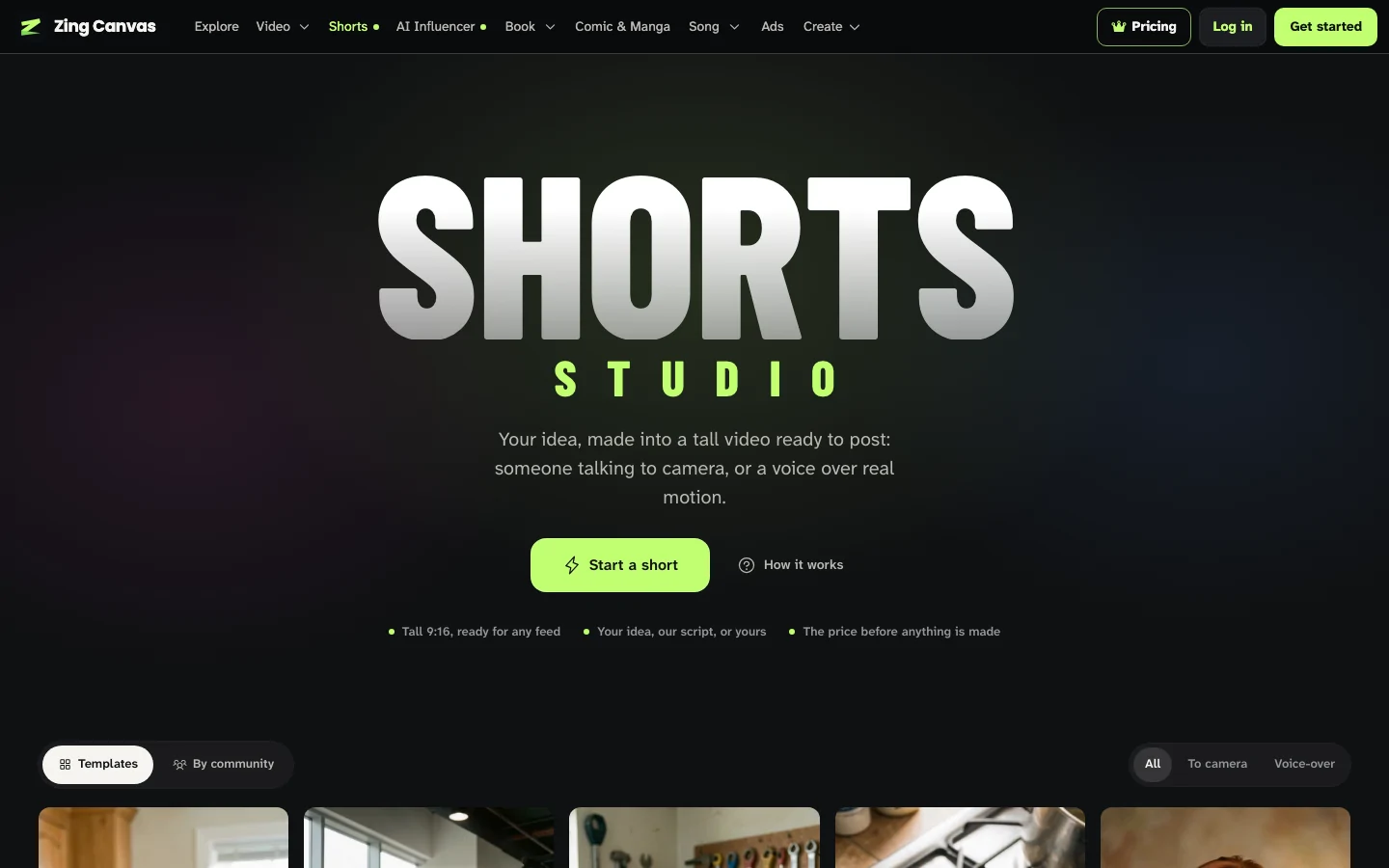
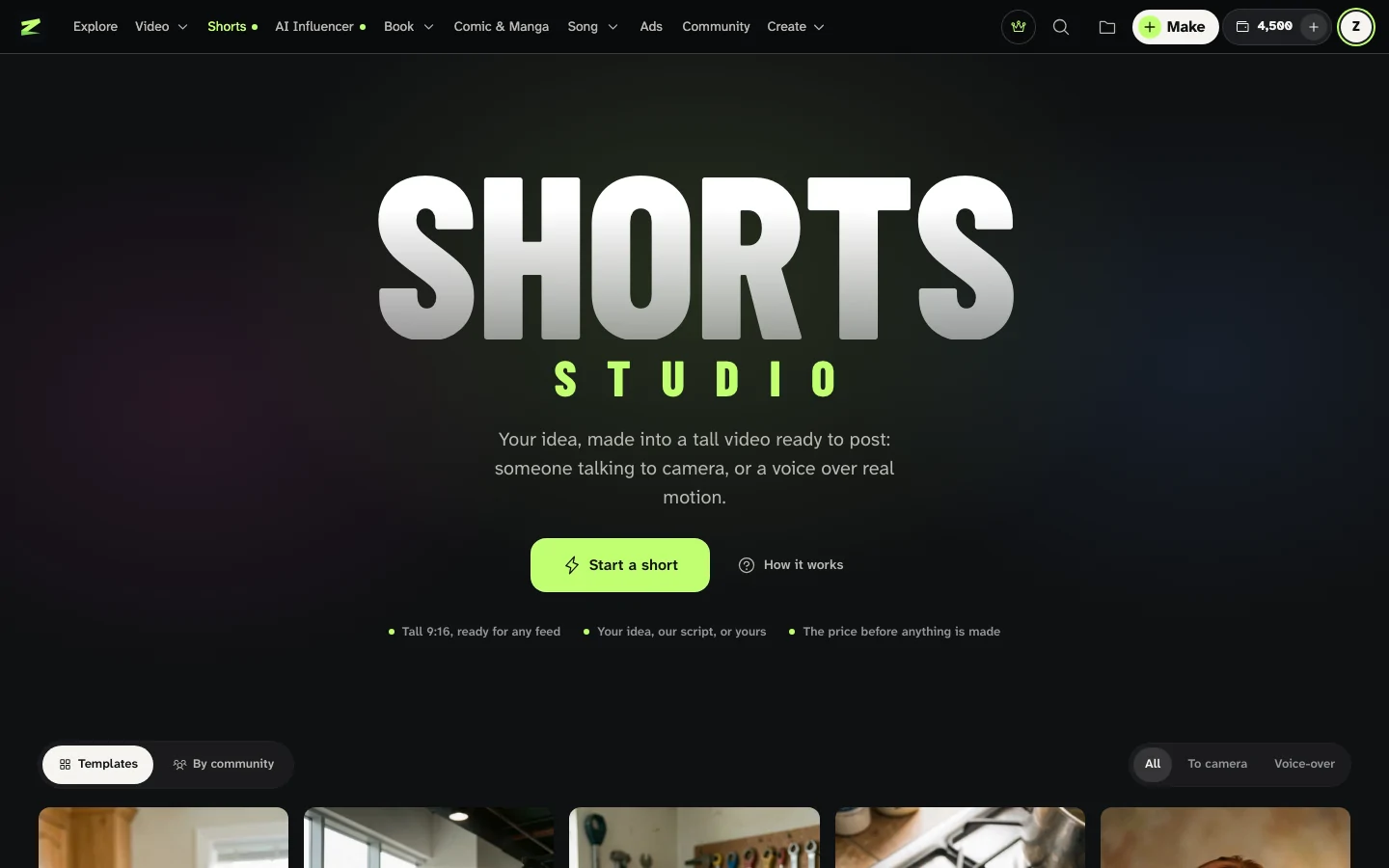
The Shorts page is at /app/make/shorts, under "Shorts" in the top bar.
How to make a short video for Reels, TikTok and Shorts
Step 1: Start fresh or pick a template
Press "Start a short," or pick a template from the wall under "Templates." Templates include "Quick tips," "Recipe in 30 seconds," "Myth or fact?," "Story time," "Before you buy," "Parent hack," "Explain it simply" and more. The filter at the right of the wall narrows them: "All," "To camera" or "Voice-over."
A template is a starting point. Everything in it can be changed in the next steps.
Filter the wall by To camera or Voice-over, then open a template: "Recipe in 30 seconds" starts as a short with motion. Step 2: Choose the use case
The window "Make this short" has four parts down its left side: "Use case," "Character," "Voice," "Script." Press "Continue" to go to the next and "Back" to return. The first asks "What do you want to make?":
- "Someone talks to camera" — "A made-up presenter says your words straight to camera, in the voice you pick. Tips, stories, reviews, reactions."
- "A short with motion" — "Real-life or drawn scenes that move, a narrator or none, and captions in the style you pick. Recipes, travel, facts, stories."
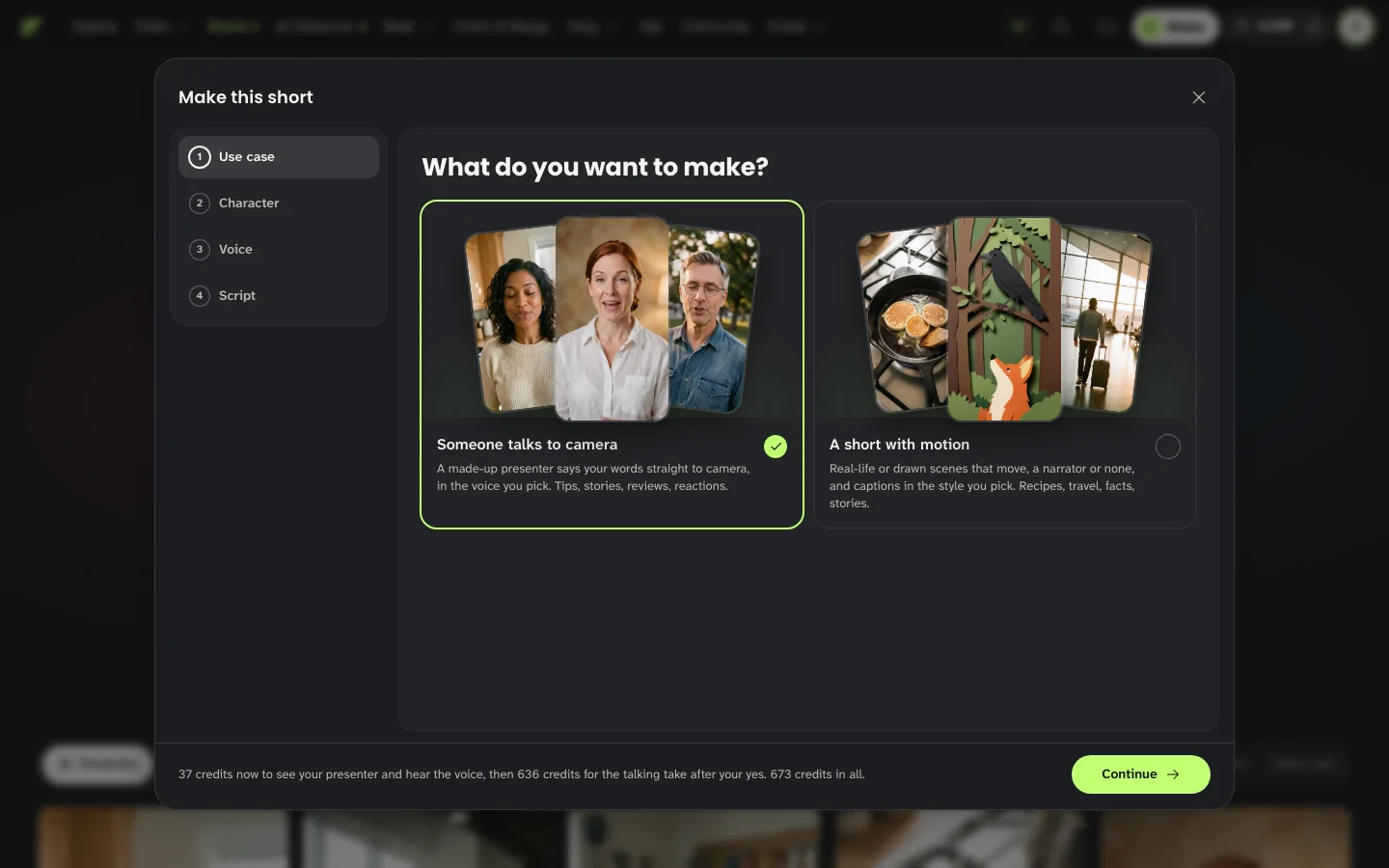
"What do you want to make?" with "Someone talks to camera" checked. The footer already shows the price. Step 3: Talking to camera: choose who and where
"Who says it?" "Always a made-up adult. Never a real person, a lookalike or a child." Two tabs sit under it: "Our presenters" (Maya, Leo, Ana, Sam and Jade, each with a short line such as "Late 40s, calm and ...") and "Describe one", where you write who you want (for example, "A woman in her fifties with short silver hair and a green jacket, cheerful and down to earth").
"Where are they?": "Plain white," "At home," "In a studio" or "Outdoors."
Then the Voice step: "How do they sound?" "Press play on any voice to hear it." Pick "How do they say it?": "Excited," "Calm expert," "Funny," "Warm and friendly" or "Confident."
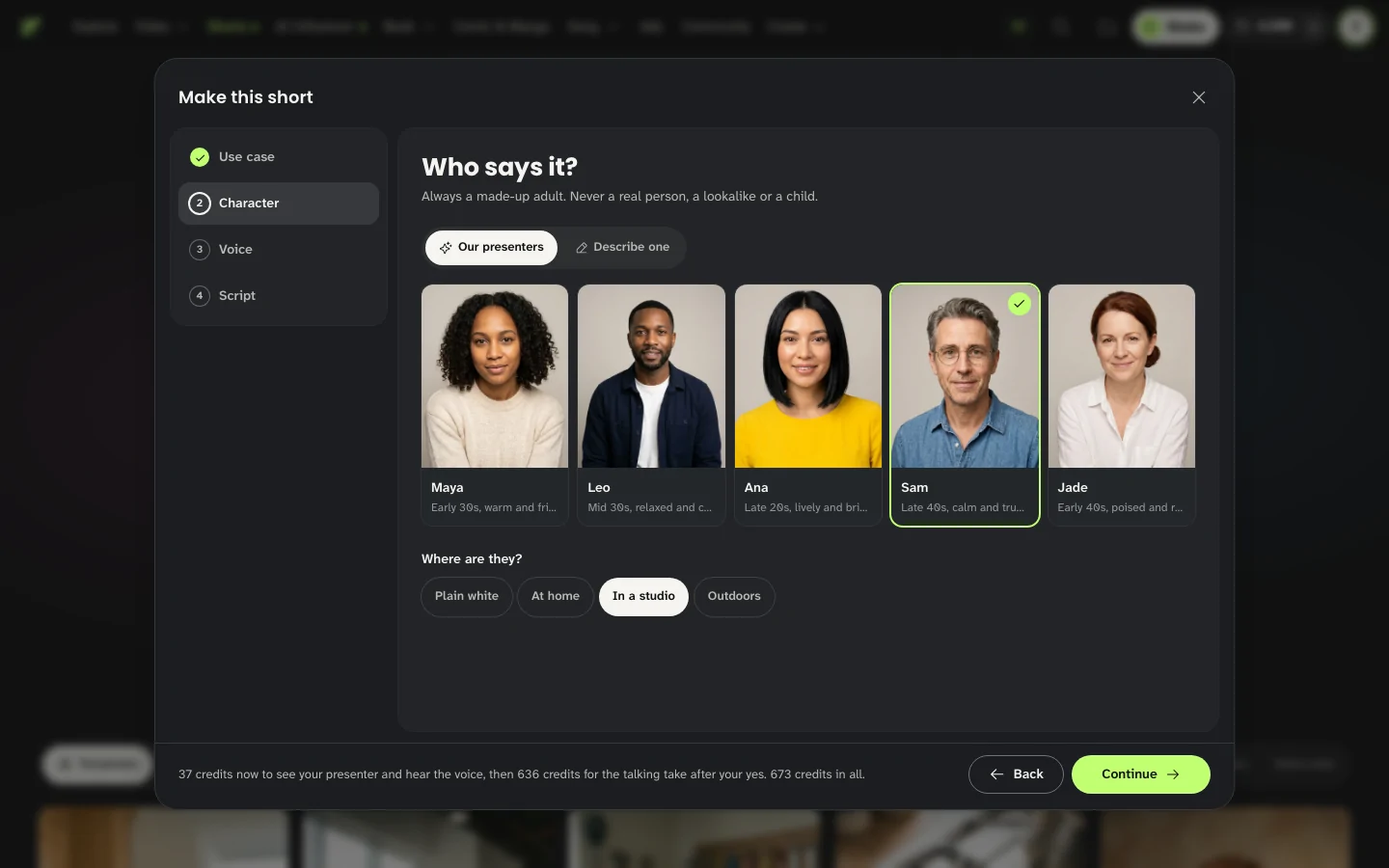
"Who says it?" on "Our presenters," with Sam picked and "In a studio" for where. Step 4: Write the script
"Turn your idea into a script." "Say what it is about and we write what they say, or type it yourself. Change any word before it is made." Type "What is it about?" (for example, "Three tiny habits that make busy mornings easier") and press "Write my script." Its small price is on the button; once a script is there, the button becomes "Write it again" with its price. Typing your own in "What they say" costs nothing. Pick the length: "15 sec," "30 sec," "45 sec" or "1 min."
Script priced on its button; take priced before your yes
A short lives or dies in its first line. Start with the promise ("Three habits that saved my mornings"), not a greeting.
The footer tells you the price in two parts: one amount now to see your presenter and hear the voice, then one for the talking take after your yes, and what it comes to in all. Press "Make my short"; the button carries the first amount. On the project page, look and listen first, then say yes to the take.
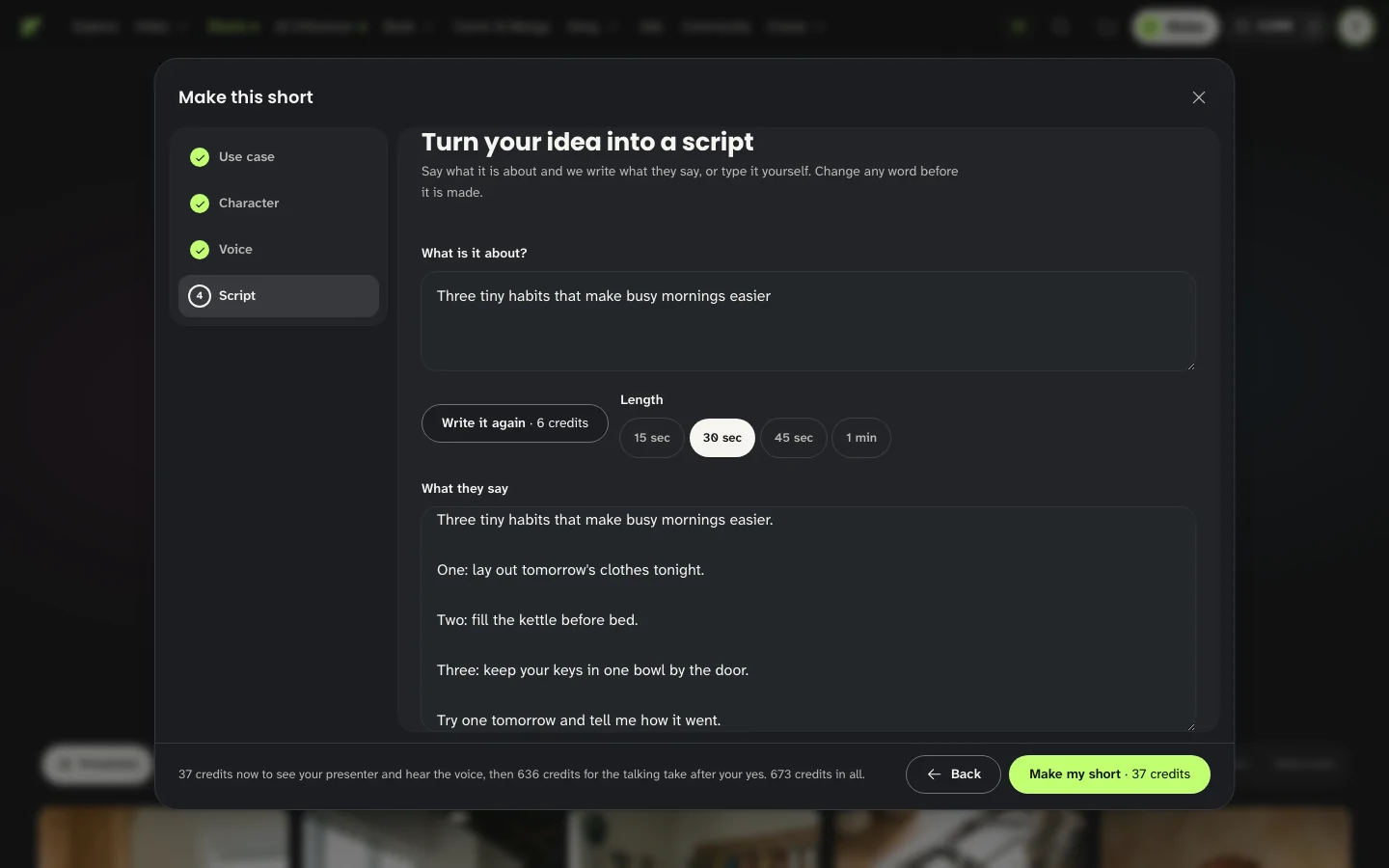
The written script, ready to edit, with the two-part price in the footer. Step 5: A short with motion: who, voice and captions
"Who is in it?" lets you star up to four of your own characters. "How should it look?" sets the look. "Whose voice tells it?" picks a narrator, or none.
Planning free; price on the Plan card
The Script step, "What happens in it?" ("Say it in a sentence or two. We write the script and plan each beat, then show you the plan and its price."), offers "What kind of short?" (POV, Storytime, Day in the life, Before and after, Reaction, Two-character chat, Perfect loop, Pet POV and more), "Your idea," the length, and Captions: "Word by word," "One big line," "Lower third," "Boxed lines" or "No words."
Press "PLAN IT · Free." The footer says what happens next: "Nothing is made until you say yes to a price. The Plan card shows the price before anything is made." The planning panel and the Plan card follow, as in the Video Studio.
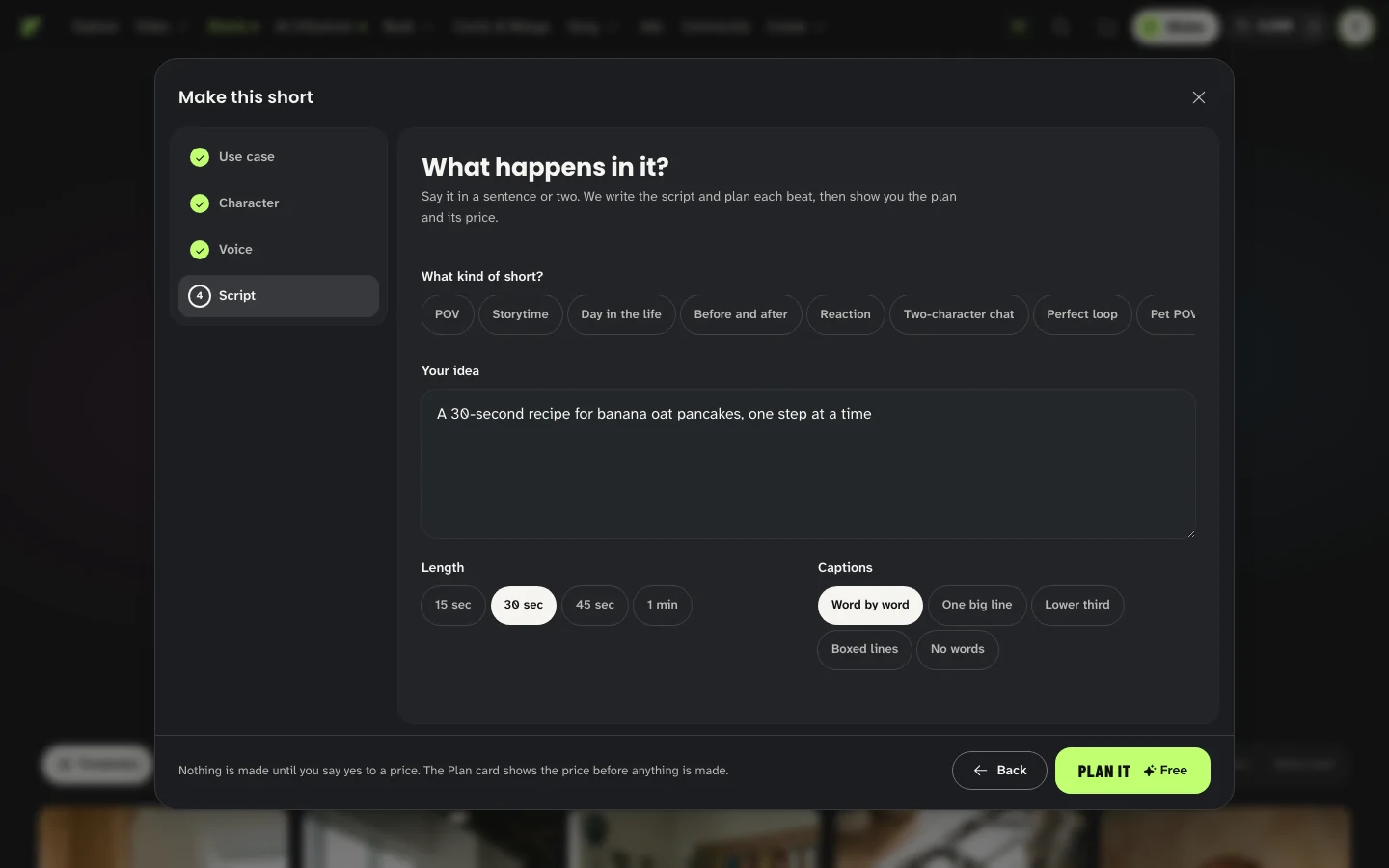
A short with motion: the kind of short, your idea, the length and the caption style, then "Plan it" for free. Step 6: Post it
Your finished short is a tall 9:16 video. Download it and post it. You can change it, make it again, or share it with the community.
Before you post, watch it once with the sound off. Most people scroll that way. If the point is not clear without sound, add captions (on a motion short) or put the key line in your post's text. Then watch it once with the sound on, at full volume, to check the voice.
Write the post caption yourself, in your own words, and add two or three hashtags that describe the topic rather than trending tags that do not fit. Post at the time your audience is usually online, and reply to the first few comments. Shorts that get early replies tend to be shown to more people.
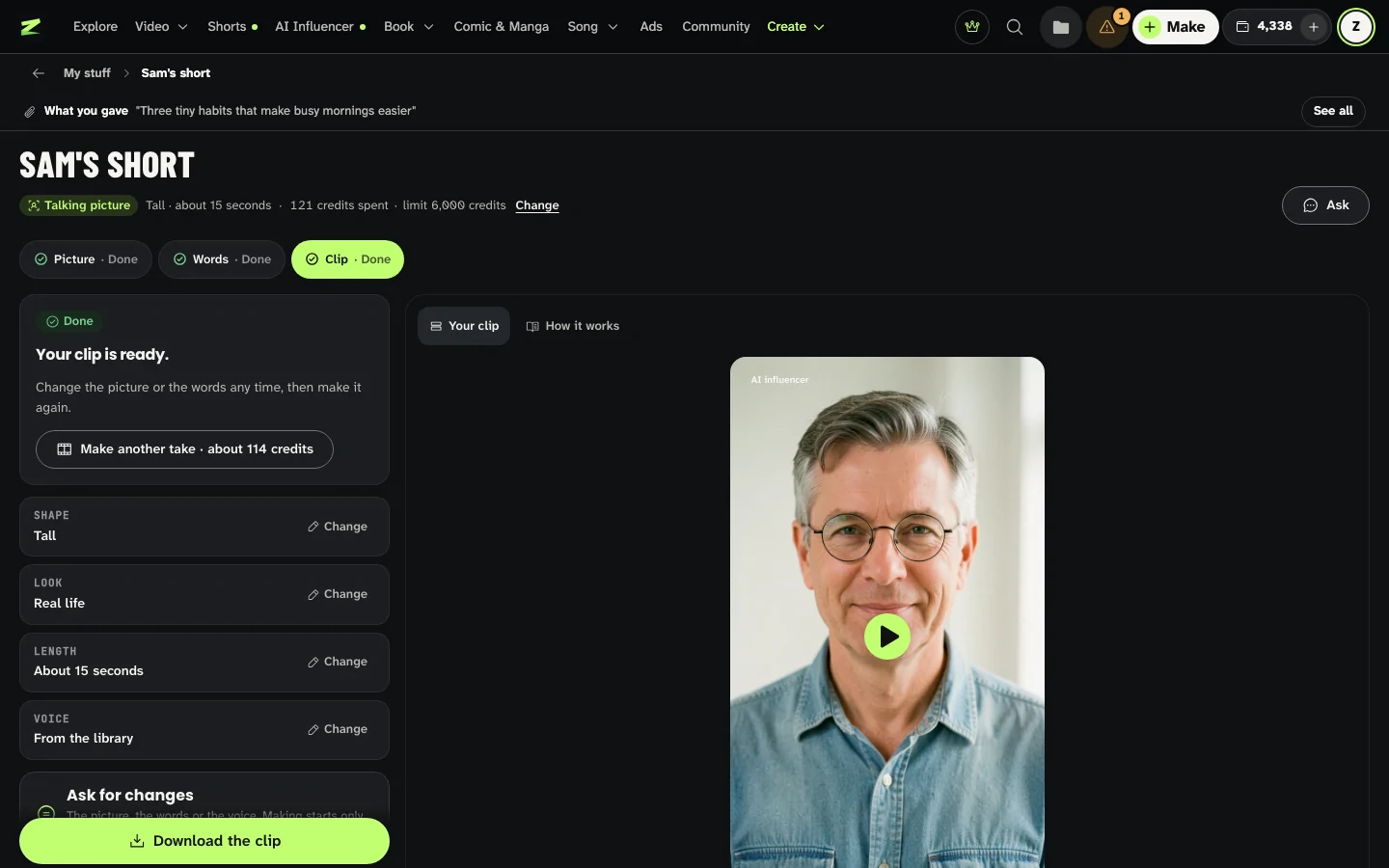
A finished talking short on its project page, tall 9:16, with the download in Share.
Which kind of short to make
Talk to camera when the value is in what is said: tips, opinions, reviews, answers to a question your customers keep asking. A presenter looking into the lens feels like a person talking to the viewer, and that is what keeps people watching tips and advice. Pick "Calm expert" for advice, "Excited" for news and launches, "Funny" for hot takes. For longer videos with a name and title on screen, see how to make an AI presenter video.
A short with motion when the value is in what is seen: a recipe, a place, a fact with a picture, a little story. Captions do the talking, so pick a caption style that fits. "Word by word" holds attention on fast content, "One big line" suits a single punchy statement, "Lower third" leaves the picture clear, and "Boxed lines" reads well over busy scenes.
Writing a short that holds attention
The first two seconds. Say what the viewer gets, right away. "The one-minute trick for crispy garlic" beats "Hi everyone, today I want to talk about garlic."
One idea per short. If you have five tips, make five shorts. Each one can be posted on a different day, and each one is easier to finish watching.
Numbers help. "Three habits," "two mistakes," "one thing nobody tells you." A number tells the viewer how long they will wait.
End with a reason to act. Ask a question for the comments, point to the next short, or say where to find you. Keep it to one line.
Make a series from a template. Once one short works, open the same template again and change only the topic. Your feed starts to look planned, and each new short takes a few minutes.
What it costs
Having the script written costs a few credits, shown on the "Write my script" button; typing your own costs nothing, and planning a motion short is free. A talking short is priced by length: a part now for the presenter and voice, and the take after your yes. A motion short is priced on its Plan card. Credits are 1 cent each. See pricing.
Common mistakes
- A slow first line. — Lead with the hook.
- Too much script for 15 seconds. — About 35 words fit in 15 seconds.
- Captions off on a motion short. — Most people watch with the sound off.
- Trying to use a real person. — Presenters are always made up.
Questions
Can I use my own face?
No. Presenters are always made-up adults.
How long can a short be?
15 seconds to 1 minute.
Can I post it anywhere?
Yes, it is 9:16 for any feed.
Can teens make shorts?
Teens see shorts with motion, not talking presenters, when their parent turns "Videos and shorts" on.
Make it yourself
Who wrote this
The team building Zing Canvas
Written by the people who build Zing Canvas: step-by-step guides to making picture books, comics, bedtime stories, greetings, songs, music videos, shorts and ads in Zing Canvas, with the real screens, what each step costs, and the everyday problems they solve.