
The short version
- Every presenter is made up, an adult, never a real or famous person.
- Building is free; you see and hear the presenter before the take, and every step shows its price first.
- Add a name and title on screen, spelled exactly as typed.
- Keep a presenter to use the same face and voice every week.
This guide is for businesses, trainers, clubs and creators who need someone on camera and do not want to film themselves: a welcome video for new members, a weekly update, a product walkthrough in Spanish. You will end up with a video of 15 seconds to 2 minutes of a made-up presenter saying your words to camera, tall or wide, with a name and title on screen if you like.
Who this is for
Every presenter is invented, never a real or famous person and never a child, and every video carries a small "AI influencer" label.
The AI Influencer page is at /app/make/influencer. The old address, /app/make/presenter, sends you there.
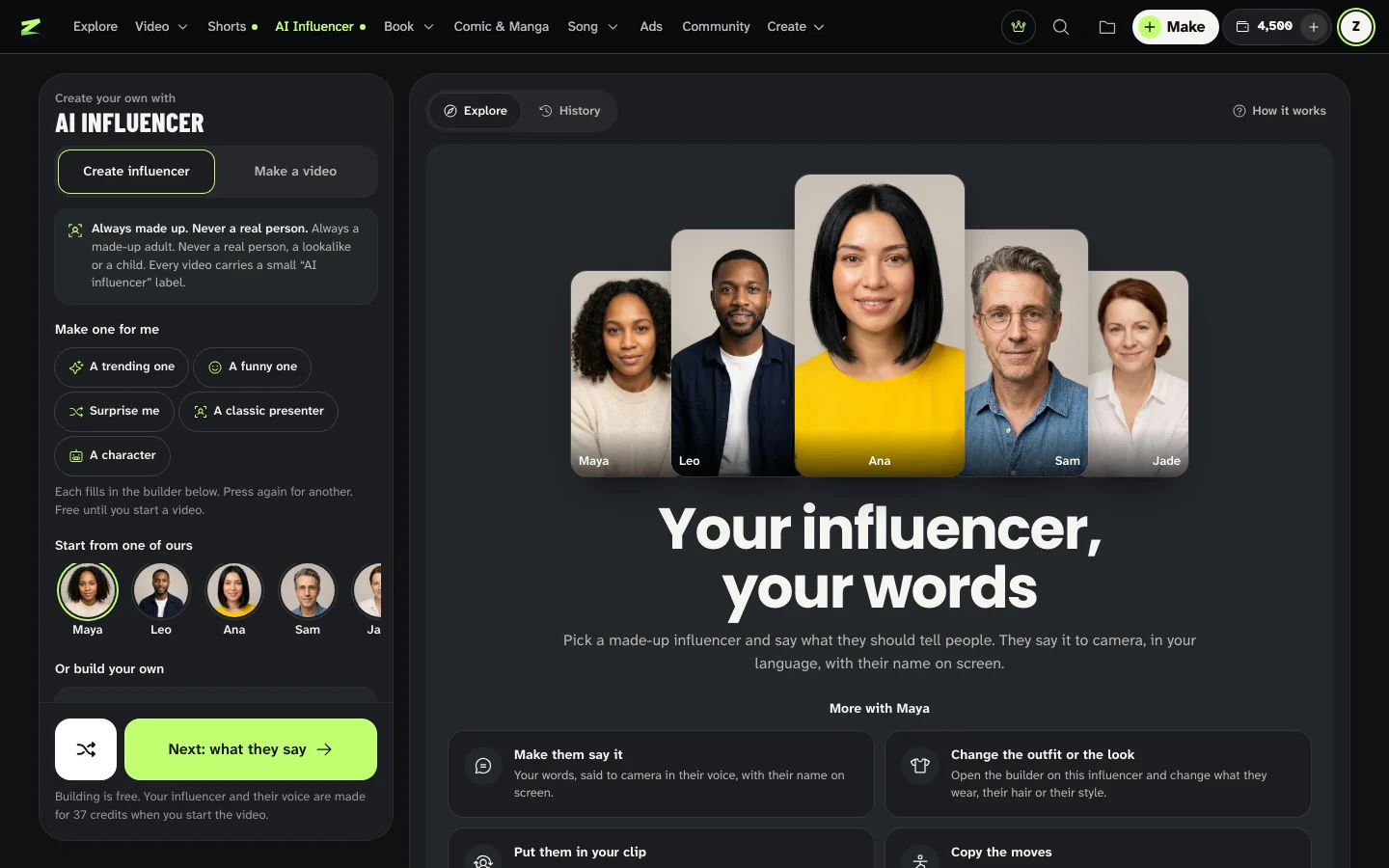
How to make an AI presenter video
Step 1: Choose or build your presenter
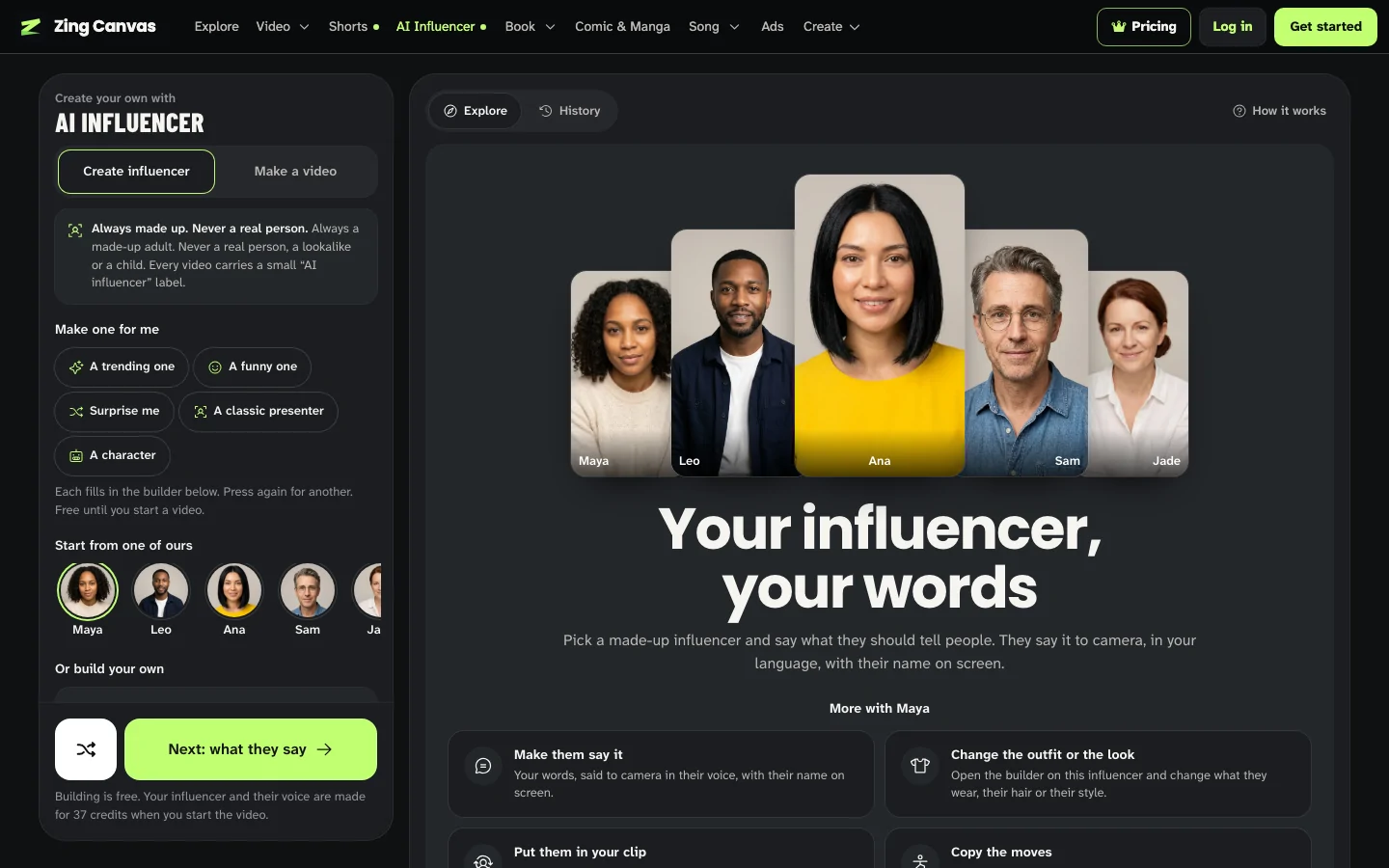
On "Create influencer," start from one of ours ("Start from one of ours") or one you saved, or build your own ("Or build your own"). The canvas on the right has the same people to browse, in three tabs: "Our influencers," "Trending looks" and "Starters." Press one to see them full size.
Free
"Make one for me" fills the builder for you: "A trending one," "A funny one," "Surprise me," "A classic presenter" or "A character" (an animal, a robot, a mascot, a creature or a 3D toy). "Each fills in the builder below. Press again for another. Free until you start a video."
The builder is a list of parts you can open and change one at a time, such as "Lips," "Smile," "Signature marks," "Face extras," "Outfit" and "Manner," with "Anything else, in your words" at the end ("What else should we know about them?"). Or open "Describe it instead": type "Who do you want?" and press "Fill in the choices." Your words become the choices, for you to look at and change. "Always an adult. Never a real or famous person."
When you like them, press "Next: what they say." The line under it reads "Building is free," and says what the influencer and their voice will cost when you start the video.
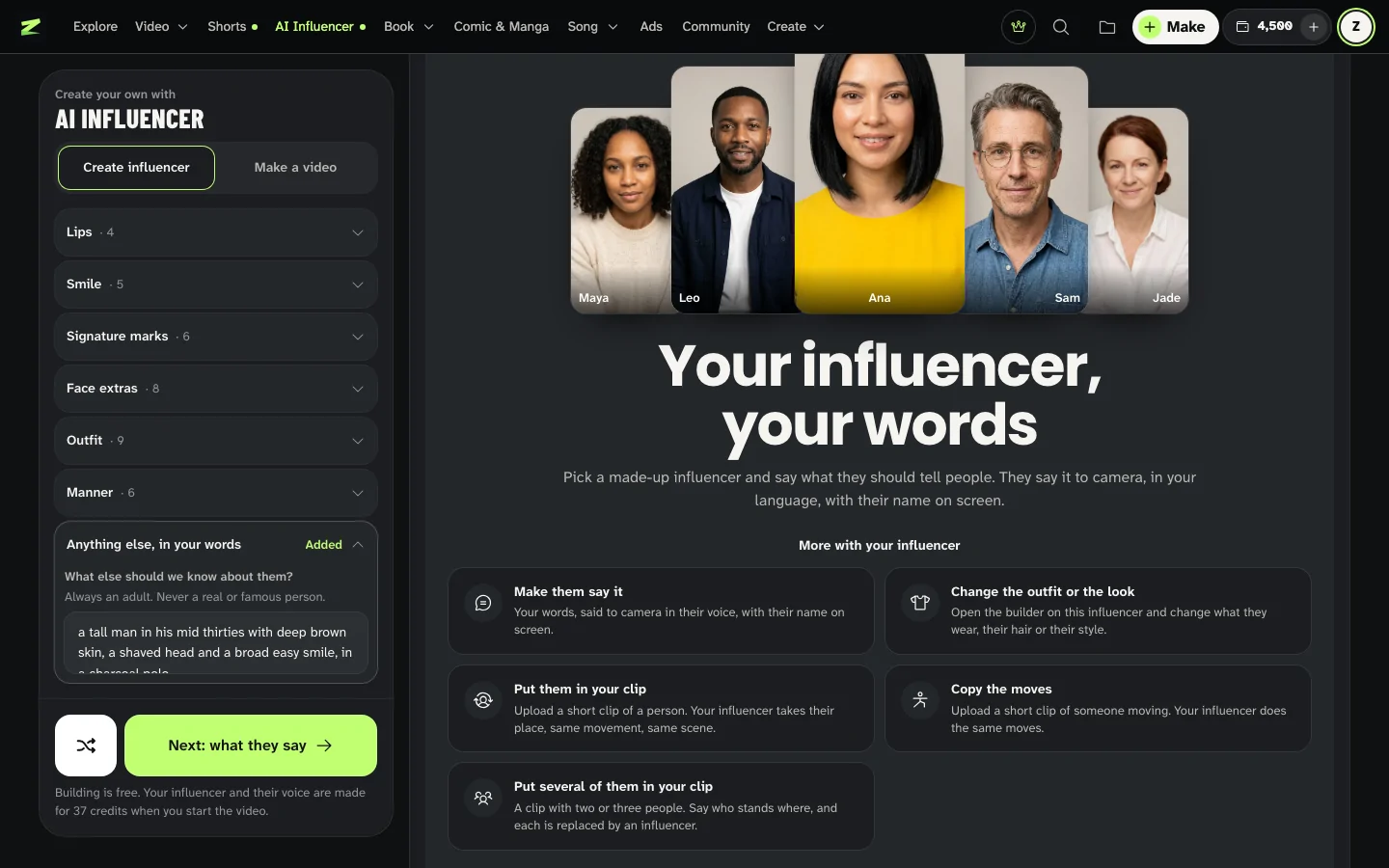
The builder filled in. Open any part to change it, then press "Next: what they say." "Make one for me": press a choice and the builder fills in; press again for another. Step 2: Write what they say
The "Make a video" tab opens on "What they say" ("A hello, up to three points and a sign-off."). Pick "Write it for me" or "I'll write it."
Price on the button, if any
With "Write it for me," type "What is it about?" (for example, "Welcome new members to our running club and tell them when we meet") and press "Write it." The line under it says whether writing is free or what it costs, and how many words it writes for your length. You read it and change it before anything is made.
With "I'll write it," fill in "Hello" and "Point 1." Press "Add a point" for a second and a third, and finish with the "Sign-off." Each point has a trash button to remove it.
A good presenter script is written to be heard: short sentences, one idea each, and the most important thing said twice.
The "Hello" is where most scripts go wrong. It does not need to introduce anyone at length. "Welcome to Riverside Runners" is enough, and the name and title in the lower third (Step 4) tell viewers who is speaking. Spend the words on the points instead. Each point should be one thing the viewer can do or remember: "We meet Tuesdays at 6 at the boathouse." "Bring water; we stop halfway." "Every pace is welcome." The "Sign-off" then tells them what to do next: "See you Tuesday."
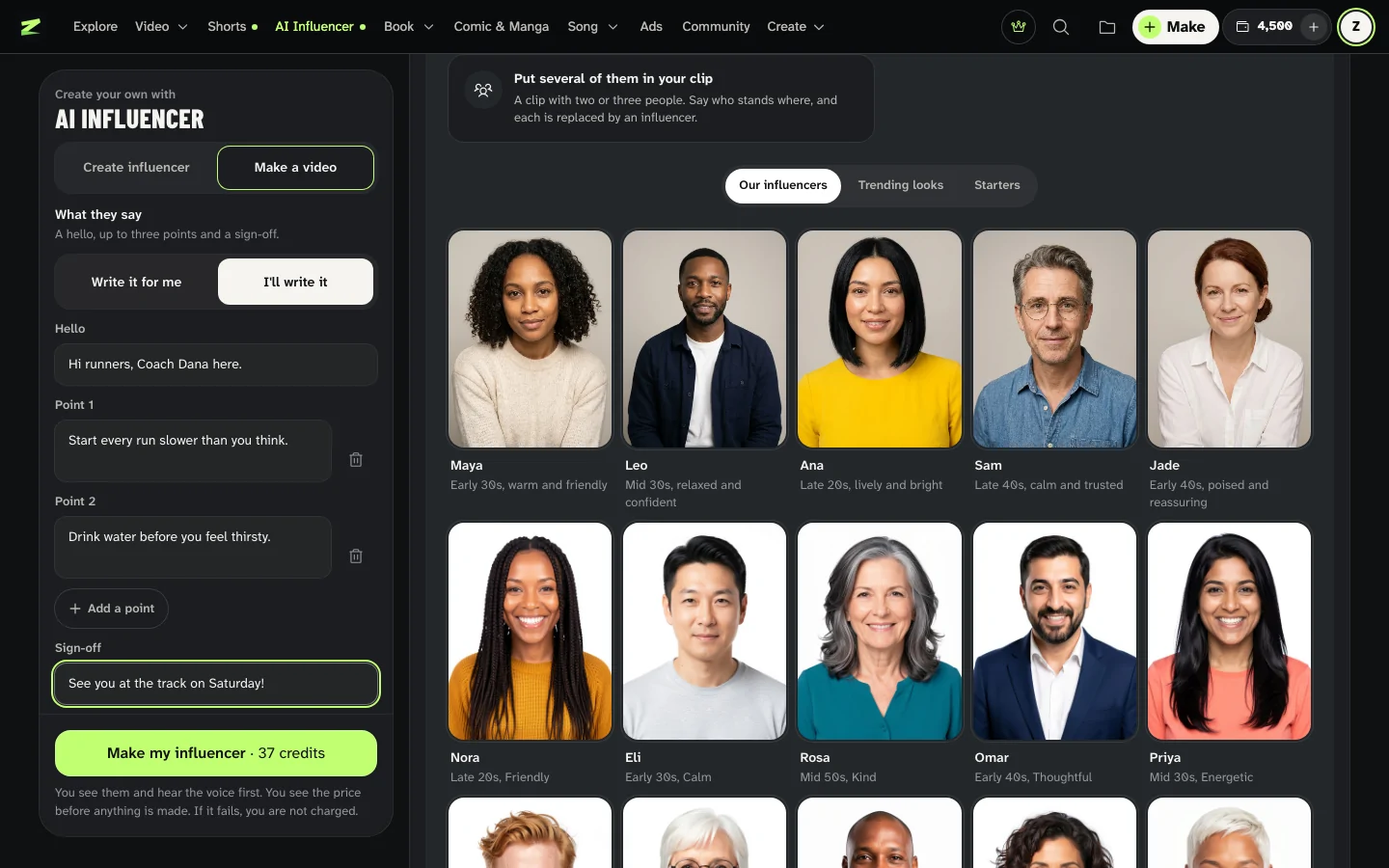
"I'll write it": a hello, points added with "Add a point," and a sign-off. Step 3: Set the delivery, place, shape and length
- "How do they say it?" — "Excited," "Calm expert," "Funny," "Warm and friendly" or "Confident."
- "Where are they?" — "Plain white," "At home," "In a studio" or "Outdoors."
- "Shape" — "Tall, for phones" or "Wide, for screens."
- "Length" — 15 sec, 30 sec, 45 sec, 1 min, 1 min 30 sec or 2 min.
- Language and voice — "Their words and their voice follow it."
Step 4: Put a name on screen
Above it, under "Their voice," pick a voice and press play to hear it; "Show every voice" opens the whole list. Then "Name on screen" adds a lower third: "Name" and "Title," both optional. It is "Set in type by us over the video, never drawn into it," so it is spelled exactly. Below that, turn on "Keep this influencer" to use the same face and voice again.
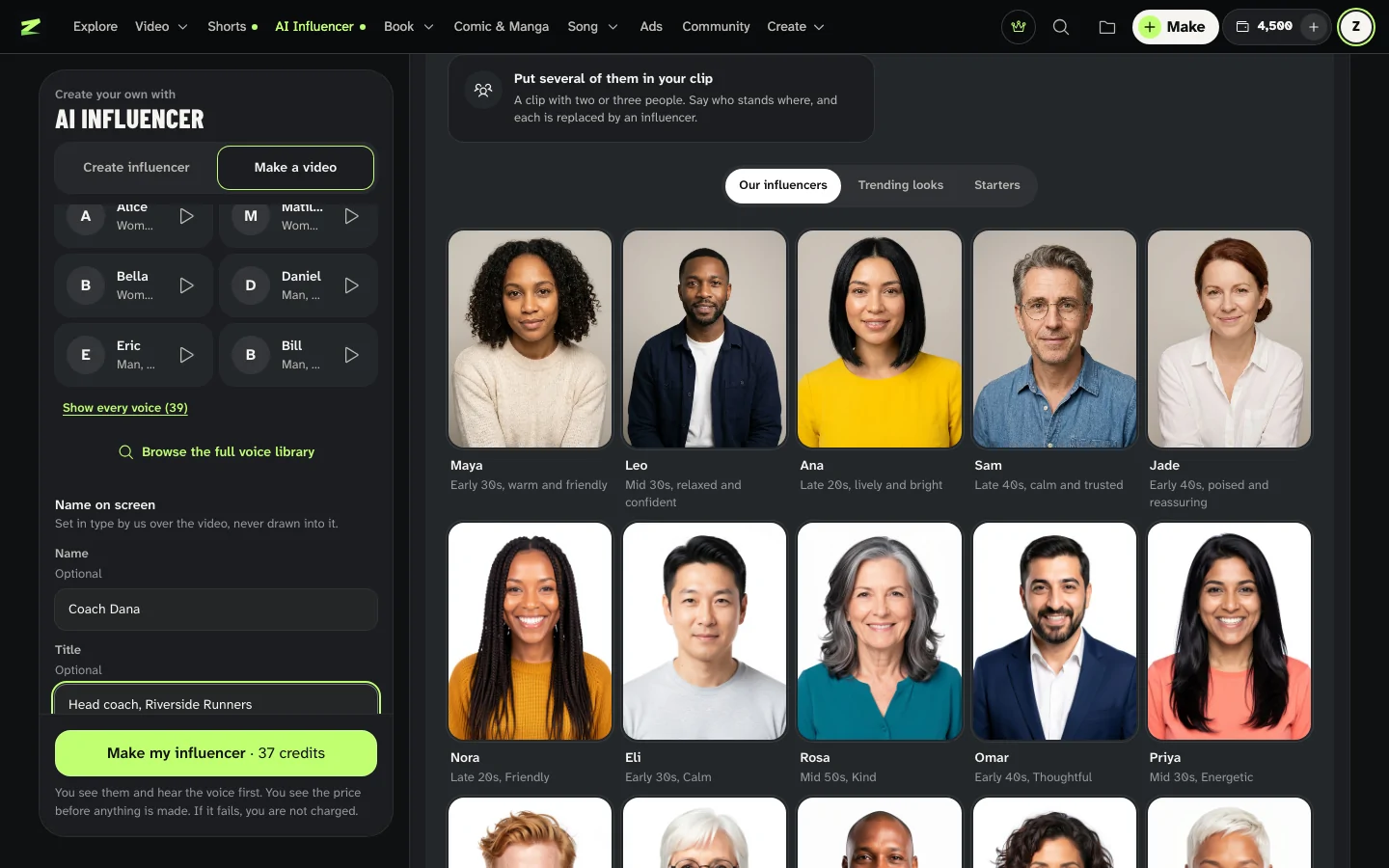
Pick their voice, then type the name and title for the lower third, spelled exactly as it will appear. Step 5: Read the plan and make it
"The plan" shows three lines: "Your influencer and their voice, to see and hear first," "The talking take," and "In all." "You pay for the first line now. The take is made only when you press Make it on the next page, at its price there; a shorter script costs less."
Price shown before you confirm
Press "Make my influencer." "You see them and hear the voice first. You see the price before anything is made. If it fails, you are not charged." On the next page, look and listen, then press "Make it."
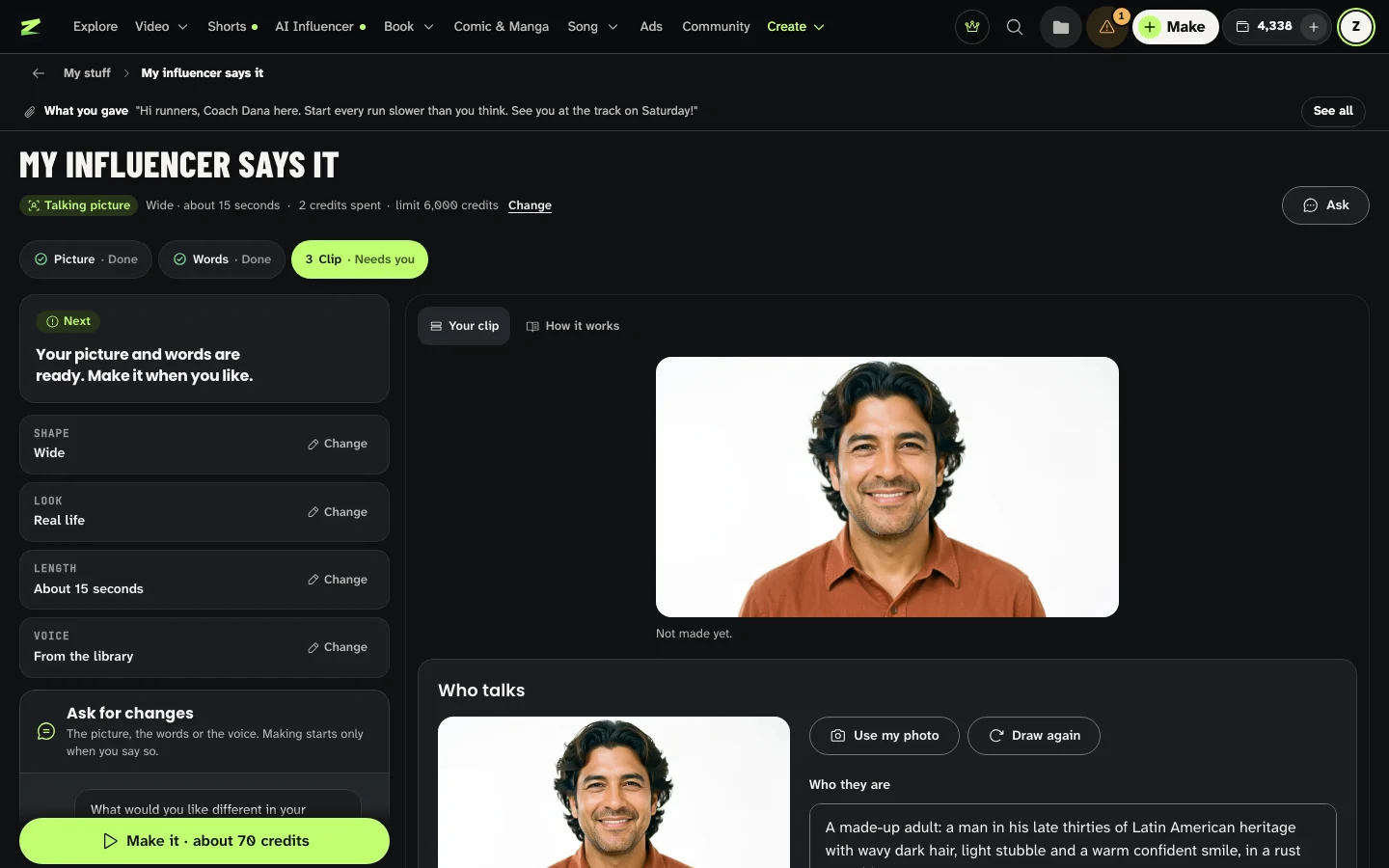
The project page after "Make my influencer". Play 10 seconds of a finished wide presenter video with the lower third "Coach Dana" on screen. Step 6: Put them in your own clip (optional)
Under "Make a video," your influencer can also go into a clip you upload: "Put them in my clip," "Put several of them in my clip" and "Copy the moves." Clips are 2 to 10 seconds. Check "I have the right to use this video and voice"; the people in your clip are replaced, and their voices and the clip's sound are not kept. The price shows once your clip is picked.
Price shown once your clip is picked
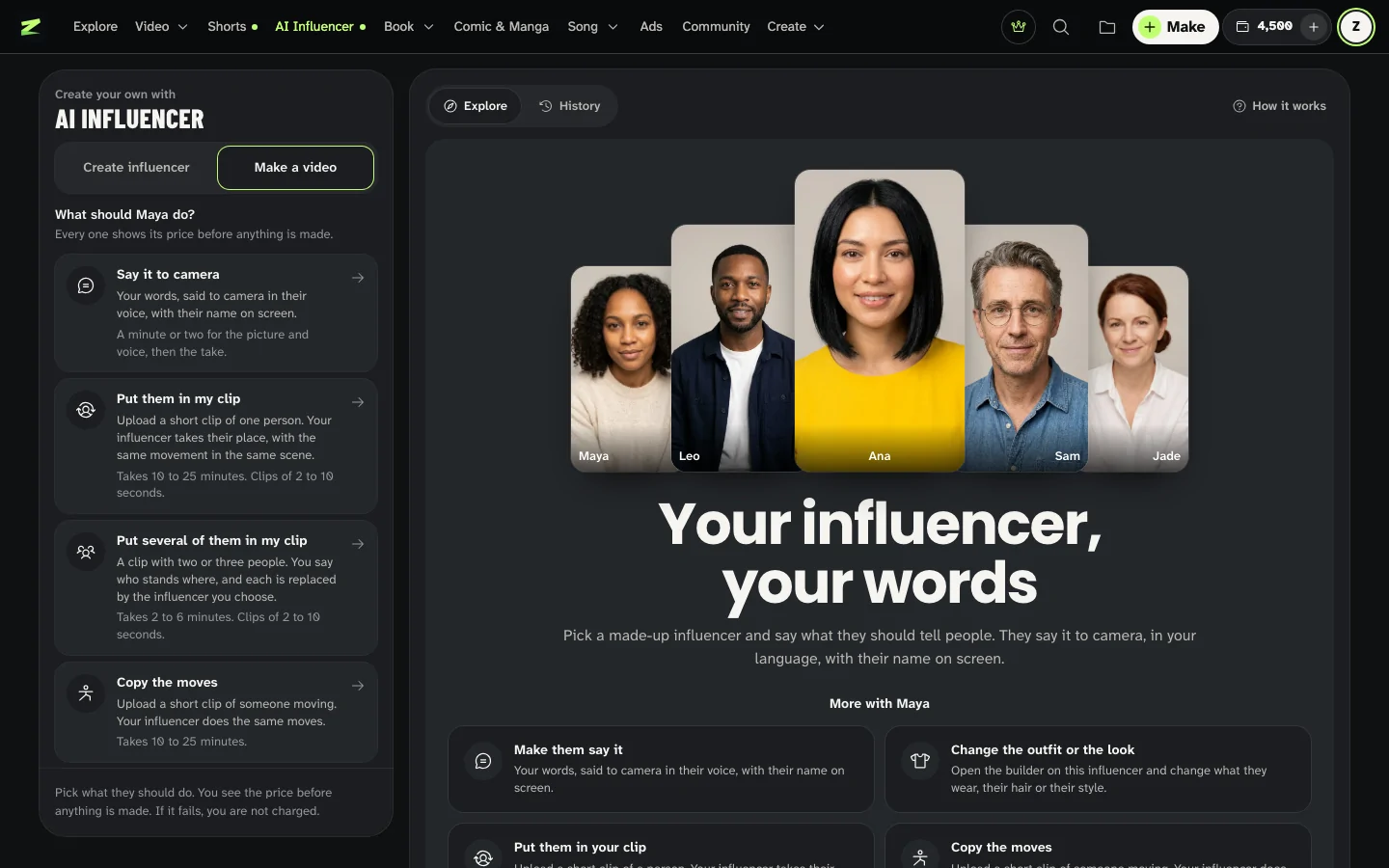
"What should Maya do?": say it to camera, or go into a clip you upload.
Ways to use a presenter
A welcome video. For new members, new customers or new staff. Hello, what to expect, where to go next, sign-off. Thirty seconds, Wide for a website or an email, Tall for a text message.
A weekly update. The same presenter every week, saved with "Keep this influencer," becomes a familiar face. Write the three points of the week under "Point 1" to "Point 3" and the presenter does the rest. Viewers start to recognize the face and the voice. For tall shorts of 15 seconds to a minute, see how to make a short video.
The same message in another language. Make the video once, then make it again with another language picked. The words and the voice follow the language, so one script can reach customers who speak Spanish, French or Hindi without hiring a second presenter.
A short how-to. One task, three steps, under a minute. Pick "Calm expert" and "In a studio" for a clean, trusted look.
A mascot that talks. A bakery's cartoon croissant, a library's owl, a club's robot. Pick "A character" in "Make one for me" and keep it, so it becomes part of your brand.
Writing for a presenter
Read the script out loud before you press anything. Time it with your phone. If it runs long, cut whole sentences rather than squeezing words together. Use contractions ("we're," "you'll") so it sounds spoken. Put the one thing you want people to remember in the first point and again in the sign-off.
What it costs
Building is free, and writing the script shows its price, if any, on its button. You pay for the presenter's picture and voice first, then the take at its price on the next page; a shorter script costs less. Credits are 1 cent each. If it fails, you are not charged. See pricing.
Common mistakes
- Writing like an email. — Write the way you would talk.
- Too long. — Most welcome videos work at 30 to 45 seconds.
- Wrong shape. — Tall for phones, Wide for websites and slides.
- A name typo in the lower third. — It appears exactly as typed.
Questions
Can it look like me or a celebrity?
No. Presenters are always made up.
Can it speak another language?
Yes, choose the language; the words and voice follow it.
Can it be an animal or mascot?
Yes, pick "A character."
Is the video labeled as AI?
Yes, with a small "AI influencer" label.
Can I use the same presenter again?
Yes. Turn on "Keep this influencer" and they are there to start from next time, beside ours. Using a saved presenter keeps the same face and voice across all your videos, which is what makes a weekly update feel like a show.
How long does it take?
A minute or two for the picture and voice, then the take. Clip tools take longer: "Put them in my clip" and "Copy the moves" take 10 to 25 minutes.
Make it yourself
Who wrote this
The team building Zing Canvas
Written by the people who build Zing Canvas: step-by-step guides to making picture books, comics, bedtime stories, greetings, songs, music videos, shorts and ads in Zing Canvas, with the real screens, what each step costs, and the everyday problems they solve.