The short version
- One good product photo on a plain surface is the most important thing you bring.
- Pick one shape and one length for where the ad runs first.
- Headline, tagline and button text are set exactly as you type them.
- No product photo? The Business door makes an ad from your app's screens or your business.
This guide is for small shop owners, makers, local services and app founders who need an ad and do not have a video crew, a studio or a week to wait. You will end up with a finished ad, as a video of 6 to 30 seconds or as an image, in the shape your platform wants, with your headline and button text spelled exactly.
Who this is for
There are two doors. "Product" is for a thing you can photograph: a water bottle, a pair of shoes, a jar of hot sauce. "Business" is for an app, a website or a business with no single product: a booking app, a dental practice, a yoga studio.
The Ads studio is at /app/make/ads, under "Ads" in the top bar.
How to make a product ad or a business ad
Step 1: Choose image or video, and add your product
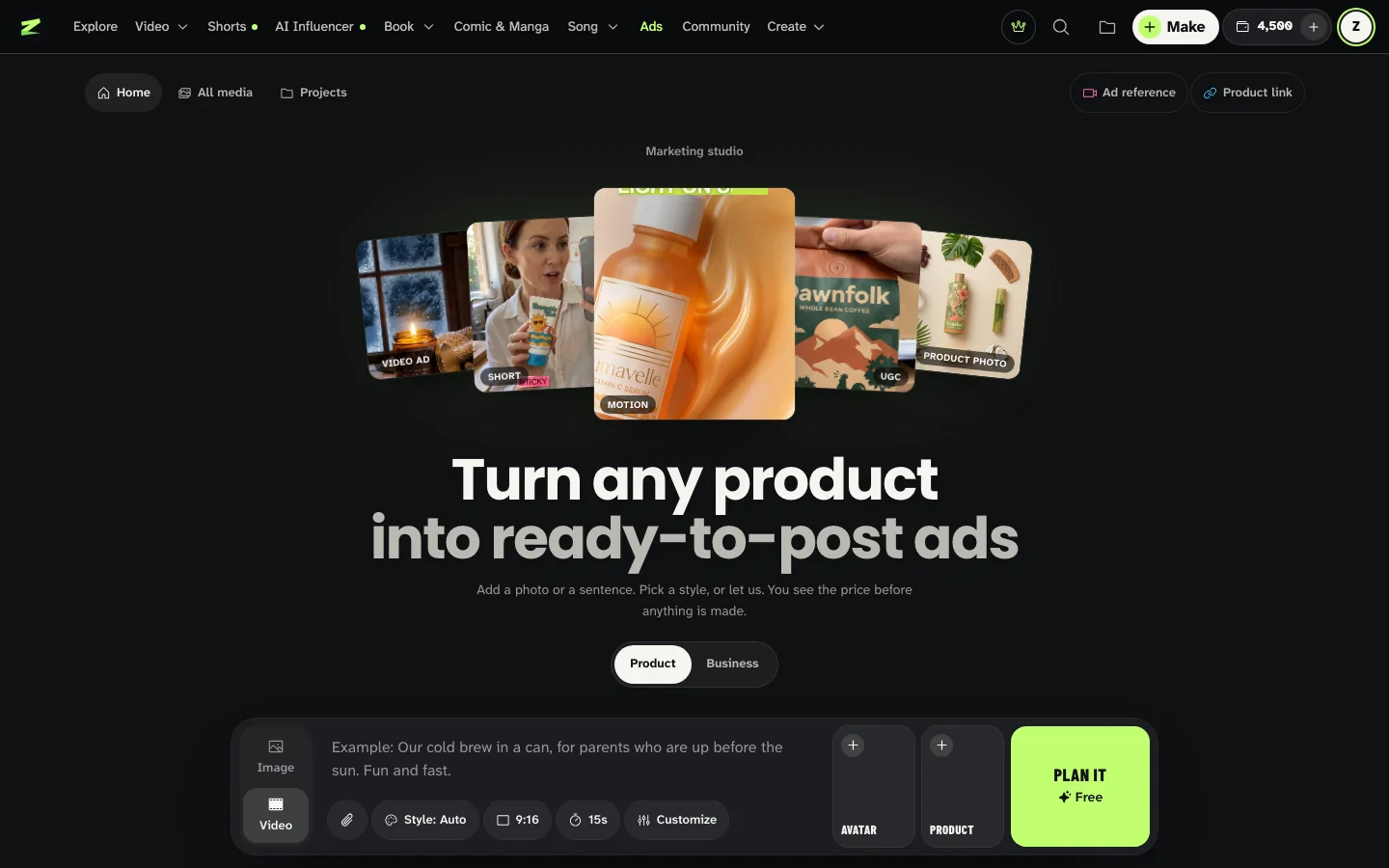
In the composer, pick "Image" or "Video" on the left. Then add your product: press the "Product" tile and upload a photo, or describe it and the ad you want in the box (its example reads "Our cold brew in a can, for parents who are up before the sun. Fun and fast."). The "Avatar" tile beside it adds a made-up presenter. At the top right, "Product link" starts from your product page, and "Ad reference" shows an ad you like.
You will be asked "Is this your product?" It says what it sees in your photo ("We see: ..."), then gives you a "Product name" and a "Description" to fix if it read anything wrong: "Your ad is made for this product." You can add up to 6 photos ("The first is the main one") and choose whether to save the product for next time ("No, just this ad" or "Yes, save it"; saved products wait in All media, free). Press "Use this product."
A good product photo is the most important thing you bring. Shoot it on a plain surface in daylight, filling most of the frame, with no other products in view. Your phone is enough.
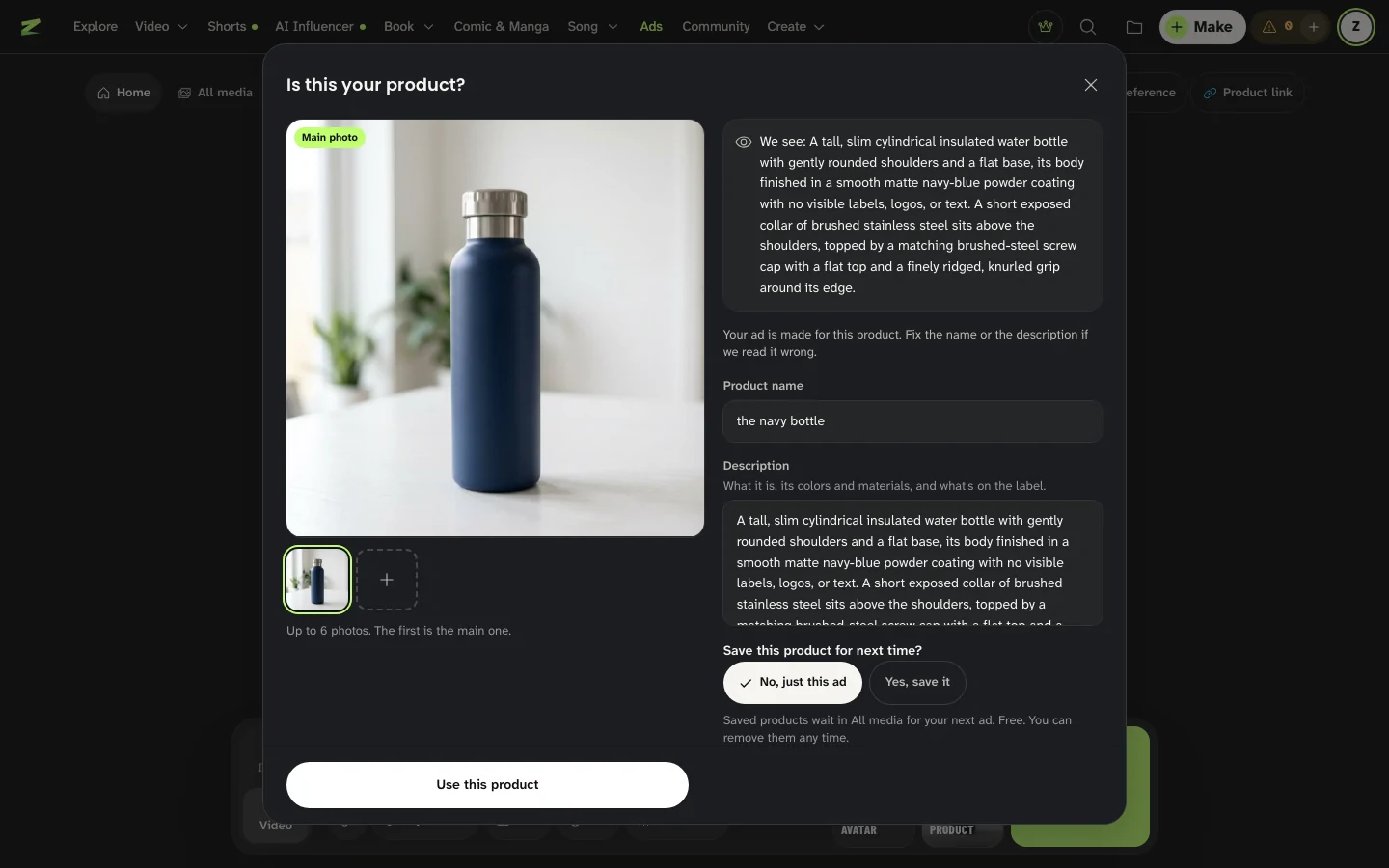
"Is this your product?" Check the name and description before your ad is made for it. Step 2: Pick the style, shape and length
The chips under the box:
- Style — "Auto" or a look of your choice.
- Shape — 9:16 for Stories, Reels and TikTok; 1:1 for feeds; 16:9 for YouTube and websites. The chip shows the shape you have, such as "9:16."
- Length — 6s, 10s, 15s or 30s. The chip shows the length you have, such as "15s."
Each ad is made in one shape. Make the shape for where most people will see it first. Six or ten seconds is right for a product reveal; 15 seconds lets you show it in use; 30 seconds suits a story or a demo.
Step 3: Customize it (optional)
For more control, press the "Customize" chip to open "Customize your ad." It has four parts, listed down its left side and titled "Step N of 4." Each part ends with a button that names the next one, such as "Next: How should it look?" and "Next: Check and plan", and "Back" takes you to the one before:
Free
- "What are we advertising?" — Up to 6 photos and 2 videos. Add your "Brand name" and "Your website": "We'll pull your colors and logo when we plan. Free." Open "Colors, fonts, tone and brand guide" to set your own.
- "How should it look?" — Pick a "Look" and a "Creative concept." Open "Camera style, pace, colors and music" for more. Skip it and one is picked for you; the list on the left then says so (for example, "Swiss Minimal Studio, picked for you").
- "What should it say?" — "Headline," "Tagline" and "Button text," and how the words move on screen (styles such as "Glow neon," "Handwritten" and "Minimal fade"). Under "Who's in it": "No people" ("The product is the star"), "Made-up people," "A presenter who talks about it," "My character," "Create a mascot" or "Find on my packaging." Then "Voice": "No voice" ("Music and words on screen") or "Add a voice" ("A voice reads your words").
- "Check and plan" — One card per part: "Look and concept," "Product," "Words" and "People and voice," each with its own "Change" button. Check the words once more here, then press "Plan it."
"Not sure? Skip it and we'll choose." Every part has a "Skip" button, and "Start over" clears your choices.
People in ads are always made-up adults, never a real person, and never a child in a real-life look.
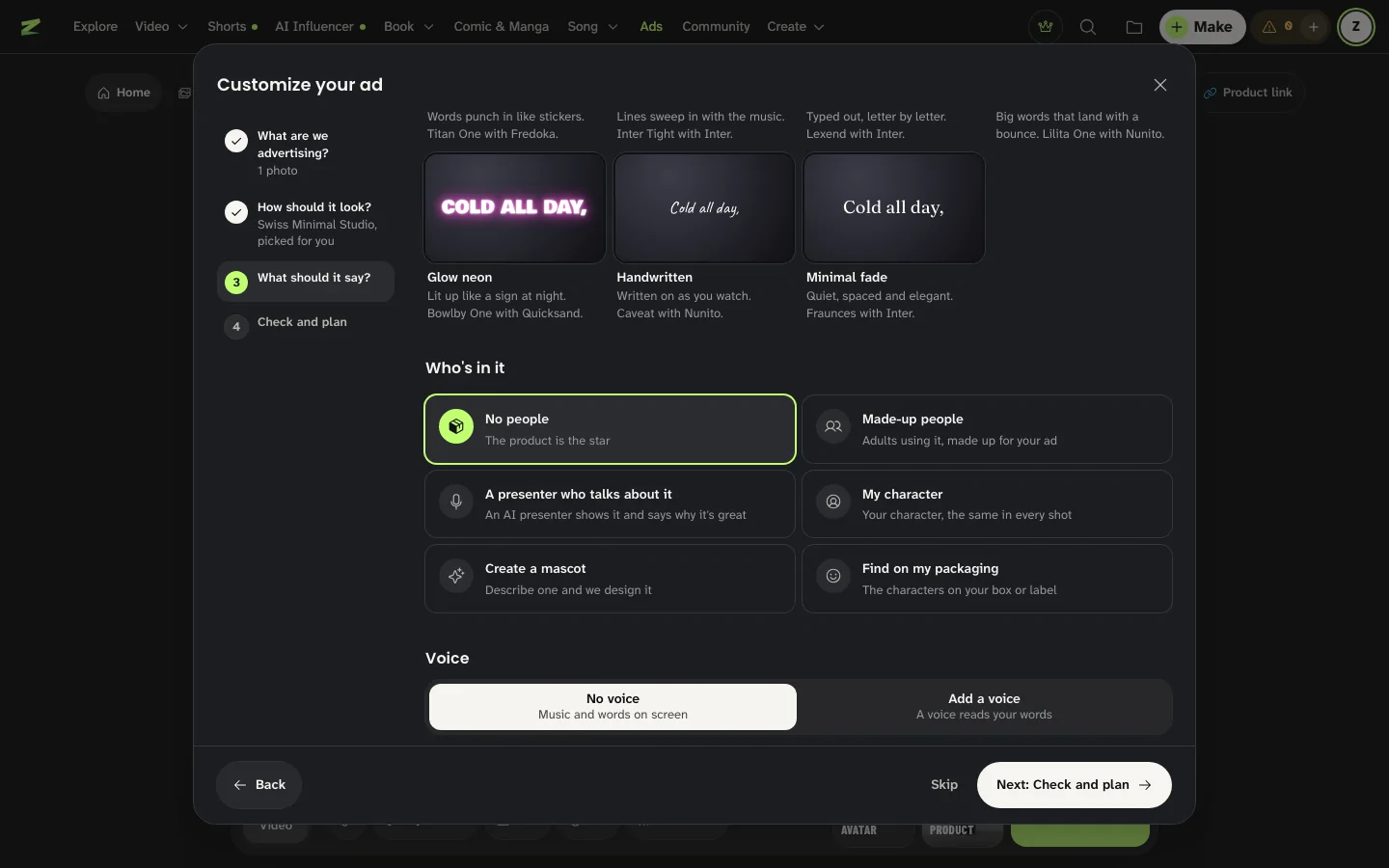
"What should it say?" scrolled to "Who's in it" and "Voice," with "No people" picked. Through each step with the "Next" buttons, ending on "Check and plan." Step 4: Plan it, then make it
For a video, press "Plan it." Planning is free. The planning panel shows each scene, and the Plan card shows the price. Change anything for free, then press the make button: "Make my ad" with its price, or "Add credit and make my ad" if your credit does not cover it yet.
Planning free; price on the button
For an image, press "Generate"; the price shows before anything is made.
Step 5: The Business door: an ad for your app, website or service
Switch the tab to "Business." "Turn your app, site or business into ready-to-post ads." "No product photo needed."
Storyboard free; price on Make my ad
For an app or website, the steps are Start, Files, About, Brand, Type and Check. The composer has a Logo slot and a Files slot: upload your screens, logo or photos, then choose an ad type in the "Pick an ad type" window. Each card shows a sample and says what it needs:
- "Product demo" — "Your app, piece by piece: close-ups of your real screens, moving words and a cursor that shows how it works." Needs 2 or more screenshots from inside your product (or a screen recording) and one example of what it makes.
- "Bold words" — "Big, fast words in your colors, cut with your screens. Best for a launch or an offer." Needs 2 or more screenshots, or 1 plus your logo.
- "Presenter and screens" — a made-up presenter with your screens, 2 or more screenshots.
- "Photo story" — 3 or more photos.
Lengths are 15 or 30 seconds; shapes are "Tall 9:16," "Square 1:1" and "Wide 16:9." Pick a button: "Get started," "Try it free," "Sign up," "Download the app," "Book now," "Learn more" or "Shop now."
The window's footer reminds you: "Length and shape are on the composer. Seeing your storyboard is free." Press "Plan it · Free," then "See my storyboard" ("Free to see. Nothing is charged yet."), then "Make my ad." "See my storyboard" opens only once you have added 2 or more screenshots of your product (or a screen recording) and filled in the business name, what it does and the button text; until then it tells you what is missing: "Add a name, what it does and your button." Nothing is charged before "Make my ad."
For a local business, practice, event or cause, you answer a few short questions: "What is it?", "Its name," "What it does, in one sentence," "Who is it for?" and "What problem does it solve?" The offer is "Typed exactly as you want it read. We never write an offer, a price or a deadline for you." If you quote a customer or a number, you check a box to confirm it is real and you may use it.
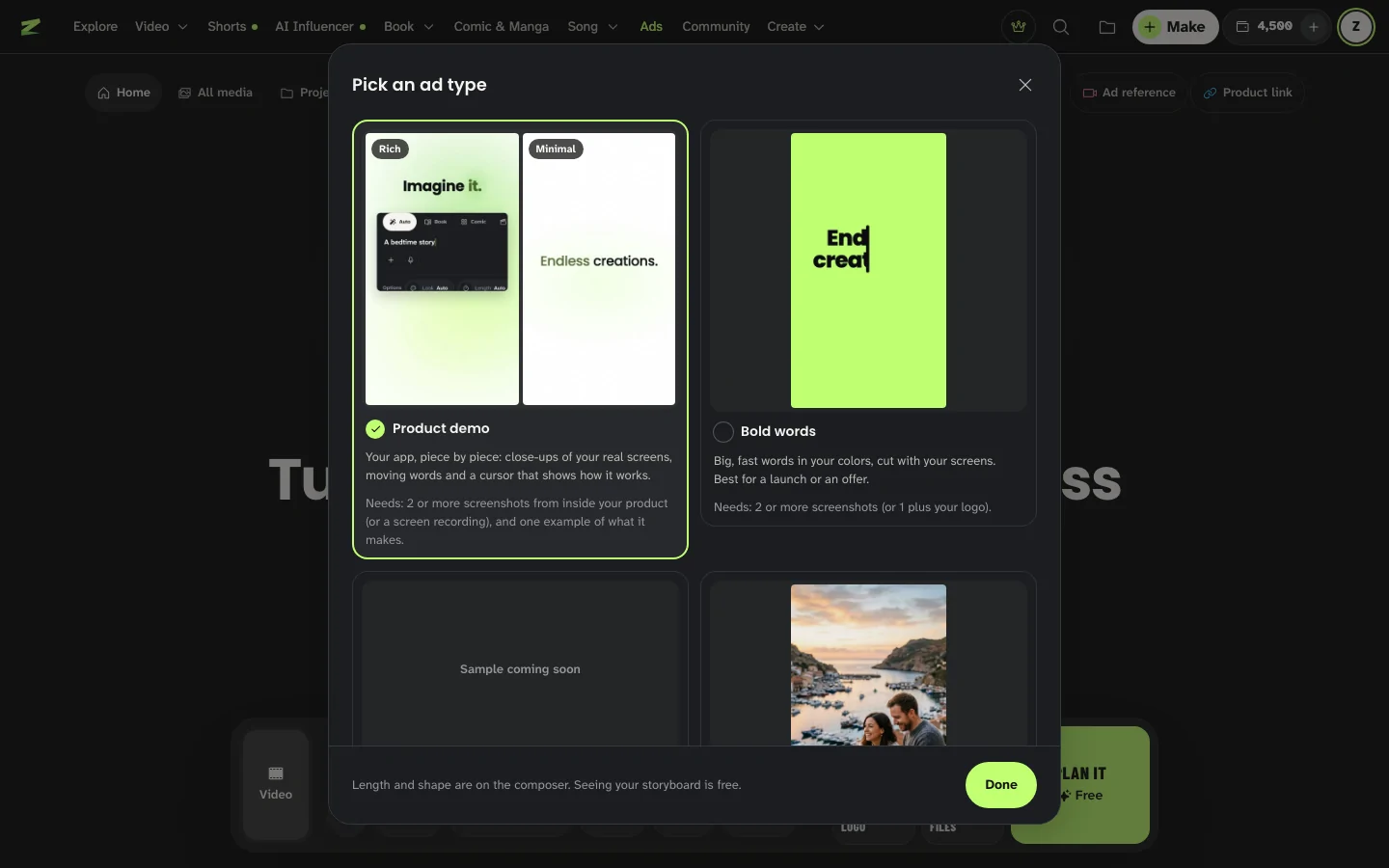
"Pick an ad type": each card says what it needs, and seeing your storyboard is free. Step 6: Download and post
Download the finished ad from Share; downloading is free. Post it with your text in the caption too, since many people scroll with the sound off.
Download free
What makes an ad work
Show the product in the first second. People decide fast. An ad that opens on a mood shot and shows the product at second eight loses most of its viewers before the product appears. When you read the plan, check that the product is on screen right away, and ask for it if not.
One message. "Keeps your water cold all day" is one message. Adding "and free shipping and a new color and our story" makes it four, and none of them sticks. Put the one message in the headline and leave the rest for your website.
A clear button. "Shop now," "Book now," "Try it free." The button text should say exactly what happens when someone taps.
Make two and compare. Try one 10-second ad and one 15-second ad, or two different concepts, and see which one people click. Each is its own small price, and the winner tells you what to make next. For a presenter who talks about your product to camera, see how to make an AI presenter video.
What it costs
Planning, checking the plan and seeing the storyboard are free; reading your colors from your website is free. The ad is charged once, at the price on the make button, in credits (1 credit is 1 cent). Longer ads and ads with voices or presenters cost more. See pricing.
Common mistakes
- A busy product photo. — One product, plain ground, good light.
- No headline. — Type the words you want; they are set exactly.
- Too long for the platform. — Start with 10 or 15 seconds.
- Asking for an offer you have not decided. — Type your own offer; it is never invented.
Questions
Do I need a product photo?
No. Words alone are enough, and the Business door needs none.
Can I use my logo and colors?
Yes, add your website or brand guide.
Can I get every shape?
Each ad is made in one shape; make another for a second shape.
Will the words be spelled right?
Yes. Headline, tagline and button text are set as typed.
Make it yourself
Who wrote this
The team building Zing Canvas
Written by the people who build Zing Canvas: step-by-step guides to making picture books, comics, bedtime stories, greetings, songs, music videos, shorts and ads in Zing Canvas, with the real screens, what each step costs, and the everyday problems they solve.